
FAQ
Short answers to the questions players and pack makers ask most about Punchy!.
This page has not been translated into Indonesian yet, so it is shown in English. Read in English
On this page
These are the questions players and pack makers ask most about Punchy!. Each answer is a few sentences and ends in a link to the page that goes deeper. Players can start at the top. Pack makers will find most of what they need under “Making animations” and “Model parts and physics”.
The answers were checked against Punchy! 3.0 for Fabric on Minecraft 26.3. Another version or loader can word a label a little differently.
Installing and running Punchy!
Which Minecraft versions and loaders does it support?
Punchy! comes for Minecraft 26.4 (snapshot 2) on Fabric, for 26.3, 26.2, 26.1, 1.21.11, 1.21.5 and 1.21.1 on Fabric, Forge and NeoForge, and for 1.20.1 on Fabric and Forge. The version is 3.0. Every version and loader has its own file, and a file for the wrong one will not load. The table, with every file, is in Supported versions and loaders.
Where do I download it?
Get Punchy! from Modrinth or CurseForge. On either site, pick your Minecraft version and loader in the filters, then copy the .jar into the mods folder of your profile. Getting started has the steps.
Does a server need Punchy!, and do other players?
No. Punchy! is a client mod. Install it on your own game only. It changes how your own hands and held items are drawn in first person, so nobody else has to install anything to play with you. Whether a particular server allows client mods is that server’s own rule. Getting started shows how to install it.
Do I need Fabric API?
On Fabric, yes. The 26.3 build also needs Fabric Loader 0.19.5 or newer and Java 25 or newer. Download Fabric API for your Minecraft version and put it in the same mods folder. See Getting started.
Which key opens the Punchy! menu, and can I change it?
F8 opens the Punchy menu, and the same key closes it. Every change is saved the moment you make it, so Done, Esc, the X and F8 only close the menu. To change the key, open Options, Controls, Key Binds and look in the Punchy! group: Open Punchy Menu is F8 and Inspect is I. Every setting is listed in Settings and controls.
Does Punchy! animate my whole body or the third person view?
No. Punchy! animates your first person hands, arms and held items, and its custom item models draw in first person only. In third person the item looks the way Minecraft draws it. Animating the whole body is a separate mod, Punchy! Moves. It starts at Punchy! Moves: getting started.
Settings and other mods
How do I turn Punchy! off, or turn it off for one item?
To switch the whole mod off, turn off the Enable Punchy switch under Done in the F8 menu. The game then draws your hands the vanilla way. To keep single items vanilla, open the Item Blacklist tab, search the item and turn on Block on its row. Turn on Both hands as well to keep the other hand vanilla too. To cover a whole mod, pick its chip after Filter by mod and press Block all shown; with the search empty that covers every item of that mod. To block many items at once, type an item id, a mod id or a pattern with * and ? into the pattern field and press Add pattern. The steps are in Keep items vanilla.
You can also write the blacklist in config/punchy/punchy_config.json with the game closed. * stands for any run of characters, ? for one character, and a bare mod id covers the whole mod:
{
  "itemBlacklist": ["minecraft:*_shovel", "minecraft:shield", "examplemod"]
}
The swings are too fast or too slow. What do I change?
Drag Animation Speed on the General tab, in the Animation section. It runs from 0.5 to 7 and starts at 5.5. Most clips (attacks, mining, use, idle and key animations) play at that many times the speed they were made at. Bow, crossbow, shield, trident, eating, drinking and equip clips play at their authored speed, and a clip with its own anim_speed_ token ignores the setting from the token’s time onward. How fast clips play explains it for pack makers.
A pack has walk, sprint or jump clips, but they never play
Those clips run only when Resource Pack Movement is on, on the Movement tab. It is off by default, which means walking, sprinting, jumping, falling and landing use Punchy!‘s built-in movement. Turn it on to let a pack’s keyframe clips drive them. A move the pack has no clip for keeps the built-in movement. See Settings and controls.
Where are my settings saved, and can I copy them to another instance?
Every Punchy setting, the item blacklist and your Mix Packs choices are saved in config/punchy/punchy_config.json. The menu’s own options (Menu size, Reduce motion, Pause game while open and Interface sounds, in the Menu section of the General tab) and the tab you used last are saved in config/punchy/menu_prefs.json. Copy both files to move a setup. A missing or broken menu_prefs.json just gives the defaults.
{
  "lastTab": "general",
  "reduceMotion": "auto",
  "menuSize": "auto",
  "pauseWhileOpen": true,
  "interfaceSounds": true
}
For named setups you can switch between, open the Profiles tab, type a Profile Name and click Save current as profile. A profile holds your settings and the item blacklist, not your pack choices. Pack choices are saved as setups in Mix Packs. Close the game before you edit punchy_config.json by hand, because the menu writes it each time you change a setting, and keep a copy. A mistake such as a missing comma makes Punchy! write a fresh file with the defaults over yours. More in Save a setup as a profile.
Does it work with Better Combat?
Yes. With Better Combat installed (also on CurseForge), turn on Better Combat Support on the Compatibility tab. It is OFF by default. With it on, Punchy! stops Better Combat’s own first person attack animation and item poses, so Punchy!‘s attack clips play instead. Better Combat’s weapon trail and hit effects are not part of that, and they still draw during the swings. Pack makers can give an item a betterCombat list, where each entry names up to six clips in attack_1 to attack_6. See With Better Combat.
Video coming soon
Which mods does Punchy! not get along with?
Two. Hold My Items makes you see duplicate arms, so remove it. Locomotion cannot be used together with Punchy! either, so remove one of the two. When one of them is installed next to Punchy!, the game shows a warning the first time you join a world. See Getting started.
My arms disappear when I look down
You probably have the First Person Model mod. With it installed, First Person Model Auto Hide on the Compatibility tab hides Punchy!‘s arms once you look far enough below the horizon, so that mod can show your body. FPM hide angle sets how far that is, and it can be changed only while First Person Model Auto Hide is on. It starts at 60 degrees, and above 85 it reads Never. Turn First Person Model Auto Hide OFF to keep Punchy!‘s arms at every angle. The row is on the Compatibility tab, described in Settings and controls.
What do the other switches on the Compatibility tab do?
Spatial GUI Support animates your hands in first person inventory screens. The row is greyed out with a Not installed badge until the Spatial GUI mod is installed. When you turn it on, Punchy! also turns on Spatial GUI’s inventory, container and crosshair options once, and you can change them in Spatial GUI’s own settings. Enable InteractiveStuff Compat is off by default. Turned on, it switches off the four effects of the World models section on the Items & World tab (boat, minecart and raft models, pistons, chests and the enchanting table) in one go, whatever those rows say. Sword Blocking Mechanics Support is off by default. Turned on, Punchy! plays its own animation for sword blocking and turns off that mod’s first person render. Settings and controls lists every row of every tab.
Nothing animates when I swing
Go through these in order.
- Enable Punchy is on (the switch under Done in the F8 menu).
- The item is not in the Item Blacklist.
- You are in first person.
- A pack gives that item an animation. With the built-in Punchy! pack switched off and no other pack on, Punchy! shows a window titled Punchy: resource pack disabled. Move the built-in Punchy! pack to Selected in Options, Resource Packs, then press F3+T.
Troubleshooting goes through more cases.
Resource packs
How do I install a pack for Punchy!?
-
In the game open Options, Resource Packs, then Open Pack Folder, and put the pack, a folder or a
.zip, in it. -
Move the pack from Available to Selected with the arrow on its icon.
-
Move it above Punchy! and above any other pack you want it to beat. A pack higher in Selected wins.
-
Press Done. Minecraft reloads, and Punchy! reads its files again.
Video coming soon
Adding a pack and putting it above Punchy!.
The page Resource packs shows where Punchy! looks inside a pack. The Punchy! compatibility collection on Modrinth gathers packs and mods that officially support it.
A pack is on, but nothing changed
Check these in order.
- The pack sits above Punchy! in Selected, because the higher one wins for anything both define.
- You waited a second after the reload. Punchy! loads right away and once more about a second later.
- A choice saved in Mix Packs for that kind of item overrides pack order. Check it in Mix Packs, or press Use resource pack order.
- A profile saved in the Hand Editor that sets the same item wins over the pack, because the profile is applied after every pack.
- Every compat file and model part definition is valid JSON with the right value types. One mistake in one of those makes Punchy! skip that whole file without a message. A clip file loses only its bad clip.
The full list is in Things that stop a pack from loading.
Which pack wins when two packs change the same thing?
The one higher in Selected, with three details:
- A clip with the same name in two packs: the higher pack’s clip is used whole. Punchy! never mixes two clips bone by bone.
- Rules in compat files: the higher pack wins field by field, and a lower pack only fills in what is still empty.
- Model part definitions are not ranked by pack. The one whose id sorts first wins (namespace first, case ignored). A definition with a
customNamebeats an unnamed one when the item’s name matches.
Load order and what wins has the whole table.
Can I take the sword swing from one pack and the inspect from another?
Yes, with Mix Packs. Press F8, click Mix Packs, find the group of the item kind (such as Melee or Ranged and use) and pick the pack in the chooser on the row, such as Sword or Bow. The choice is saved at once and needs no restart. In single player, where the menu pauses the game by default, it reaches your hand when you close the menu, except on Minecraft 1.21.5 and 1.21.11, where it applies while the menu is still open. To keep a set of choices, click Save as… and name the setup. A setup you load or save stays loaded, and its name shows in the setup list at the top of the tab. While one is loaded, Punchy! applies it again at every resource reload, such as F3+T or Done on the Resource Packs screen, so a pick you make afterwards is replaced. To keep that pick, click Save as… and save under the same name, or choose Current choices in the setup list before the next reload. The pack you choose supplies every animation type it defines for that kind, such as the attack or the inspect. For a type it leaves out, Punchy! takes the first other pack in that row, from the top of Selected down, that has one. Your choice beats pack order, and Use resource pack order clears every choice. See Mix the packs.
Do I have to restart the game after I change a pack?
No. Press F3+T in a world, or press Done on the Resource Packs screen. Punchy! reads clips, rules and model parts again. One exception: particle textures are kept until you restart the game, so restart after you change one. See Reload after a change.
Making animations
What do I need to make my own animation?
Three things: a clip file that holds the movement, a rule in a compat file that says which item and action plays it, and a pack with a pack.mcmeta that holds both. You can key the clip in Punchy! Studio, in Blockbench 5 or in Blender with the Punchy Blender add-on. All three end in the same pack. A clip from Blender is the one that leaves use_keyframes_v2 out of its timeline: the add-on writes the older key layout, and with the token a turn about Y or Z plays 9 to 11 degrees off. How to create custom animations walks through each one from an empty file to a clip in your hand.
Which tool should I use?
Punchy! Studio is the one that plays your unsaved clip in your real hand while you work, binds it to items and actions, and writes the rule file for you. It is a separate client mod that needs Punchy!, and it needs Fabric API on Fabric. For detailed models or long rigs you can animate in Blockbench, then open the clip in Studio’s Library to bind, test and export it. When to use Studio or Blockbench compares them.
How do I make a first clip in Punchy! Studio?
-
Join a world, hold a sword, switch to first person and press F6. If the editor opens in the Third Person perspective, pick First Person with the switch between the menus and the workspace tabs. The keys below are those of the Punchy Studio keymap, the default: if a window asks which keys you know, press Keep Punchy Studio Keys (Pick a keymap explains the other three).
-
Choose File > New Animation…, type a Name such as
my_sword_swing, set the Length to0.6, untick Set up bindings next and press Create. -
In the Outliner select Right Arm, press E, then press I to key it at the start. Press Right ten times, type
-60in the Rotation X field of the Transform panel and press Enter. Then press Shift+Right and type0the same way. Each value you type is keyed at the playhead.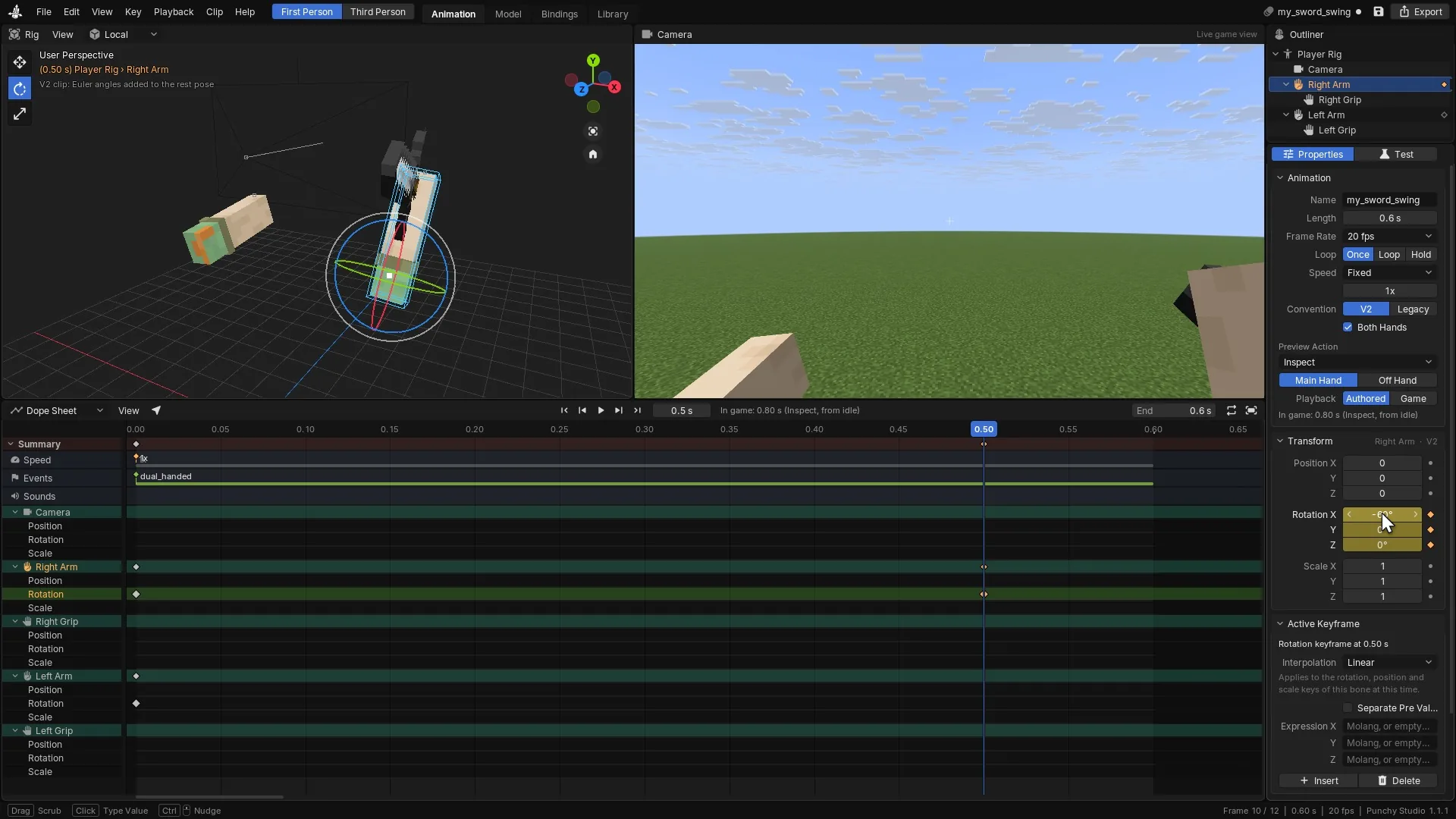
Keying the right arm at the start, partway and at the end, then playing the swing. -
Press Ctrl+B (or click the Bindings tab) for the Bindings workspace and Ctrl+N for New Rule for This Clip. Keep Target on Held Item, set Type to Attack and press Add Rule.
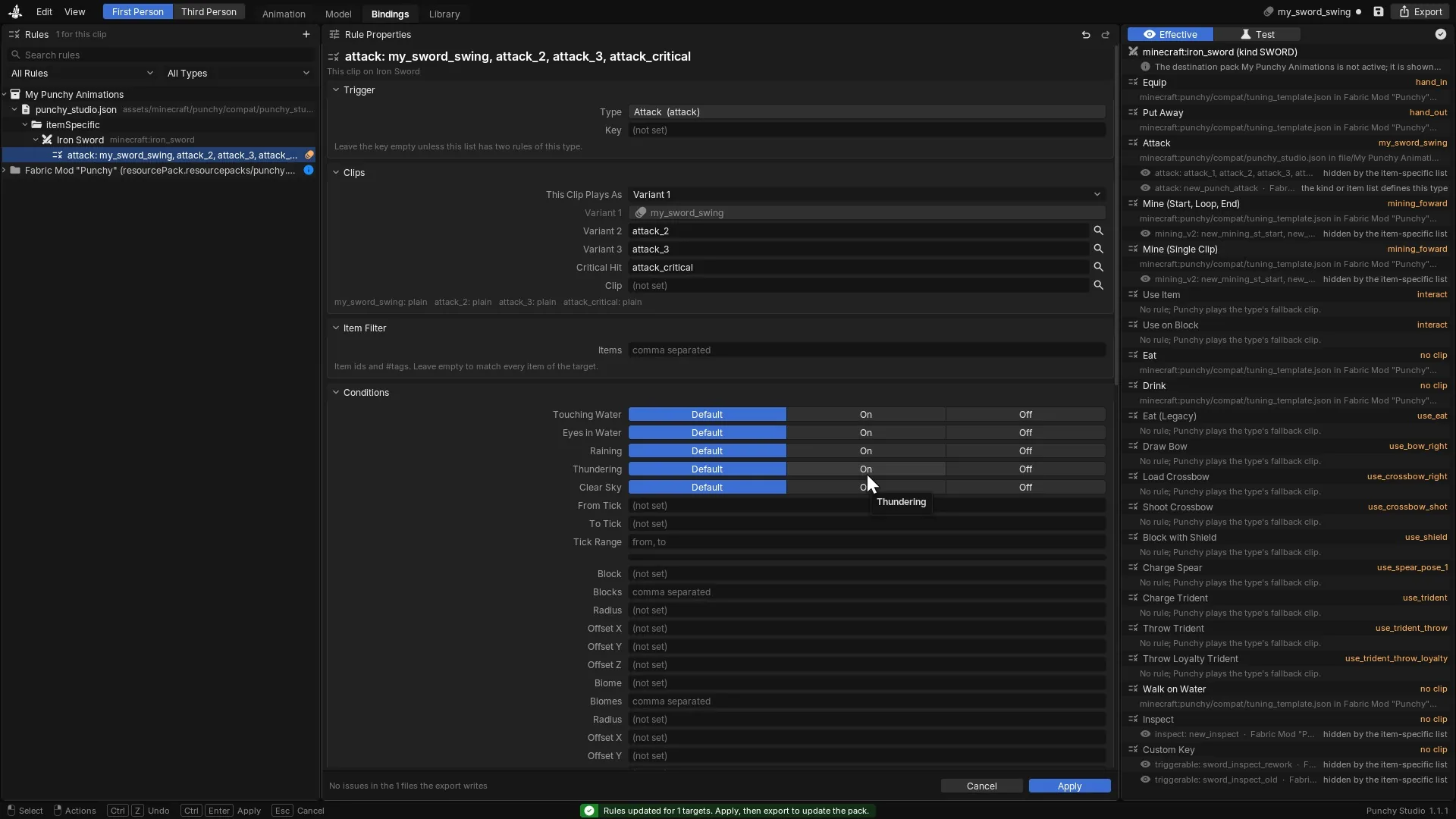
A new rule for this clip: the held sword, the Attack type, then Apply. -
Press Ctrl+Enter to go back, switch to the Test tab, set Plays As to Attack and press Play in Game.
-
Press Ctrl+S to save and Ctrl+E to export. Type a new folder name, keep Activate the pack and play it now ticked and press Export. The game reloads, the editor closes and Punchy! plays your clip in your hand. To see it again, swing the sword: your clip is the first swing of the combo.
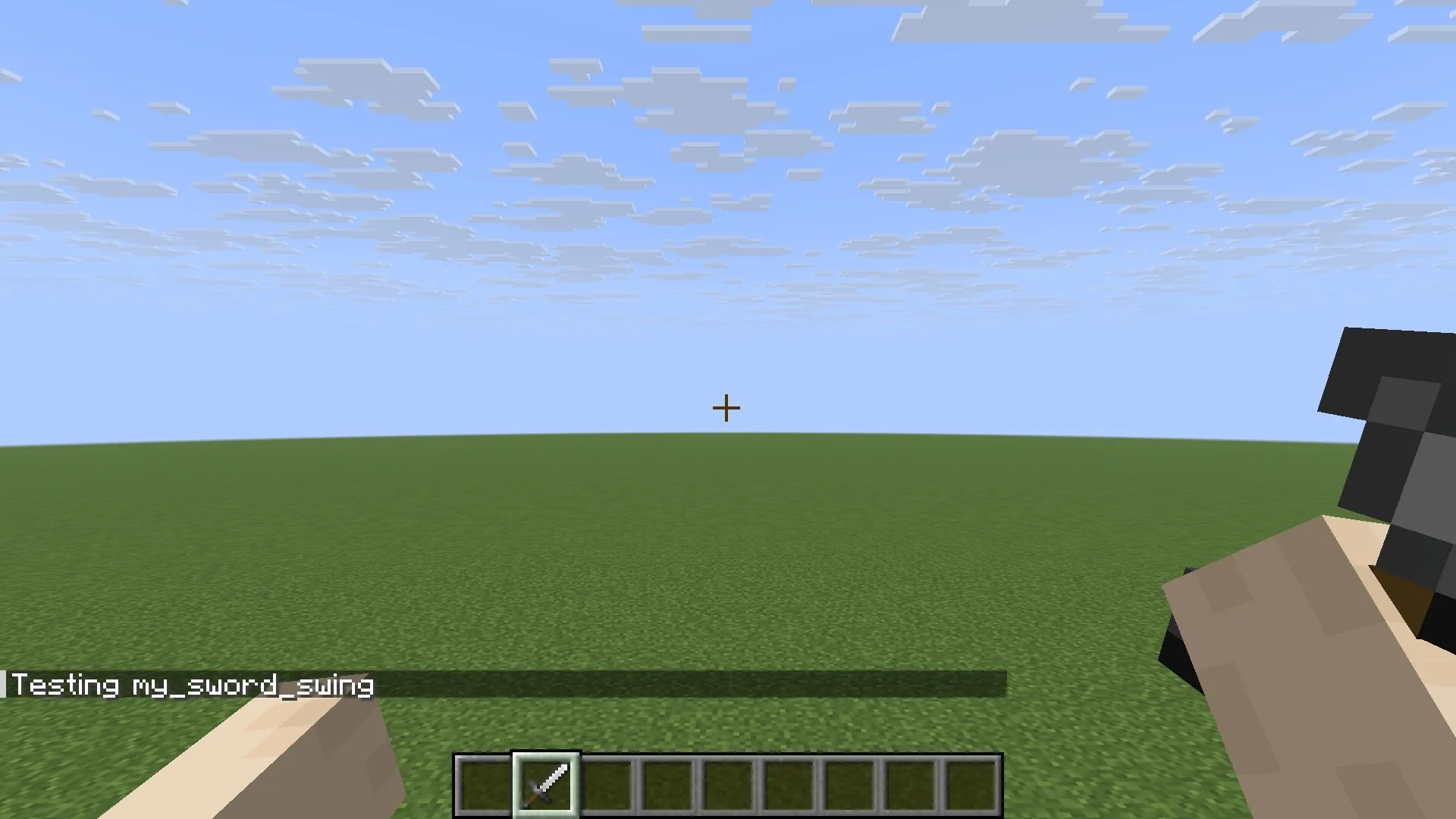
Save and export to a new pack: the game reloads, the editor closes and the clip plays in your hand.


The longer version, with every panel, is Punchy! Studio for Punchy! packs.
Where do the files of a pack go?
| What | Where |
|---|---|
| The pack’s own file | pack., at the top of the pack, next to assets |
| Clips | assets/ |
| Rules (compat files) | assets/, or assets/, in any subfolder |
| Model part definitions | assets/ |
Folder names are exact and lower case. animation instead of animations is not an error: Punchy! never sees the file. A zip must show pack.mcmeta and assets at its top level, not inside one extra folder. See Where Punchy! looks.
Where do I get the rig to animate on?
Punchy!‘s first person rig is a small Bedrock geometry file with a camera, a body, two arms and two grips. Punchy! Studio has it built in, and Player rig gives it to you as a download with every bone named. Keep its names and pivots as they are, or a clip will not look in game the way it looks in your tool.
My clip does not play. What do I check?
- The pack is off, or you did not reload. Check Options, Resource Packs, then press F3+T.
- The file is in the wrong folder. Clips and rules have their own folders (see the table above).
- The clip name does not match. Names are case sensitive.
My_Sword_Swingis notmy_sword_swing. Punchy! does not report a wrong name. It plays the built-in clip of that moment instead. - The item does not match. Item ids are lower case with their namespace, such as
minecraft:iron_sword. A group name such asSWORDis in capitals. - Another list replaces yours. See the question about group rules below.
- It is a walk, sprint, jump or landing clip. Turn Resource Pack Movement on, on the Movement tab.
- The clip has no
animation_length, or it is 0. Keyframe moves (walk, sprint, jump, landing) skip a clip whose length is 0. - A sound stays silent. The
.ogghas to exist atassets/punchy/sounds/animationssounds/<name>.ogg, and the sound name insound_effectsmust match it exactly. A missing file is skipped with no message. - It plays too fast to see. Add
anim_speed_1to the clip’stimelineat time0.0, for example"0.0": "anim_speed_1;". A timeline token acts from its time onward, so a token at time 0 covers the whole clip.
Studio’s Effective column in the Bindings workspace shows which rule Punchy! would use. Why a clip does not play has the long list.
Why was my whole file ignored, and why is there no message?
A compat file is read in one go. Any JSON mistake, or a value of the wrong type such as text where a number belongs, makes Punchy! skip the entire file, and nothing is written to the log. A model part definition with one wrongly typed field is dropped the same way. A clip file is gentler: a bad bone key, a bad vector or an animation_length that is not a number drops only that clip, with a warning in logs/latest.log. Some other wrong values, such as a timeline key that is not a number, are ignored with no message at all. Run your JSON through a validator before you test, and use Studio’s Rules Check when you export, because it flags the usual causes. See Things that drop a whole file.
Video coming soon
Are names case sensitive?
Some are, and a wrong case is silently ignored. Clip names are exact. Item kinds and group names in the item map must be capitals: SWORD works and sword is ignored. Item ids must be lower case with their namespace. A rule that names a clip that no loaded pack has is not reported either. Punchy! plays the built-in clip instead. A key that is misspelled or in the wrong case is ignored with no message, so a typo does nothing. See Tool kinds.
How do I make each swing play a different clip?
Give the attack rule up to three clips. Punchy! plays var_1, var_2 and var_3 in turn, one per swing, then starts over. The combo also starts again after 30 ticks without a swing. critical_hit names the clip for a critical hit. Setting disable_mining_animation makes a swing at a block play these attack clips instead of a mining clip. To pick a clip by state or condition, give a rule variations: the matching one with the highest priority plays.
{
  "item": {
    "SWORD": {
      "disable_mining_animation": true,
      "customAnimation": [
        {
          "type": "attack",
          "var_1": "sword_slash_1",
          "var_2": "sword_slash_2",
          "var_3": "sword_slash_3",
          "critical_hit": "sword_crit"
        }
      ]
    }
  }
}
Save it as assets/minecraft/punchy/compat/my_swords.json, with clips named sword_slash_1, sword_slash_2, sword_slash_3 and sword_crit in a clip file in assets/minecraft/punchy/animations/. A clip’s name is its key under animations in that file, and a name no pack has plays the built-in clip instead. Punchy! starts a new attack clip at most about 3.5 times a second. Add "trigger_on_input": true to the rule to start a clip on every click. See Attacks and combos.
I wrote a rule for one item, and the group’s rules stopped working for it
An item’s own customAnimation list replaces the list of its group. Even an empty list does. The types the item’s list does not have are not inherited from the group. Only default_animations and the built-in clips fill the gaps. Copy the types you still want into the item’s list. When the item also has a non-empty default_animations, two rules with the same type and key collapse into one, and the last one stays. Without default_animations both are kept, but the clearer way is var_1 to var_3, or different key values. See Which rule wins.
How do I add a key that plays my clip?
Add a triggerable entry with a key. It shows up in Controls under Punchy Triggerable Animations, and the player can rebind it there.
{
  "default_animations": [
    {
      "type": "triggerable",
      "id": "my_pack_wave",
      "title": "Wave hello",
      "name": "my_wave",
      "key": "H"
    }
  ]
}
Save it as a compat file in assets/minecraft/punchy/compat/, with a clip named my_wave in assets/minecraft/punchy/animations/. An entry with no key never reaches the Controls screen. A player’s rebind is saved under the id, so never change it after release. See Add a key for your own clip.
Can I animate items from other mods?
Yes. Rules match the item id with any namespace, such as examplemod:ruby_sword in itemSpecific. Punchy! also sorts every item into a kind from its tags, so a modded sword that is in the sword tag lands in the SWORD group by itself. To catch many items at once, a related:dagger key or a pattern_matching text applies to every item whose id, id path or translation key contains that text. See Pattern matching.
How do I move an item in the hand without guessing numbers?
Hold the item, press F8, open the General tab and press Open on the Hand Editor row, then drag a slider such as Offset X with the left mouse button. While you hold, the rest of the window hides so you can see the item. When it sits right, click Save Profile to keep it, or Export Tuning Helper, which writes config/punchy/dev_tuning_helper/tuning_helper_dev.json and opens that folder. Copy the entries you want from that file into a compat file in your pack, then check the result against Things that drop a file or a rule. For a quick look at an arm offset, /punchy debugposition, /punchy pos 0 -2 0 and /punchy rot 0 0 15 move the arms from chat. See Tuning editor and debug.
Why did my item disappear after I edited a pose?
A pose without a scale counts as scale 0, and the item is drawn at size 0. Write scale in every pose, as the Hand Editor’s export does. The left hand mirrors the right, so the sign of rotZ flips. See Make your first compat file.
Can I keep working on a pack I already have?
Yes, with Build from Pack in Studio’s Library. Pick a pack from your resourcepacks folder, active or not, name the new pack and press Build. Every clip Punchy! plays from the pack becomes an animation of the new pack, and its rules, sounds, model parts and item models come along. The pack you started from is only read.

See Build from Pack.
How do I share my pack?
A pack for Punchy! is an ordinary resource pack. Zip it so that pack.mcmeta and assets are at the top level, and players put the zip in their resourcepacks folder and move it above Punchy! in Selected. Studio’s export writes this structure for you. Check the rules of Things that stop a pack from loading before you release.
Model parts and physics
Can I give an item its own 3D model?
Yes, with a model part. A definition names the items it covers and points to a geometry (a Bedrock .geo.json, which Blockbench writes) and a texture. Optional item clips move the bones of the model, and you can add glow, particles and physics. Punchy! Studio’s Model workspace can write all the files. Model parts draw in first person only. See Model parts overview.
My model part does not show
The usual causes are a definition that Punchy! dropped silently, the wrong folder, a geo id that is not complete, and two definitions for one item.
- A definition with a JSON mistake, a missing
items,geoortexture, or a wrongly typed field is dropped whole. - Definitions are read only from a
definitionsfolder underassets/<namespace>/punchy/model_parts_items/. - The
geoid is used exactly as written. Write the full path, such asmypack:punchy/model_parts_items/geo/baton.geo.json. - A definition whose geometry file is missing still claims its items, draws nothing and hides the later definitions for them.
- Once any cube has a
uvobject, cubes that use the short[u, v]form are not drawn. - A definition with a
customNameexists for the item, and the held stack does not carry that name: no unnamed definition is used, so the normal item shows.
Things that stop a model part from showing has the complete list.
How do I turn particles and glow off?
On the Effects tab of the F8 menu, turn off Enable Particle System to stop every particle that model part items emit, or Enable Model Parts Glow to turn off the bright glow (fullbright and daylight) of model part particles and keep the particles themselves. That switch does not touch the glow of the model’s own bones (bone_emission). The Resource Pack Model Parts switch on the Items & World tab turns the whole model parts system off and takes effect after F3+T. In config/punchy/punchy_config.json its key is disableResourcePackModelParts, which is the opposite: true turns it off. It is false unless you set it. See Particles.
Can a held item swing like a lantern?
Yes. Held items can swing as pendulums that follow your camera and your steps, with three modes: NONE, FULL_PENDULUM and FORWARD_PENDULUM. Players switch it with Enable Item Physics on the Items & World tab. Pack makers add a physics entry to an item or group in a compat file, such as "physics": { "name": "FORWARD_PENDULUM", "limitDeg": 25.0, "speed": 1.0 }. Write the settings in camel case, because snake case names such as limit_deg are not read there. To turn it off for a kind or an item, set its physics to NONE. See Item physics.
Is there a step by step example of a custom item?
Yes. The two tutorials build a bucket pack and a torch pack from scratch, with a Blockbench path and a Studio path: Bucket pack and Torch pack. They use per-state model parts, conditions such as being in water, item clips, particles, glow and physics.
The settings these answers use
| Key | Type | Default | What it does | Example |
|---|---|---|---|---|
Enable Punchy | boolean | ON | The switch under Done in the F8 menu, file key enableMod. Off draws your hands the vanilla way. | |
Animation Speed | number | 5.5 | General tab, Animation section, file key animation. A slider from 0.5 to 7 for most clips. | 4.0 |
Resource Pack Movement | boolean | OFF | Movement tab, file key disable, which is the opposite: true means the built-in walk, sprint, jump, fall and landing movement. On lets a pack's keyframe clips drive them. | |
Better Combat Support | boolean | OFF | Compatibility tab, file key bettercombat. Punchy!'s attack clips replace Better Combat's own first person ones. | |
First Person Model Auto Hide | boolean | ON | Compatibility tab, file key first. Works with the First Person Model mod. | |
FPM hide angle | number | 60 | Compatibility tab, file key first. A slider from 0 to 90 degrees. Above 85 it reads Never. | |
Enable Item Physics | boolean | ON | Items & World tab, Physics section, file key disable, which is the opposite: true turns item physics off. Held items swing as pendulums, and held slime wobbles. | |
Enable Particle System | boolean | ON | Effects tab, file key enable. The master switch for particles on model part items. | |
Enable Model Parts Glow | boolean | ON | Effects tab, file key enable. Bright (fullbright and daylight) glow on model part particles, not the glow of the model's own bones. | |
item | list of strings | [] | Set on the Item Blacklist tab or by hand in the file. Item ids, mod ids and * and ? wildcards, in lower case. | ["minecraft: |
disable | boolean | false | Items & World tab, row Resource Pack Model Parts (shown the other way round). true in the file turns the whole model parts system off; it takes effect after F3+T. |
Still stuck?
Where do I ask for help or report a bug?
Join the Punchy Discord. The F8 menu has the same links: open the Help & Support tab for Please donate, Discord, Wiki and Report a bug (Discord). Copy debug info there puts your Punchy! version, your Minecraft version and loader, and your changed settings on the clipboard, so paste it into your report. A report is easier to answer when it names the Punchy! version, the Minecraft version and loader, and the packs you have on and their order. Add logs/latest.log from your game folder if a pack misbehaves, because a clip file with a bad value leaves a warning there. Troubleshooting collects the usual problems with what to check for each.
Related pages
- Getting started: install Punchy! and check it works.
- Settings and controls: every option, key and file setting.
- Resource packs: where Punchy! looks and which pack wins.
- Mix the packs: choose a pack for each kind of item.
- How to create custom animations: from an empty file to a clip in your hand.
- Compat rules: the rule files that tune items and play clips.
- Troubleshooting: problems and how to tell what is wrong.
- Punchy! Moves FAQ: the same kind of answers for the third person mod.
Last checked against the mod on 30 October 2026.