
Animation reference
The animation file format Punchy! reads: where clip files load, bones and keyframes, loop modes, speed, every timeline token and sounds.
-


This page has not been translated into Indonesian yet, so it is shown in English. Read in English
On this page
This page is the reference for the animation files Punchy! plays in first person. Use it when you write or edit a clip by hand, when you want to know what a timeline token does, or when a clip made in Blockbench or Punchy! Studio does not behave the way you expect.
A clip file is plain JSON. It names clips, the bones each clip moves, the keys on those bones, and small text tokens that switch behaviors on at a given time. The clip file only says how a motion looks. A separate rule decides which clip plays for which item and action, and that is covered on the animation types and triggers page.
Before you start
- This page was checked against Punchy! 3.0 for Fabric on Minecraft 26.3.
- You need a resource pack that Punchy! can read. If you have none yet, start with resource packs.
- To build a clip from scratch in a tool, follow how to create custom animations. This page explains the file that tool writes.
Make a clip play
A clip needs two small files. The clip file holds the motion. The rule file tells Punchy! to play it when you attack with a sword. Copy both, then load the pack.
The clip file, saved as assets/minecraft/punchy/animations/my_sword_swing.animation.json in your pack:
{
  "format_version": "1.8.0",
  "animations": {
    "my_sword_swing": {
      "animation_length": 0.6,
      "bones": {
        "right_arm": {
          "rotation": {
            "0.0": [0, 0, 0],
            "0.2": [-70, 0, 0],
            "0.45": [35, 0, 0],
            "0.6": [0, 0, 0]
          }
        }
      },
      "timeline": {
        "0.0": "use_keyframes_v2;dual_handed;anim_speed_1;"
      }
    }
  }
}
The rule file, saved as assets/minecraft/punchy/compat/my_rules.json in the same pack:
{
  "item": {
    "SWORD": {
      "customAnimation": [
        { "type": "attack", "var_1": "my_sword_swing" }
      ]
    }
  }
}- In your game folder, create
resourcepacks/My Punchy Clipswith apack.mcmetafile and the two foldersassets/minecraft/punchy/animationsandassets/minecraft/punchy/compat. Copy thepack.mcmetatext for Minecraft 26.3 from The pack file. Resource packs has the numbers for other game versions. - Save the clip file in the
animationsfolder and the rule file in thecompatfolder. - Open Options, then Resource Packs, move My Punchy Clips to the right-hand list and press Done. If the pack was already selected, press F3+T to reload resources.
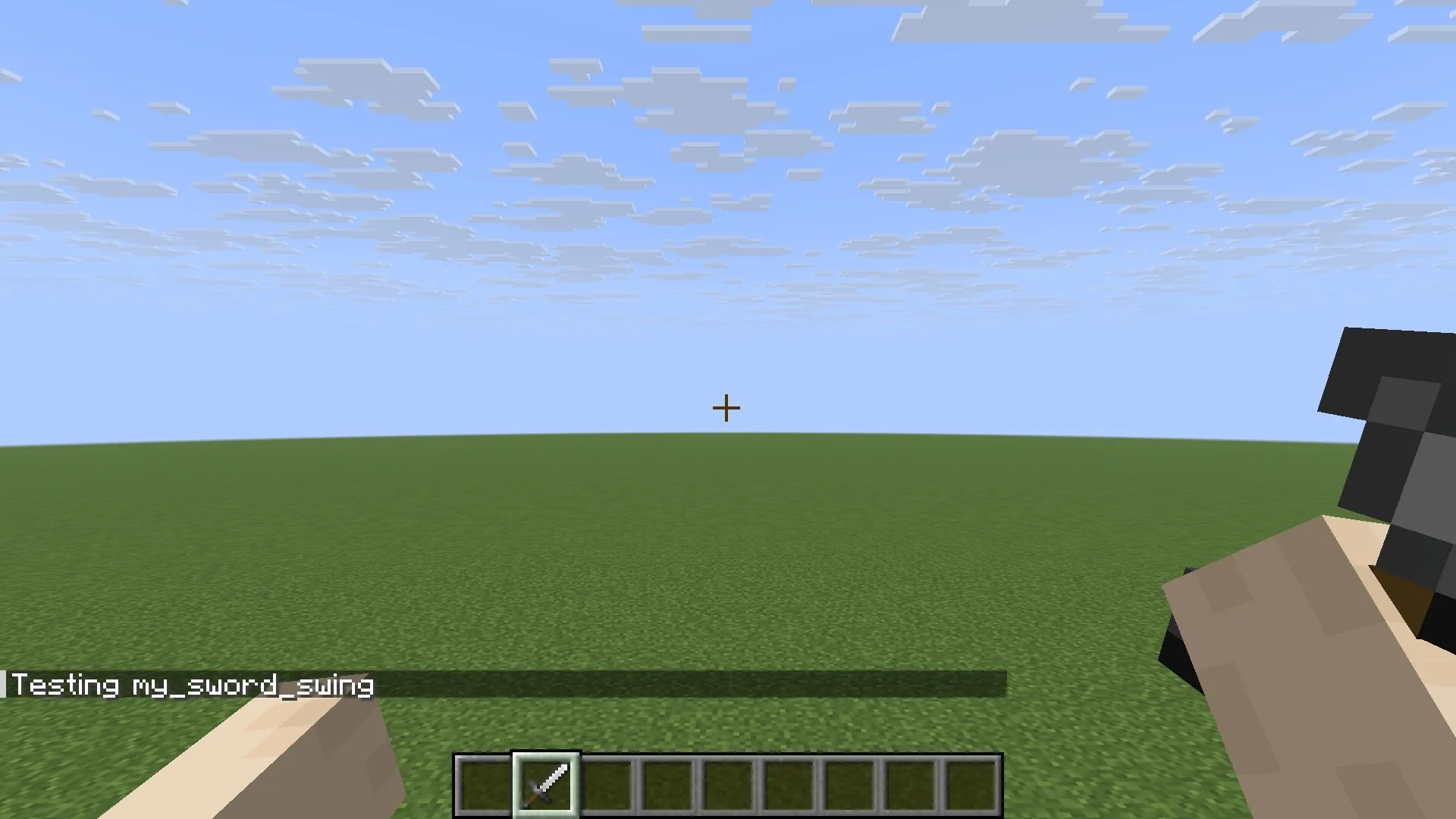
- Join a world, hold any sword, switch to first person and swing. Punchy! plays your clip.
- Change a number in the clip file, press F3+T and swing again to see the difference.
What each part of the clip does:
my_sword_swingis the clip’s name. The rule calls the clip by this exact name.animation_lengthis how long the clip lasts, in seconds.right_armis the bone that moves. The sword is held by the arm, so it swings with it.- The
rotationkeys lift the arm at 0.2 seconds, bring it down at 0.45 seconds and return it at 0.6 seconds. - The timeline line at
0.0holds three tokens:use_keyframes_v2selects the current layout,dual_handedmakes both arms follow the clip, andanim_speed_1plays the clip at the speed you authored it.
Let Punchy! Studio write the file
Punchy! Studio makes equivalent files with a timeline instead of a text editor. It writes the clip, a rule and the folders for you. With Target on Held Item, the rule is for the sword in your hand. To cover every sword, set Target to Punchy Group and type SWORD in Group, Item or Tag.
-
Join a world, hold a sword, switch to first person and press F6. If the editor opens in the Third Person perspective, pick First Person with the switch between the menus and the workspace tabs. The keys below are those of the Punchy Studio keymap, the default: if a window asks which keys you know, press Keep Punchy Studio Keys (Pick a keymap explains the other three).
-
Choose File > New Animation… (Ctrl+N). Type
my_sword_swingas the Name, set the Length to 0.6, leave Loop off, untick Set up bindings next and press Create.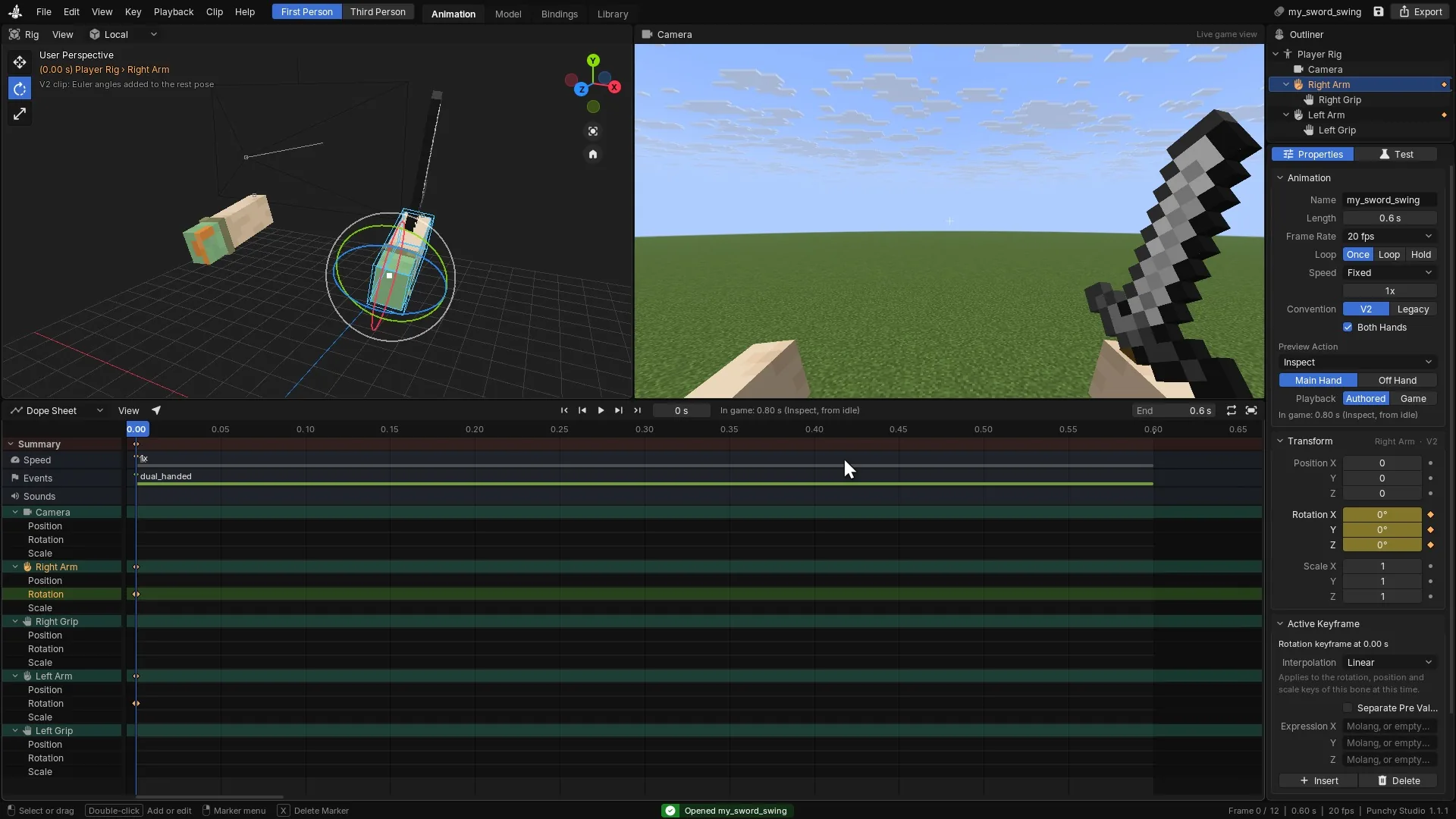
The New Animation window: the name is the clip's name, the length is animation_length. -
Select Right Arm in the Outliner, press E for the rotate tool, and press I to insert a key at the start. Move the playhead, then type a value in the Rotation X field of the Transform panel and press Enter, or turn the arm with the gizmo: either way Studio keys it at the playhead. Press Space to play.
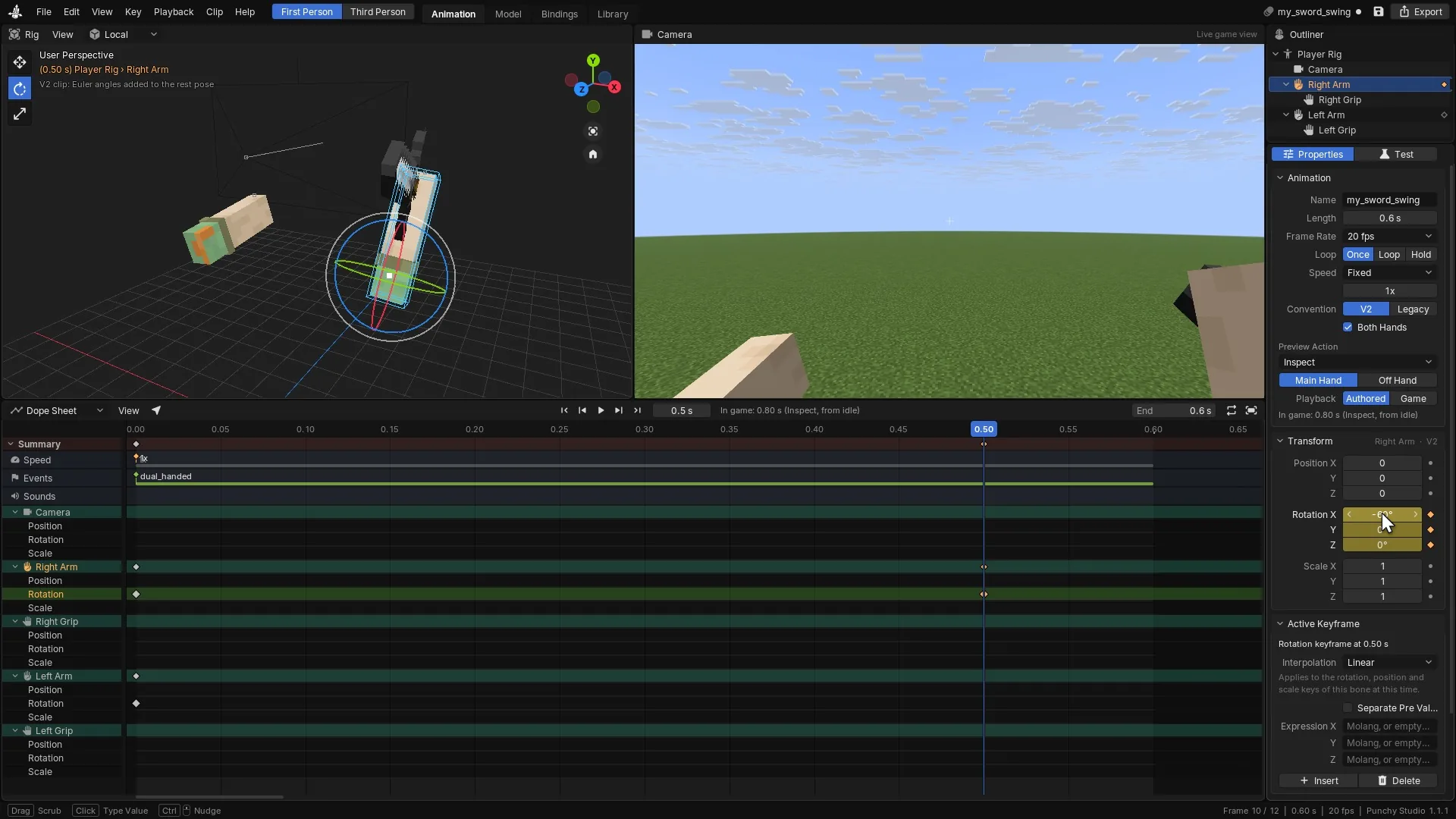
Keying a sword swing: each inserted key becomes one entry in the bone's rotation channel. -
In the right column, switch from Properties to Test. Under This Clip, set Plays As to Attack and press Play in Game.
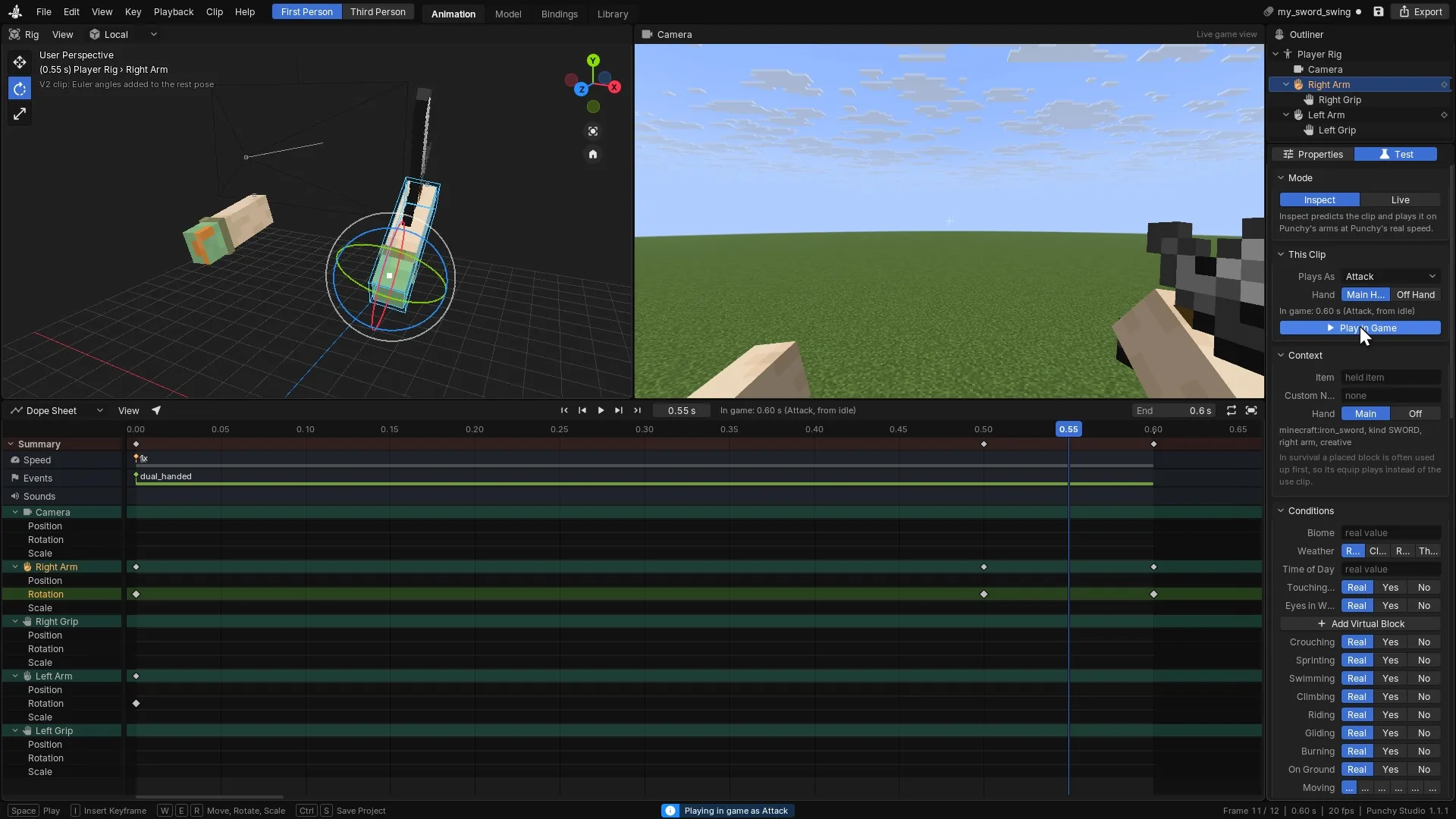
Playing the unsaved clip in the hand at the speed the game really uses. -
Press Ctrl+B (or click the Bindings tab) for the Bindings workspace and Ctrl+N for New Rule for This Clip. Keep Target on Held Item, set Type to Attack, press Add Rule, then Ctrl+Enter to apply.
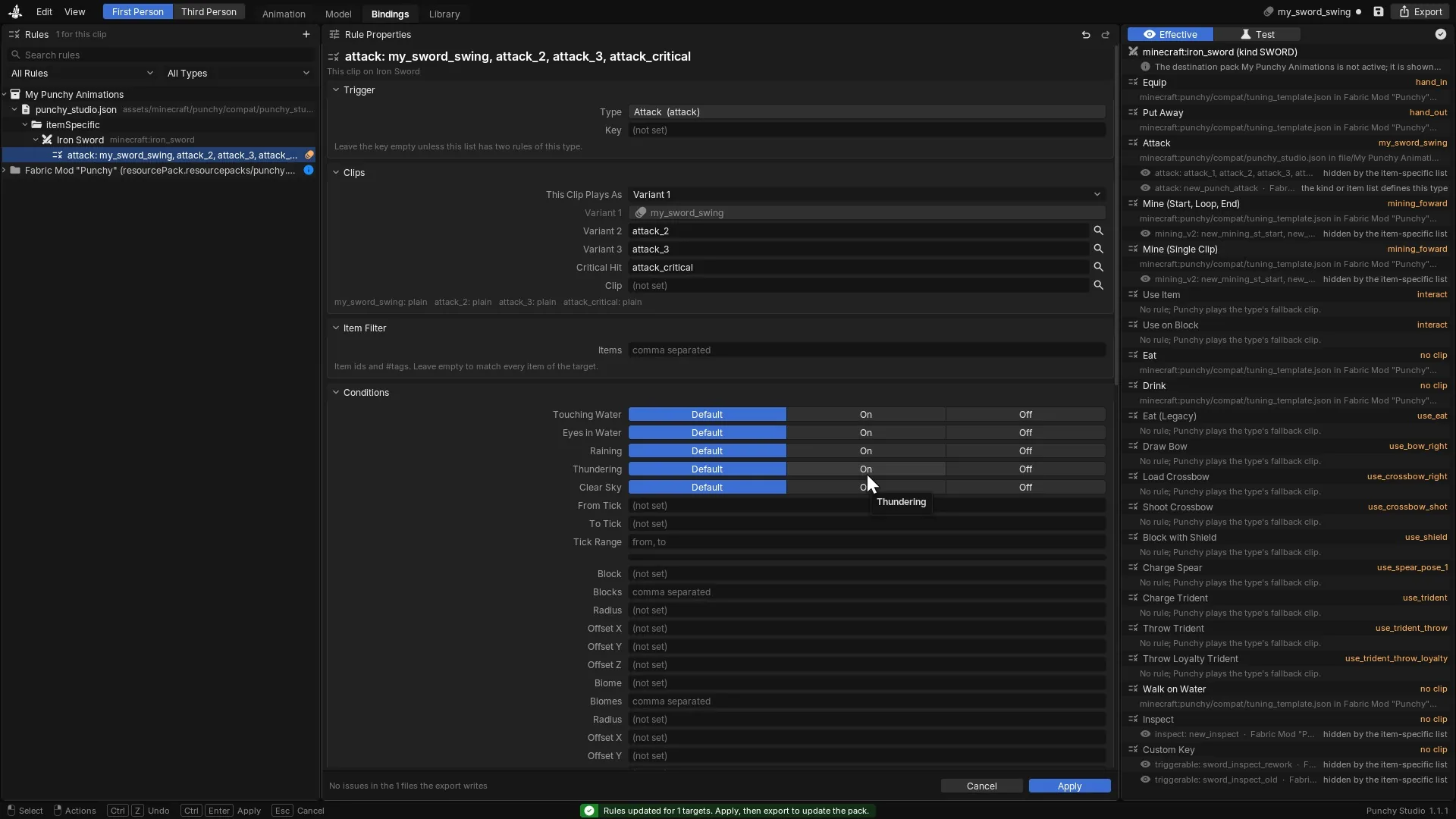
A Bindings rule: this is the compat rule that plays the clip. -
Press Ctrl+E, type a new pack name in the field at the bottom and press Export.
Exporting the clip and its rule into a resource pack.


Studio saves the clip as punchy_studio_<id>.animation.json in the pack’s assets/minecraft/punchy/animations/ folder and the rules in assets/minecraft/punchy/compat/punchy_studio.json. Open them in a text editor: they are the format described below.
Where Punchy! loads clip files
Punchy! reads every .json file in these two places:
| Place | What it is |
|---|---|
assets/ in every active resource pack | Your clips. The usual file name ends in ., but any .json file in the folder is read. |
assets/ | Punchy!‘s own folder. The mod ships one file here, and a pack can add files here too. Use the minecraft folder for your own pack. |
The mod’s built-in file is assets/punchy/animations/player_3_p.animation.json. It does not count as a first-person pack: if no active pack gives Punchy! a compat file or a clip file, Punchy! shows its “resource pack disabled” warning.
How clips from several packs combine:
- Clips are matched by name. When two packs have a clip with the same name, the pack higher in your selected list on the Resource Packs screen wins. The whole clip is replaced. Bones are never merged between two copies.
- The copy you do not see is not lost. Punchy! keeps one copy per pack, and a rule can pick a pack’s copy through Mix the Packs. See mix the packs.
- Two files in different packs may share a file name. Both are read.
- Punchy! reads clips again on every resource reload, which includes F3+T and pressing Done on the resource pack screen.
The clip file
The top of a file is an object. Punchy! reads only its animations object: a map from clip name to clip. Other keys, such as format_version, are ignored, so keep the one your tool writes.
A clip name is any text. Punchy! trims it, and it is case sensitive: Swing and swing are two clips. A rule names a clip by this exact text.
| Key | Type | Default | What it does | Example |
|---|---|---|---|---|
animation_ | number | 0 | The clip's length in seconds. Set it on every clip. A clip with no length has length 0 and stays on its first frame. Keys placed after the length are still used to shape the last segment. | |
loop | boolean or string | false | How the clip ends. See loop modes. | "hold_ |
bones | object | A map from bone name to that bone's channels. See bones and channels. A clip with no bones can still carry a timeline and sounds. | ||
timeline | object | A map from time in seconds to tokens that switch behaviors on from that time. See timeline tokens. | ||
effects | string, array or object | Tokens that are active during the whole clip. effect, events and event are read exactly the same way. | ||
sound_ | object | A map from time in seconds to the name of a sound to play. See sounds. |
Every other key is ignored.
Bones and channels
A clip moves the bones of Punchy!‘s first-person rig. These are the bones most clips key. Punchy! poses four more (camera_animation, body, item_right and item_left), and the player rig page lists all nine.
| Key | What it does |
|---|---|
camera | The player's view. Its keys move both arms and the view itself, which gives camera shake, in a V2 clip and in a legacy clip. The view follows only while Enable Camera Animations is on. On Minecraft 1.21.11 any turn of the bone shakes it. On the other versions a turn needs more than about 1.6 degrees, unless the bone also moves. |
right_arm | The right arm and, with it, the item it holds. |
left_arm | The left arm and, with it, the item it holds. |
itemgrip_ | Where the item sits in the right hand. Key it to turn or shift the item without moving the arm. |
itemgrip_ | The same for the left hand. |
The names are exact and lower case. The rest of the rig, its pivots and the file to model it in are on the player rig page. The grip bones use their own axis directions, so key them in a tool and check the result in game instead of guessing numbers. On a bone whose name contains item, scale keys swap their Y and Z values. On an itemgrip bone, legacy position keys use their own axis mapping.
Each bone holds up to three channels:
| Key | Type | Default | What it does |
|---|---|---|---|
rotation | keys | [0, 0, 0] | Turning, as angles in degrees around the three axes. |
position | keys | [0, 0, 0] | Moving, in model units of the rig. 16 units are one block. |
scale | keys | [1, 1, 1] | Size. 1 is the normal size. |
A bone does not need all three. A channel you leave out stays at its rest value.
Keyframes
Ways to write a channel
A channel is written in one of two ways.
A single array is one constant key at time 0:
{
  "scale": [1, 1, 1]
}
An object whose keys are times in seconds, written as text, gives one key per time:
{
  "rotation": {
    "0.0": [0, 0, 0],
    "0.25": [-40, 5, 0],
    "0.6": [0, 0, 0]
  }
}
Between two keys Punchy! blends the values. Before the first key and after the last, the nearest key holds. Rotation, position and scale keys of one bone at the same time are one keyframe, and they share one interpolation mode.
Ways to write a key
Each key is a value or an object that wraps a value:
{
  "format_version": "1.8.0",
  "animations": {
    "key_forms_demo": {
      "animation_length": 1.0,
      "loop": "hold_on_last_frame",
      "bones": {
        "right_arm": {
          "rotation": {
            "0.0": [0, 0, 0],
            "0.4": { "post": [-40, 0, 0], "lerp_mode": "catmullrom" },
            "0.7": { "pre": [-40, 0, 0], "post": [20, 0, 0] },
            "1.0": ["math.sin(query.anim_time * 360) * 4", 0, 0]
          },
          "position": {
            "0.0": [0, 0, 0],
            "0.5": { "vector": [0, 1, 0] }
          }
        }
      },
      "timeline": {
        "0.0": "use_keyframes_v2;dual_handed;anim_speed_1;"
      }
    }
  }
}| Key | Type | Default | What it does | Example |
|---|---|---|---|---|
[x, y, z] | array | Exactly three values. Each value is a number or a Molang expression written as text. Any other count drops the whole clip. | [0, -40, 0] | |
post | array | The value of the key, written inside an object. Use it when the key also has lerp_mode or pre. | ||
vector | array | Another name for the key's value inside an object. | ||
pre | array | The value the channel arrives with. On a rotation key in a V2 clip, a pre that differs from post makes the rotation jump at that time. If you give only one of the two, both sides use it. On position and scale keys, the value is read in the order post, vector, pre. | ||
lerp_mode | string | linear | How the channel blends from this key to the next. See the modes below. | |
easing | string | Used as the mode only when lerp_mode is missing from the key. |
A plain array has no mode of its own, so it counts as linear. To choose another mode, write the key as an object. A segment between two keys uses catmullrom or a spherical mode when either of its two keys asks for it.
Interpolation modes
The mode is read in lower case. A missing mode, or any word not listed here, blends linearly.
| Key | What it does |
|---|---|
linear | A straight blend from one key to the next. This is the default. |
catmullrom | A smooth curve that passes through the keys and bends with the keys around them. It works on rotation, position and scale. |
spherical_ | Rotation only, in a V2 clip. Blends the rotation as a turn in space instead of axis by axis. |
spherical_ | Rotation only, in a V2 clip. A smooth spherical curve through the keys, the rotation version of catmullrom. |
When rotation, position and scale of one bone at one time name different modes, the last of them in the order rotation, position, scale that names a mode wins for that keyframe. The order of the keys in the file does not matter. Position and scale ignore the spherical modes and blend linearly.
Molang expressions
Any axis of a key can be a text expression that Punchy! evaluates while the clip plays. It is how you make a wobble, a shake or a breathing motion without placing many keys.
{
  "rotation": {
    "0.0": ["math.sin(query.anim_time * 360) * 4", 0, 0],
    "2.0": ["math.sin(query.anim_time * 360) * 4", 0, 0]
  }
}
What Punchy! understands:
query.anim_time, also writtenq.anim_time: the seconds since the clip started. It restarts when a looping clip wraps.- The operators
+,-,*and/, brackets and a leading minus. - The numbers
piande, and decimal numbers. - The functions
sin,cosandtan(they take degrees),abs,sqrt,floor,ceil,round,min,maxandclamp. Amath.in front is fine, and letter case does not matter.
Any other name or function is read as 0, and dividing by zero gives 0. An expression that cannot be parsed at all drops the whole clip, so check it in Punchy! Studio’s Clip > Check for Problems before you ship.
V2 and legacy clips
Punchy! reads a clip in one of two layouts. The timeline token use_keyframes_v2 picks the V2 layout. A clip without it is legacy.
- V2 adds the rotation and position numbers to the rig’s rest pose, so
[0, 0, 0]means “stay where the arm rests”. A V2 rotation key can have separatepreandpostvalues, the spherical modes work, and each axis blends straight. - Legacy reads the same numbers through a different axis mapping. Its rotation takes the short way round between two angles.
Use V2 for new clips. Do not add or remove the token on an existing clip and expect the same motion: the numbers mean different things in the two layouts. In Punchy! Studio, the Convention row of the Animation panel has Convert Keys, which rewrites every key so the pose stays the same.
Loop modes
The loop key of a clip chooses how the clip ends. In Punchy! Studio the same choice is the Loop row, with the buttons Once, Loop and Hold.
| Key | Type | What it does |
|---|---|---|
false, or no loop key | Once | The clip plays once, then blends back out to the normal pose. Any value that is not listed here gives this too. |
true, "loop" or "true" | Loop | The clip repeats from the start each time it reaches its length, until the action that started it stops or another clip replaces it. Text values are not case sensitive. |
"hold_ | Hold | The clip stays on its last frame while the action that started it lasts, then blends out. Use it for a bow that stays drawn or an item that stays raised. |
{
  "loop": "hold_on_last_frame"
}
Give a looping or holding clip an animation_length above 0.
Speed
A clip’s keys are in seconds, but the clip does not always play at one second per second. Punchy! has an Animation Speed setting, 5.5 by default and between 0.5 and 7. It sets the base speed of most clips: attacks, mining, using items, inspect, triggerable and idle clips. A clip you author at 1 second therefore plays 5.5 times faster than you drew it, unless you fix its speed.
Fix the speed with the anim_speed_<n> token in the timeline. It replaces the setting from its time onward and keeps the clip at the speed you authored: anim_speed_1 plays it second for second. Punchy! Studio does this for you: its Speed row is Fixed at 1x for new clips, and Game setting leaves the player’s setting in charge.
A few clips ignore the setting, by their name or by the action that plays them. The name can also end in _left or _right, except where a line says exact name only. An anim_speed_<n> token in the clip replaces the speed of every clip in this list, except that swiming and swiming_above play at 0.6 times the token’s speed unless you are sprinting:
hand_in,hand_out, and names that start withhand_in_orhand_out_: play at 1x.use_eat,use_drinkand their_leftand_rightcopies: play at 1x.falling_in_water: plays at 1x under this exact name only. A_leftor_rightcopy follows the setting.use_bow,use_shield,use_crossbow,use_crossbow_shot,use_trident,use_trident_throw,use_trident_throw_loyalty,use_trident_throw_riptide,attack_mace,dry_out,use_spear_pose_1,use_spear_pose_2anduse_spear_pose_3: play at the authored speed whatever the setting.swiming,swiming_aboveandput_out_fire, exact names only: play at the authored speed whatever the setting.interact: plays at 5.4 times the authored speed.
Some actions also keep the authored speed whatever their clips are named: equip and put away, the bow draw, the crossbow load and shot, the spear charge, eating and drinking, swimming and putting out fire. A clip of your own that a rule gives to one of these actions plays as you authored it. Every other clip follows the setting, except the idle, walk, sprint, jump, fall and landing clips of Resource Pack Movement and the horse riding clips. The jump, fall, landing and horse riding clips play at the speed you authored them. The idle, walk and sprint clips of Resource Pack Movement share one timer that runs at 0.75 times the authored speed while you stand still and speeds up as you move, up to 1.9 times when you sprint fast. An anim_speed_<n> token replaces the speed of the idle, walk, sprint and fall clips of Resource Pack Movement and of the horse riding clips. The jump and landing clips ignore it and always play at the speed you authored them. The safe habit is to write anim_speed_1 into every clip that you want to play at its authored length, except swiming and swiming_above, which already do without it. More on the setting itself is on settings and controls.
Timeline tokens
A token is a short text label that switches one behavior on. Tokens live in timeline, a map from time to a string:
{
  "timeline": {
    "0.0": "use_keyframes_v2;dual_handed;anim_speed_1;",
    "0.5": "start_mesh_animation;hide_right_switch_item_*;"
  }
}
How tokens work:
- Several tokens in one string are separated by
;. A trailing;is fine, and spaces around a token are trimmed. - A token is an exact word. Punchy! lowercases it, then compares it to the names below. Write the token on its own, with nothing added to it. A token with extra text, such as a value after a colon, is a different word.
- A token placed in
timelinestays active from its time to the end of the clip. The next key does not turn it off. - These tokens can also sit in the clip’s
effectslist, where they are active at every time:use_keyframes_v2, the rotation order tokens,dual_handed,dual_handed_if_has_off_item,blend_from_current_origin,rebase_blend_in,sync_walk_arms,absolute_riding_pose,left_switch_item_<id>andright_switch_item_<id>. Keep every other token intimeline, and keep anything that depends on a moment there:anim_speed_<n>, the off hand window tokens and the mesh tokens. The tokensblend_from_current_origin,rebase_blend_in,sync_walk_armsandabsolute_riding_posecount wherever they sit in the clip, so their time does not matter. - A timeline value can also be an array of strings or an object. Punchy! reads every string inside it.
- Where a token needs an item, write the full id, for example
minecraft:arrow. The id is lowercased.
In Punchy! Studio, the Events lane of the Dope Sheet holds these tokens. Double-click the lane, or use Key > Insert Event…, to open the token picker.
Video coming soon
Speed and layout
| Key | Type | What it does | Example |
|---|---|---|---|
anim_ | prefix and number | Sets the playback speed from its time onward. The number is kept between 0.5 and 5.5 (0.25 and 5.5 for the idle, walk, sprint and fall clips of Resource Pack Movement), and the last token at or before the current time wins, so you can change speed halfway through. While it is set, the player's Animation Speed setting is ignored for the clip. Always write the leading digit, as in anim_. Timeline only. | anim_ |
use_ | flag | Makes the clip a V2 clip. See V2 and legacy clips. | |
rotation_ | flag | For legacy clips: read rotation keys in the order X, Y, Z. Legacy clips use Z, Y, X by default, except clips whose name contains mace, trident or crossbow, which use X, Y, Z. | |
rotation_ | flag | For legacy clips: read rotation keys in the order Z, Y, X. It wins over the XYZ tokens and over the name rule. |
Hands and the off hand
| Key | Type | What it does |
|---|---|---|
dual_ | flag | Both arms follow the clip. Without it, the clip moves only the arm of the hand that started the action. Studio's Both Hands option writes this token. |
dual_ | flag | Dual handed only when the off hand holds an item. |
start_ | flag | In a dual handed clip, when the off hand holds an item and this token is later than 0, the clip starts playing from this time instead of from 0. Use it to skip a part of the clip that only makes sense with an empty off hand. |
start_ | flag | Another spelling of start_. |
stop_ | flag | When the off hand holds an item, the dual handed window closes here. A later start token opens it again. |
hide_ | flag | Hides the off hand arm while the real off hand is empty. The later of this token and show_ decides. |
show_ | flag | Shows the off hand arm again. |
sync_ | flag | Makes the normal walk and sprint arm movement follow the clip at full strength while it plays. It counts anywhere in the clip, and the swim clip honors it too. |
With an empty off hand, dual_handed always holds, so the windows only matter when the off hand holds something. With an item in the off hand and no stop token, dual_handed holds all the way. A stop token ends the window, and a later start token opens it again.
Blending
| Key | Type | What it does |
|---|---|---|
blend_ | flag | Blends into the clip from the pose the arm has right now, instead of from the clip's first pose. It counts anywhere in the clip. |
rebase_ | flag | Another spelling of blend_. |
Arm tuning and physics
Arm tuning is the arm and item offset that you or a pack set with the tuning editor. By default Punchy! fades it out on the arm that plays a clip (both arms in a dual handed clip). These tokens keep it or cut it.
| Key | Type | What it does |
|---|---|---|
keep_ | flag | Keeps the arm tuning applied while the clip plays. |
disable_ | flag | Turns the arm tuning off while the clip plays. It wins over keep_ when both are active. Equip and walk on water clips ignore it. |
disable_ | flag | Turns off pendulum physics on the arm and the held item while the token is active. See item physics. |
disable_ | flag | Another spelling of disable_. |
While a clip plays, the tuning fades out over 0.18 seconds, and it fades back in over 0.48 seconds when the clip ends.
Items shown and hidden
These tokens change which item each hand shows during the clip. At any moment, Punchy! applies the tokens of the whole clip, then the timeline tokens up to the current time, so a token at a later time replaces an earlier one for the same hand. Tokens at one time do not apply in the order you write them: the left_switch_item_<id> and right_switch_item_<id> tokens apply first, then the hide and show tokens in the order written.
| Key | Type | What it does | Example |
|---|---|---|---|
left_ | prefix and item id | Shows that item in the left hand for the clip. | left_ |
right_ | prefix and item id | Shows that item in the right hand for the clip. | right_ |
hide_ | prefix and item id | Hides the item shown in the left hand, whether it is a switched item or the real one. The text after item_ is ignored, so hide_ and hide_ do the same. The underscore after item is part of the token. | hide_ |
hide_ | prefix and item id | The same for the right hand. | hide_ |
show_ | flag | Shows the real item of the left hand again. | |
show_ | flag | Shows the real item of the right hand again. | |
show_ | prefix and item id | Shows the given item in the left hand. With * after the underscore, it shows the real item. | show_ |
show_ | prefix and item id | The same for the right hand. | show_ |
hide_item | flag | Hides the item in the hand opposite the one that started the clip. It works only while the clip is dual handed (dual_ is active, or dual_ with an item in the off hand). In a clip that moves one arm, use hide_. | |
hide_ | flag | Hides the item in the hand opposite the one that started the clip. Only the item is hidden. | |
show_ | flag | Shows the real item of that opposite hand again. An empty hand stays empty. |
An item id that Minecraft does not know leaves the hand showing its real item, the same as show_left_switch_item. A bare name such as arrow is read as minecraft:arrow. A hide token is always written with the underscore and a value after item, for example hide_right_switch_item_* or hide_right_switch_item_minecraft:arrow.
A hand that is using an item, such as a drawn bow, always shows that item, so these tokens change the other hand.
A bow loading an arrow is a good example of the pieces together. This one is for a bow held in the left hand (a clip such as use_bow_left), so the arrow shows in the right hand. For a bow in the right hand, use left_switch_item_minecraft:arrow and hide_left_switch_item_minecraft:arrow.
{
  "timeline": {
    "0.0": "use_keyframes_v2;dual_handed;suppress_mesh_animation;right_switch_item_minecraft:arrow;anim_speed_1;",
    "0.5": "start_mesh_animation;hide_right_switch_item_minecraft:arrow;"
  }
}
The item’s own use animation
When you use an item, vanilla also animates it: a bow pulls back, for example. These tokens decide when that animation shows during a clip.
| Key | Type | What it does |
|---|---|---|
suppress_ | flag | Holds the vanilla use animation of the item back from this time until a later start token. |
start_ | flag | Lets the vanilla use animation run from this time. In a clip that has this token, the animation is held back until it is reached. |
loadstart | flag | Another spelling of start_. |
load_start | flag | Another spelling of start_. |
A clip that has none of these four tokens leaves the vanilla use animation alone. Clips named use_shield and use_trident always hold it back.
Equip and riding
| Key | Type | What it does |
|---|---|---|
swap_end | flag | In an equip clip, the moment the item you see changes from the old one to the new one. Once the clip time passes it, the swap happens. |
swap_items | flag | Another spelling of swap_end. |
swap_item | flag | Another spelling of swap_end. |
absolute_ | flag | While you ride, removes the riding arm pose from the arms this clip has tracks for (the arm that plays it, or both in a dual handed clip), so the clip's own pose is used as written. The other arm keeps the riding pose. A clip whose name contains shield does the same. It counts anywhere in the clip. |
Sounds
A clip plays sounds at moments you choose. Each sound is a name in the clip’s sound_effects, and the name points at an .ogg file in your pack.
{
  "sound_effects": {
    "0.3": "swing_whoosh",
    "0.45": { "effect": "swing_hit" }
  }
}
A value is either the sound’s name as text, or an object with the name in effect. The time is in clip seconds, so a faster clip plays its sounds sooner.
The sound file lives in the punchy namespace, not in minecraft:
assets/punchy/sounds/animationssounds/swing_whoosh.oggPunchy! plays the sound as the Minecraft sound event punchy:animationssounds/<name>. Punchy! Studio writes one event per sound it exports into assets/punchy/sounds.json, named animationssounds/ plus the sound name. Write the same by hand:
{
  "animationssounds/swing_whoosh": {
    "sounds": ["punchy:animationssounds/swing_whoosh"]
  },
  "animationssounds/swing_hit": {
    "sounds": ["punchy:animationssounds/swing_hit"]
  }
}
Rules for sounds:
- The sound file is an Ogg Vorbis
.ogg. The name in the clip is the file name without.ogg. - Use only lower case letters, digits,
_,-and.in the name. Minecraft refuses other characters in a sound’s id. - A name with no matching file is skipped without a message.
- Punchy! plays the sound as an interface sound at normal pitch and a quarter of the volume the file and its
sounds.jsonevent give it, in Minecraft’s UI sound category. It is not placed in the world. - A sound at time
0.0plays when the clip starts, also in a clip that blends in from the current pose, and again each time a looping clip wraps back to the start. - A sound keyed after the clip’s
animation_lengthis never heard. A sound at the very end of a Once or Hold clip is heard. - When a new clip starts, the sounds of the one before are stopped.
- Two sounds at the same time need two spellings of that time, such as
"0.5"and"0.50". Punchy! reads both as the same moment and plays both.
In Punchy! Studio, double-click the Sounds lane, or use Key > Insert Sound…, to pick a sound. Drop an .ogg file onto the game window to bring in your own. Export copies the file and writes its sounds.json event into the pack.
Video coming soon
Clip names for each hand
A rule names a clip, but Punchy! can pick a hand’s own copy. For a rule that names my_swing, it looks for my_swing, my_swing_right and my_swing_left.
- If neither
_rightnor_leftexists, it playsmy_swing. - If one of them exists, the copy for the arm that plays the action wins. If that copy is missing,
my_swingplays, and then the other side’s copy. - A rule that already names a clip ending in
_leftor_rightplays exactly that clip.
Tracks are never mirrored. A _left clip must move left_arm itself. Punchy!‘s own clips follow this pattern, for example use_bow_right and use_bow_left.
Things that drop a clip or a file
Punchy! logs a warning for most clip errors. Open logs/latest.log in your game folder and search for [Punchy].
A whole file gives no clips, with a warning that starts [Punchy] Could not read animations, when:
- the file is not valid JSON, for example a missing comma or a missing bracket;
- the top of the file is not an object.
A file without an animations object gives no clips and no warning.
One clip is dropped, with a warning that starts [Punchy] Could not load animation and the clip’s name, while the other clips in the file still load, when:
- a key does not have exactly three values;
- an expression cannot be parsed;
- a time key inside a bone channel is not a number;
bones, a bone, ortimelineis not an object;animation_lengthis not a number.
Some mistakes are silent:
- A clip whose value is not an object is skipped.
- A key whose value is a single number or text instead of three values is read as
0, 0, 0, or1, 1, 1for scale. - A time key in
timelineorsound_effectsthat is not a number is read as time 0. - A timeline value that is not text, an array or an object is ignored.
- A
loopvalue that is not listed gives a clip that plays once. - A clip name written with different capitals than the rule uses is another clip.
Punchy! Studio finds most of these for you. Clip > Check for Problems lists what Punchy! would reject, and the same checks run before every export.
Why my clip does not play
- The pack is not active. Check Options, then Resource Packs, and reload with F3+T.
- The file is in the wrong folder. Clips go in
assets/minecraft/punchy/animations/. Rules go inassets/minecraft/punchy/compat/. Sounds go inassets/punchy/. - No rule plays the clip. A clip file alone plays nothing. A rule must name it, as in the example at the top. A mistake inside a rule file can drop the whole rule file without a message. See compat rules.
- The name does not match. The name in the rule must match the clip’s name exactly, capitals included.
- Another pack has a clip with the same name. The pack higher in your list wins. Rename your clip or move your pack up.
- The clip was dropped. Look for a
[Punchy] Could not load animationline in the log. - The clip looks too fast. Add
anim_speed_1at time0.0. - The clip stays on one frame. It has no
animation_length, so its length is 0. - A sound is silent. Check the
.oggfile, that the name is lower case and, if you wrote one by hand, itssounds.jsonevent.
Related pages
- How to create custom animations: from an empty file to a clip in game, in Blockbench or Punchy! Studio.
- Animation types and triggers: which action plays which clip.
- Compat rules: the rule files that name clips.
- Mix the packs: choosing between several packs’ copies of a clip.
- Player rig: the bones and pivots a clip moves.
- Item physics: pendulum physics that
disable_pendulumturns off. - Model parts item clips: clips for custom item models.
- Punchy! Studio: the editor that writes these files.
- Troubleshooting: when something still does not work.
Last checked against the mod on 30 October 2026.