
Animation types and triggers
Every kind of animation Punchy! plays, from idles and attacks to using items, and the moment in the game that starts each one.
-


On this page
Every clip Punchy! plays starts at a moment in the game: a swing, a bow being drawn, a new item in your hand, a key you press. This page lists those moments, the animation type that names each one, and how Punchy picks a clip when several rules could apply. It is for pack authors who already have a clip (see How to create custom animations) and want it to play at the right time.
Before you start
- A clip in an animation file, in a resource pack, under
assets/minecraft/punchy/animations/. The file format is on Animation reference. - A rules file next to it. Rules are written in a compat file: any
.jsonfile inassets/minecraft/punchy/compat/. How the files of several packs combine is on Compat rules. - Punchy! Studio is optional. It writes the rules for you, and its labels are given next to the JSON names below.
After every change, reload the pack with F3+T.
Bind a clip to a moment
A rule is one entry with a type, which names the moment, and the clip names to play. You can make it in Punchy! Studio or write it by hand.
In Punchy! Studio
-
In a world, hold the item and press F6. If the editor opens in the Third Person perspective, pick First Person with the switch between the menus and the workspace tabs. Open your clip in the Animation workspace.
-
Press Ctrl+B, or click the Bindings tab, to open the Bindings workspace. Then press Ctrl+N (New Rule for This Clip).
-
Set Target to Held Item for the item in your hand, or to Punchy Group and type
SWORDin Group, Item or Tag for every sword. -
Open the Type list. It shows each moment by name with its JSON type beside it. Pick the one you want, such as Attack, Equip, Draw Bow or Custom Key.
-
Press Add Rule, then Ctrl+Enter (Apply).
-
Check the Effective column on the right. For the held item and every trigger it shows the rule Punchy would really use, and why.
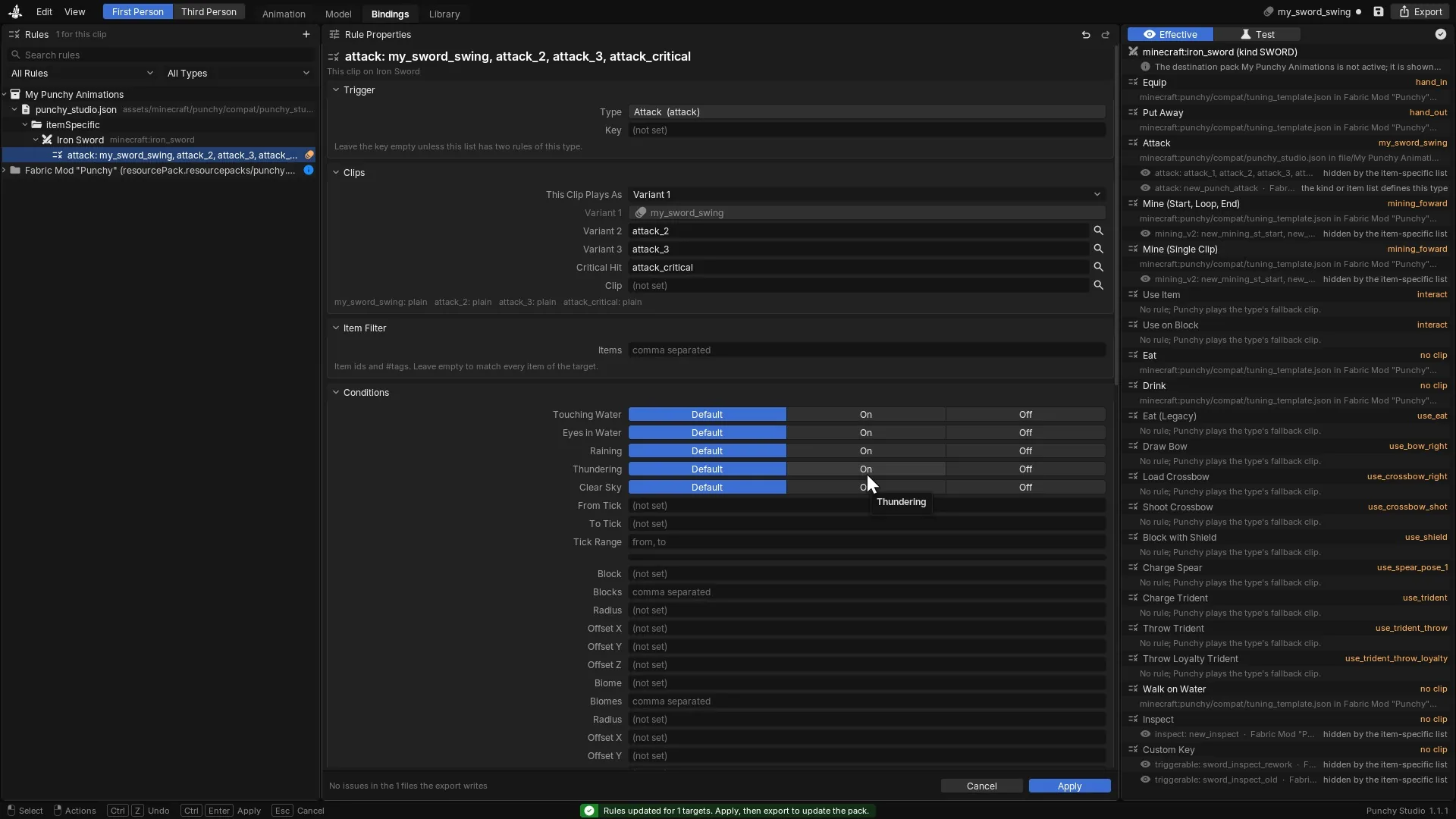
A Bindings rule that plays the clip: Type, Add Rule, Apply. -
Go back to the Animation workspace and switch the right column from Properties to Test. In This Clip, set Plays As (Inspect, Triggerable, Attack, Use, Equip or Idle). Keep Hand on Main Hand, or pick Off Hand when the off hand starts the clip, then press Play in Game.
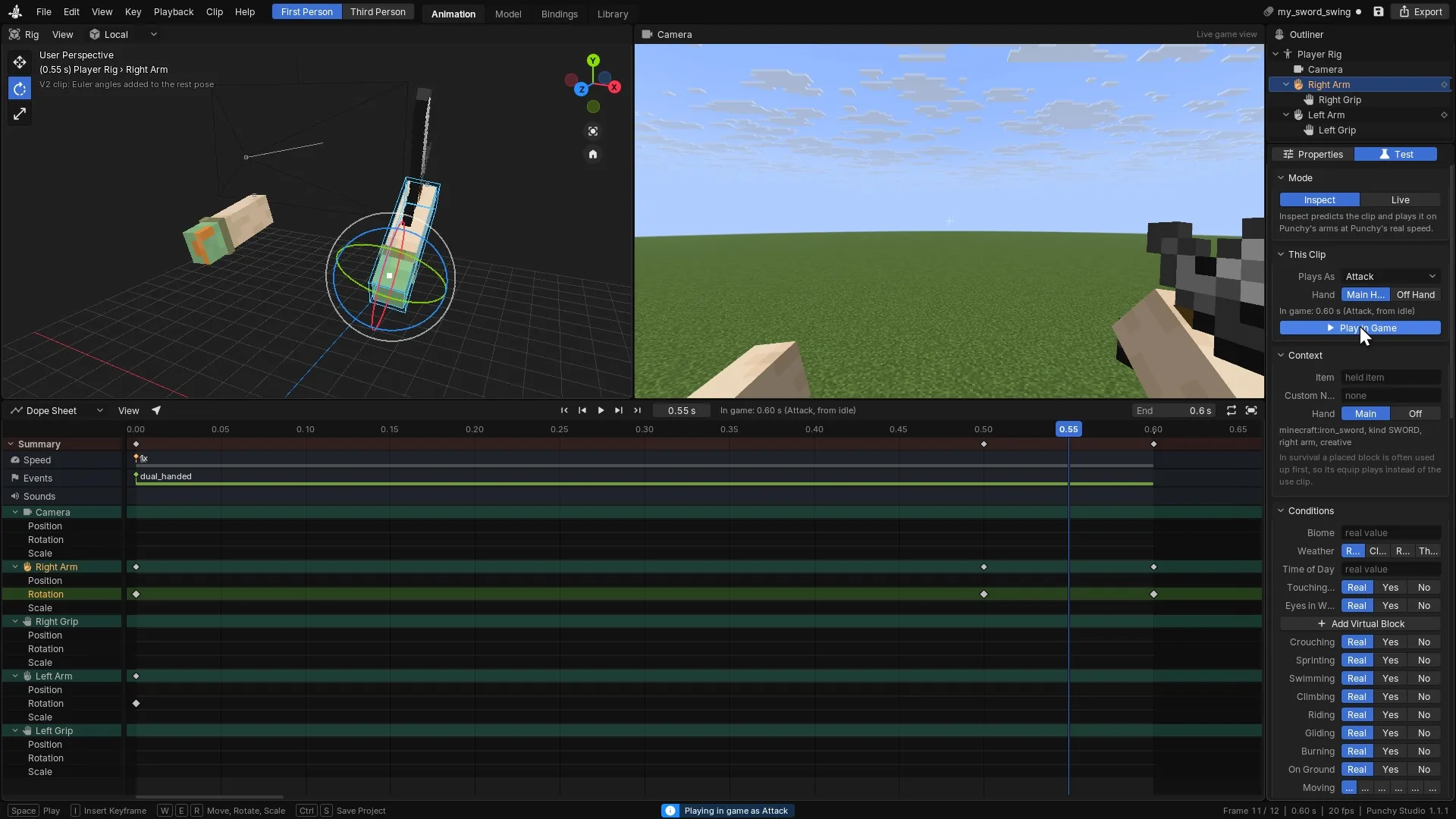
Playing the clip in the hand as an attack. -
Press Ctrl+E to export the pack.


By hand
- Make a folder for the pack in your game’s
resourcepacksfolder, with apack.mcmetafile at its top. Resource packs gives the text for each game version. - Put the clip in an animation file in your pack, for example
assets/minecraft/punchy/animations/my_clips.json. - Create
assets/minecraft/punchy/compat/my_rules.jsonand add acustomAnimationlist for the item or the group (see the example below). - Turn the pack on, press F3+T, and do the thing the rule names.
A complete example
This compat file gives swords a three-clip combo, a critical hit clip, an idle pose, an inspect clip and a key-driven flourish. Bows get a draw and a release. The diamond sword has its own list. Every item gets equip clips and an eating animation.
{
  "default_animations": [
    { "type": "hand_out", "name": "hand_out" },
    { "type": "hand_in", "name": "hand_in" },
    { "type": "eating", "start": "eat_start", "looping": "eat_loop", "end": "eat_end" }
  ],
  "emptyHand": {
    "customAnimation": [
      { "type": "attack", "var_1": "punch_1", "var_2": "punch_2" }
    ]
  },
  "item": {
    "SWORD": {
      "customAnimation": [
        {
          "type": "attack",
          "var_1": "sword_slash_1",
          "var_2": "sword_slash_2",
          "var_3": "sword_slash_3",
          "critical_hit": "sword_crit"
        },
        { "type": "idle", "name": "sword_idle" },
        { "type": "inspect", "name": "sword_inspect" },
        {
          "type": "triggerable",
          "id": "mypack:sword_flourish",
          "title": "Sword flourish",
          "name": "sword_flourish",
          "key": "H"
        }
      ]
    },
    "BOW": {
      "customAnimation": [
        { "type": "use_bow", "name": "bow_draw" },
        { "type": "use_bow_shot", "name": "bow_release" }
      ]
    }
  },
  "itemSpecific": {
    "minecraft:diamond_sword": {
      "customAnimation": [
        { "type": "attack", "var_1": "diamond_slash" }
      ]
    }
  }
}
What this does in game:
- An iron sword uses the
SWORDlist: three swings in order, a critical clip for a falling hit, an idle, the Inspect key and the flourish on H. It also gets thehand_in,hand_outandeatingrules fromdefault_animations. - The diamond sword has its own list, so it uses only
diamond_slashfor attacks. It does not inherit the idle, the inspect or the flourish fromSWORD. Equip and eating still come from the defaults. - A bow draws with
bow_drawand releases withbow_release. - An empty hand attacks with
punch_1thenpunch_2.
The names after name, var_1 and the other clip keys are clip names from your animation files. A name that no clip has is not an error: Punchy plays the built-in clip for that moment instead, or nothing if there is none.
Two animation files go with the example, in a pack that has a pack.mcmeta as in By hand. The first is assets/minecraft/punchy/animations/my_clips.json. It holds the flourish and the put-away clip, and the poses are placeholders. The anim_speed_1 token makes a clip play at the speed you authored it; see How fast clips play.
{
  "animations": {
    "sword_flourish": {
      "animation_length": 0.8,
      "loop": false,
      "bones": {
        "right_arm": {
          "rotation": { "0.0": [0, 0, 0], "0.4": [-50, 20, 0], "0.8": [0, 0, 0] }
        }
      },
      "timeline": { "0.0": "anim_speed_1" }
    },
    "hand_out": {
      "animation_length": 0.25,
      "bones": {
        "right_arm": {
          "rotation": { "0.0": [0, 0, 0], "0.25": [-40, 0, 0] }
        }
      },
      "timeline": { "0.2": "swap_end" }
    }
  }
}
The second is assets/minecraft/punchy/animations/bow_clips.json, with the bow draw and the release. The draw is one second long and holds its last pose while you keep drawing. The release plays at the speed you authored it because of its anim_speed_1 token. use_keyframes_v2 marks the current clip layout (see V2 and legacy clips).
{
  "format_version": "1.8.0",
  "animations": {
    "bow_draw": {
      "animation_length": 1.0,
      "loop": "hold_on_last_frame",
      "bones": {
        "right_arm": {
          "rotation": { "0.0": [0, 0, 0], "0.5": [-20, 0, 10], "1.0": [-45, 0, 20] }
        }
      },
      "timeline": { "0.0": "use_keyframes_v2;" }
    },
    "bow_release": {
      "animation_length": 0.3,
      "bones": {
        "right_arm": {
          "rotation": { "0.0": [-45, 0, 20], "0.1": [-10, 0, 0], "0.3": [0, 0, 0] }
        }
      },
      "timeline": { "0.0": "use_keyframes_v2;anim_speed_1;" }
    }
  }
}
The rules also name hand_in, eat_start, eat_loop and eat_end. Punchy!‘s own pack already has clips with those names, so they play without any file of yours. The remaining clips the rules name, sword_slash_1 to sword_slash_3, sword_crit, sword_idle, sword_inspect, punch_1, punch_2 and diamond_slash, are clips you make yourself (How to create custom animations). Until a clip of that name exists, Punchy plays the built-in clip for the moment where there is one. The idle and the inspect have none, so they stay silent until you make those two clips. Nothing breaks either way, so the example loads with just the rules file and these two animation files.
Which rule wins
Punchy looks for a clip in this order and stops at the first answer.
- The item’s own rules. An
itemSpecificentry for the held item, such asminecraft:diamond_sword. If that entry has acustomAnimationlist, even an empty one, it is the list. The group list is not used for that item at all, and group types are not inherited, except for the walk, sprint, jump, fall and landing types (see Walking, sprinting, jumping and landing). - The item’s group. The
itemmap, with a key such asSWORD. A custom group, or a group picked by name, works the same way (see below). default_animations. These are added to the list above. A default is skipped when the list already has a rule with the sametypeandkey.- The built-in clip name for the moment, such as
attackoruse_bow_right. It plays only if a loaded animation file has a clip with that name.
An item can also have a customItemAnimations list. Where Punchy uses it, it is checked before customAnimation, and the group lists and the defaults follow. The key is on Compat rules and Flags reference.
Inside one list, when several rules have the same type, Punchy keeps the ones whose filters fit the moment and sorts them from most to least specific. An items filter counts 100. Each of in_water, inside_water, block_detection, weather_detection, time_detection and biome_detection counts 1. Ties keep the order of the list. A rule can also carry variations: among the variations that fit, the highest priority wins, and a tie keeps the first. Conditions and variations are explained on Flags reference.
Groups
The item map is matched against the exact upper-case group name. SWORD works and sword is ignored. The groups are:
All 38 group names
EMPTY_HAND, AXE, PICKAXE, HOE, SWORD, SHOVEL, SHIELD, BLOCK, FULL_BLOCK, BUILDING_BLOCKS, COLORED_BLOCKS, NATURAL_BLOCKS, FUNCTIONAL_BLOCKS, CHEST, TORCH, LANTERN, FLOWER_PENDULUM, CREATURE_BUCKET, BUCKET, MINECART, BOAT, BUTTON_PLATE, TRAPDOOR, CARPET, BED, BOW, ARROW, CROSSBOW, SPYGLASS, FLINT, FOOD, SHUBBA_DUCK, MACE, SPEAR, TRIDENT, FISHING_ROD, REDSTONE, INGREDIENT.
item.EMPTY_HAND.customAnimation and emptyHand.customAnimation are the same list.
Two more ways to make a group of your own:
{
  "customGroups": [
    { "name": "my_swords", "items": ["minecraft:iron_sword", "minecraft:diamond_sword"] }
  ],
  "item": {
    "my_swords": {
      "customAnimation": [
        { "type": "attack", "var_1": "sword_slash_1" }
      ]
    },
    "related:shovel": {
      "customAnimation": [
        { "type": "attack", "var_1": "shovel_swing" }
      ]
    }
  }
}
A key in item that matches a customGroups name applies its list to every item named there. A key that starts with related: (or a group with a pattern_matching text) applies to every item whose id, path or translation key contains that text, in lower case. Longer texts are applied first, and an item that already has an itemSpecific entry is not overwritten.
Rules of the same type collapse
When an item or group list and default_animations both exist, Punchy merges them and keeps one rule per type and key. If you write two attack rules in that list, only the last one is kept. Without default_animations, every rule in the list is kept as written. Use one rule with var_1 to var_3, or variations, instead. When you really need two rules of one type, give them different key values. interaction rules are told apart by their filters and conditions as well, and triggerable rules by their key.
Clips with the same name
When two packs both have a clip named sword_slash_1, the pack that is higher in the resource pack list wins, and its whole clip is used. Bones are not mixed between the two. Choosing between packs per item is on Mix the packs.
Left and right hands
A rule names a clip once, and Punchy looks for three clips: name, name_right and name_left. If either side exists, the one for the hand that acts is used, falling back to the plain name. The built-in names work this way too, such as use_bow_right and use_bow_left. Which side is the right one follows your main arm setting.
Every type and its moment
Types are matched after lower-casing and dropping _, - and spaces, so use_bow, useBow and usebow are the same type. mining and mining_v2 are one type. The Studio column is the name in the Type list of the Bindings workspace. The last column is the clip name Punchy looks for when no rule names a clip.
Items on the Item Blacklist in Punchy’s menu keep the normal Minecraft look and never play these rules.
Equip
| Type | In Studio | Plays when | Clip keys | Without a rule |
|---|---|---|---|---|
hand_in | Equip | The item in a hand has changed and the new item comes up. It plays for the new item. | name | hand_in |
hand_out | Put Away | The item in a hand is about to change and the old item goes away first. It plays for the old item. | name | hand_out |
Attack
| Type | In Studio | Plays when | Clip keys | Without a rule |
|---|---|---|---|---|
attack | Attack | You swing the held item with the attack key. A pickaxe, hoe or shovel with no attack rule plays its mining swing on a block instead. | var_1 to var_3, critical_, name | attack. For a mace, a trident or a spear: attack_, attack_, attack_ |
melee_ | Better Combat Combo | Better Combat is installed, Better Combat Support is on, and you swing a weapon. The rule goes in a better list, or in default_. | attack_1 to attack_6 | none |
A pickaxe, shovel or hoe with no attack rule at all plays its mining swing instead of an attack unless the swing hits an entity or disable_mining_animation is set for it. With an attack rule, it plays the attack clip on a block too.
Mining
| Type | In Studio | Plays when | Clip keys | Without a rule |
|---|---|---|---|---|
mining or mining_v2 | Mine (Single Clip), Mine (Start, Loop, End) | You hold the attack key on a block with the item in your main hand. | name, or start, looping and end | punch, mining_, mining_, mining_ |
With one name, the clip loops while you keep mining and ends when you let go. With phases, the start clip plays when you begin, the loop repeats while you hold the key, and the end clip plays after you let go. All three clips must exist, or the phases are not used. Add stop_immediate to end the loop the moment you let go instead of at the end of the loop.
Use and interaction
| Type | In Studio | Plays when | Clip keys | Without a rule |
|---|---|---|---|---|
useItem | Use Item | You right-click and the game accepts the use, you throw an item, or you press the drop key. | name, animation, throw | interact. Thrown items: throw_item. Hoes and axes on a block: mining_. Shovels on a block: mining_ |
interaction | Use on Block | You right-click a block or an entity and the game accepts it. | animation, name, close | interact |
fishingrod | Fish | You use a fishing rod. It casts when no hook is out and reels in when the hook is out. | throw, pull | interact |
Holding the use key keeps a useItem clip going until you let go. With loop set to hold_on_last_frame the clip stays on its last frame for as long as you hold the key. A goat horn plays its clip once.
Thrown items are splash and lingering potions, experience bottles, snowballs, eggs, ender pearls and eyes of ender. For them, a useItem rule can name a throw clip. Without a rule, throw_item plays.
An interaction rule can narrow itself to blocks and block states:
{
  "item": {
    "EMPTY_HAND": {
      "customAnimation": [
        {
          "type": "interaction",
          "items": ["minecraft:chest", "minecraft:barrel"],
          "animation": "open_container",
          "closeAnimation": "close_container",
          "interfaceDelay": 0.3
        }
      ]
    }
  }
}
For an interaction rule, items lists the blocks you click, not the item in your hand. blockState is an object of block properties that must match, for example { "open": "false" } on a barrel. closeAnimation plays when you close the container screen you opened. interfaceDelay waits that many seconds before the container screen opens, so the opening clip has time to play.
Eating and drinking
| Type | In Studio | Plays when | Clip keys | Without a rule |
|---|---|---|---|---|
eating | Eat | You hold the use key on food, or on anything else that has the eating use animation, until you finish or let go. | start, looping, end | use_eat |
drinking | Drink | You hold the use key on a potion, milk or anything else with the drinking use animation. | start, looping, end | use_drink |
With phases, the start clip plays first, the loop repeats while you consume, and the end clip plays when you stop, whether you finish or let go. All three must exist. A single clip works too: use useEat or useDrink with a name. Thrown items are not eating or drinking.
Bows, crossbows and shields
| Type | In Studio | Plays when | Clip keys | Without a rule |
|---|---|---|---|---|
use_bow | Draw Bow | You hold the use key and the bow is drawing. | name | use_, use_ |
use_ | Shoot Bow | You let go of a drawn bow. | name | none: needs a rule |
use_ | Load Crossbow | You hold the use key to load a crossbow. | name | use_, use_ |
use_ | Shoot Crossbow | You fire a loaded crossbow. | name | use_ |
use_shield | Block with Shield | You hold the use key with a shield. | name | use_, use_ |
Spears and tridents
| Type | In Studio | Plays when | Clip keys | Without a rule |
|---|---|---|---|---|
spear_ | Charge Spear | You hold the use key with a spear. A new stage starts as the charge grows. | stage_1, stage_2, stage_3 | use_, use_, use_ |
use_ | Charge Trident | You hold the use key with a trident. | name | use_ |
use_ | Throw Trident | You let go after charging for at least half a second. | name | use_ |
use_ | Throw Loyalty Trident | The same, for a trident with Loyalty. | name | the normal throw clip |
A trident with Riptide plays the clip named use_trident_throw_riptide when you launch. Name your clip that, and no rule is needed.
A spear moves from stage 1 to stage 3 by the thresholds that the spear item itself defines. A spear without charge data stays on stage 1. Spear swings use the attack rule like any other weapon, with attack_spear as the built-in clip.
Movement and environment
| Type | In Studio | Plays when | Clip keys | Without a rule |
|---|---|---|---|---|
idle | Idle Overlay | Nothing else is playing and you hold an item in your main hand, or in your off hand when the main hand has no idle. | name | a clip named idle, if a loaded animation file has one |
falling | Fall | You are in the air, not in water and not flying, and either the ground is at least 2 blocks below you or you are dropping. Details below the table. | name, min_blocks | falling |
walk_ | Walk on Water | You wade through shallow water on foot, without swimming. | start, looping, end | none |
For falling, the ground must be at least 2 blocks below, or you must be descending and have fallen at least half a block, or be moving down at 0.04 blocks per tick or faster. The clip loops until you land. Falling checks the item in your main hand first, then your off hand. See Falling tiers for min_blocks.
Walking, sprinting, jumping and landing
These types replace Punchy’s own walk motion with your clips. They work only when Resource Pack Movement (the Movement tab of Punchy’s menu, F8) is switched on, which is not the default. A clip with no animation_length, or a length of 0, is ignored.
| Types | In Studio | Plays when | Default clip |
|---|---|---|---|
walk | Walk | You walk. | punchy_ |
walk_ | Walk Forward | You walk forward. | punchy_, then punchy_ |
walk_, walk_left, walk_right | Walk Backward, Walk Left, Walk Right | You walk in that direction. | punchy_, _left, _right |
sprint | Sprint | You sprint. | punchy_ |
sprint_ | Sprint Forward | You sprint forward. | punchy_, then punchy_ |
sprint_, sprint_ | Sprint Left, Sprint Right | You sprint sideways. | punchy_, _right |
jump | Jump | You jump: you leave the ground moving upward. Stepping off a ledge does not count. | punchy_ |
fall | none: write it by hand | You drop more than 3 blocks. | punchy_ |
landing | Land | You come down on the ground after being in the air. | punchy_ |
Each type takes a name, so a rule can give one item its own walk: { "type": "walk_forward", "name": "sword_walk" }. The idle clip of this layer is punchy_moves_idle.
These types are the exception to the rule that an item’s own list hides its group’s list. Punchy looks for each one separately, in the item’s own list, then in its group’s list, then in default_animations, so an item with its own list still gets the group’s walk unless it has a walk rule of its own.
Keys
| Type | In Studio | Plays when | Clip keys | Without a rule |
|---|---|---|---|---|
inspect | Inspect | You press the Inspect key, with no screen open. | name | inspect |
triggerable | Custom Key | You press the key that the rule names. | name, key, id, title | none |
Clips Punchy plays by name
These moments have no rule type. Name a clip exactly as below, in any active animation file, and Punchy plays it. All of them are for first person.
| Clip name | Plays when |
|---|---|
swiming | You swim under water and move. Needs Enable Swim Animation (on by default). |
swiming_ | You swim on the surface of the water. |
falling_ | You are falling toward water and have not reached it yet. |
climb | You climb a ladder, vines or another climbable block and move up. Needs Enable Climb Animation. |
crawl | You crawl. Needs Enable Crawl Animation. |
rowing, rowing_ | You paddle a boat forward or backward. |
newhorse_, newhorse_, newhorse_ | You mount a horse, sit on it still, and ride it moving. |
dry_out | You leave the water after at least two seconds in it. |
put_ | You stop burning. |
wake_up | You get out of a bed. |
A horse riding clip can carry the absolute_riding_pose token, which makes the arm follow the clip’s pose as written instead of the normal riding pose (see Flags reference). The clip for the empty hand in a Spatial GUI screen is spatial_gui_compat, also on that page.
Attacks and combos
Each swing plays one clip. For one swing, Punchy chooses in this order:
critical_hit, if the swing is a critical hit and the rule names one.- A Better Combat combo, if Better Combat is installed, Better Combat Support is on, and a
betterCombatlist applies to the item: its own, its group’s, or amelee_comboentry indefault_animations. - The combo of the
attackrule:var_1,var_2andvar_3in that order, one per swing, then back tovar_1. If all three are empty,nameplays. - The built-in clip:
attack, orattack_mace,attack_tridentorattack_spearfor those weapons.
Video coming soon
A swing counts as critical when the attack is charged to at least 90 percent and you are falling: not on the ground, not sprinting, not in water or lava, not on a ladder, not riding and not blinded.
The combo starts again at var_1 when you have not swung for 30 ticks (a second and a half), and when the number of clips in the combo changes. Punchy starts a new attack clip at most about 3.5 times a second, so a very fast clicker does not restart the clip on every tick. Set trigger_on_input to true on the rule to start a clip on every click instead.
With Better Combat
Add a betterCombat list to the group or item. It holds up to six clip names.
{
  "item": {
    "SWORD": {
      "betterCombat": [
        {
          "type": "melee_combo",
          "attack_1": "sword_slash_1",
          "attack_2": "sword_slash_2",
          "attack_3": "sword_slash_3",
          "attack_4": "sword_slash_2",
          "attack_5": "sword_spin_1",
          "attack_6": "sword_spin_2"
        }
      ]
    }
  }
}
With a weapon in one hand, Punchy alternates the clips that attack_1 and attack_3 name (or the whole list if neither is set). The numbers belong to the keys, not to the clip names: in Punchy!‘s own list attack_3 names the clip attack_2, so a sword swings attack_1, attack_2, attack_1. With a weapon in each hand it plays all six in order. In default_animations you can also write the same thing as an entry with the type melee_combo and the keys attack_1 to attack_6. For an item or a group, use the betterCombat list as above.
Turning block swings into attacks
With disable_mining_animation set to true on a group such as SWORD, hitting a block does not play a mining clip. The swing plays the item’s attack clips instead. Swords usually want this.
Bows, crossbows and shields
Video coming soon
Draw. The use_bow clip starts as soon as the bow starts drawing and keeps playing while you hold the use key. It loops, unless the clip has loop set to hold_on_last_frame, in which case it stays on its last frame. A bow takes one second to draw fully, so key the draw about one second long and hold the last frame. It always plays at the speed you authored.
Release. When you let go, Punchy plays the use_bow_shot clip, but only if all of these are true:
- The item has a
use_bow_shotrule. Without one, nothing plays. - The draw power is at least 0.1 on the game’s own bow scale. A bow released after only a moment does not play the shot clip.
- You have a projectile, or you are in creative mode.
If any one is missing, the draw clip blends out in a quarter of a second. The shot clip is name of the rule, or a clip named use_bow_shot.
Crossbow. The use_crossbow clip plays while you load, and finishes when the crossbow is charged. The shot clip plays when you fire a loaded crossbow. A clip named use_crossbow_shot plays without any rule.
Shield. The use_shield clip plays while the shield is raised.
{
  "item": {
    "CROSSBOW": {
      "customAnimation": [
        { "type": "use_crossbow", "name": "crossbow_load" },
        { "type": "use_crossbow_shot", "name": "crossbow_fire" }
      ]
    },
    "SHIELD": {
      "customAnimation": [
        { "type": "use_shield", "name": "shield_raise" }
      ]
    }
  }
}
Equip and put away
Video coming soon
When the item in a hand changes, for example when you pick another hotbar slot or swap hands, two clips play in a row. First hand_out plays for the item that leaves. Then the item in the hand is swapped, and hand_in plays for the new item.
Put a swap_end token on the hand_out clip’s timeline at the moment the item should change. Until the clip reaches it, the old item stays in the hand. (swap_items and swap_item mean the same.) The example animation file above does this at 0.2 seconds.
Equip clips always play at the speed you authored them, whatever the Animation Speed setting. If you scroll through the hotbar quickly, Punchy cuts the put-away short so the new item comes up right away.
An action that starts during an equip, such as a swing or a draw, cuts the equip short. A rule can set skip_hand_equip to true to skip the hand_out and hand_in swap clips after its action.
Equip rules read well in default_animations, because the same two clips can serve every item:
{
  "default_animations": [
    { "type": "hand_out", "name": "hand_out" },
    { "type": "hand_in", "name": "hand_in" }
  ],
  "item": {
    "SPEAR": {
      "customAnimation": [
        { "type": "hand_in", "name": "hand_in_spear" }
      ]
    }
  }
}
Idle
An idle rule gives an item a pose or a loop that runs in the background. Punchy plays it on the arm of the item in your main hand. When the main hand is empty or its item has no idle, the item in your off hand can play its idle on the off arm instead. An idle plays only when nothing else is going on: no action clip, no swimming, no walking on water, no mining and no use. When an action ends, the idle blends back in over about a quarter of a second. It stops again the moment an action begins.
Set loop to true in the clip so the idle keeps running for as long as you hold the item.
Punchy looks for an idle rule in the item’s own list and group first, and in default_animations only if there is none. The rule can keep some of Punchy’s own movement under the clip. This one is for a single item, so it sits in itemSpecific (shears are not one of the groups):
{
  "itemSpecific": {
    "minecraft:shears": {
      "customAnimation": [
        {
          "type": "idle",
          "name": "shears_idle",
          "customFlags": { "movement_influence": 50 }
        }
      ]
    }
  }
}
customFlags.movement_influence is a whole number from 0 to 100, and 100 when you leave it out. At 100 the walk and sprint motion of the active hand is kept in full. At 0 it is switched off while the clip plays. Values in between keep that percentage.
Falling tiers
Several falling rules can share an item, each with its own min_blocks. Punchy measures the height the player is going to fall, which is the distance already fallen plus the distance to the ground below, and uses the rule with the highest min_blocks that is not above that height. A rule with no min_blocks counts as 0.
{
  "default_animations": [
    { "type": "falling", "key": "short", "name": "fall_short" },
    { "type": "falling", "key": "long", "name": "fall_long", "min_blocks": 10 }
  ]
}
The key is only a label here. It keeps the two rules apart: when lists are merged with default_animations, Punchy keeps one rule per type and key, so tiers with the same key would collapse into one (see Rules of the same type collapse). When no tier fits, a clip named falling plays if one exists. A new tier restarts the clip, so a long fall passes through the lower tiers first.
Key-driven animations
Inspect
The Inspect key is in the Punchy! group of Minecraft’s key list: open Options, then Controls, then Key Binds. When you press it with no screen open, Punchy plays the inspect rule of the item in your main hand, or of your off hand if the main hand has none. With no rule, a clip named inspect plays.
Triggerable animations
A triggerable rule plays a clip when the player presses a key, and adds an entry to Key Binds.
{
  "type": "triggerable",
  "id": "mypack:sword_flourish",
  "title": "Sword flourish",
  "name": "sword_flourish",
  "key": "H"
}- Add the rule to the item or group list, with the
typeset totriggerable. - Give it a
name, the clip to play. - Give it a
key. The rule gets an entry in Key Binds only when it has one. - Give it an
idthat is yours and will not change, and atitle. - Reload with F3+T and open Key Binds. The entry is under Punchy Triggerable Animations, called by its title.
- Hold an item that has the rule and press the key.
Video coming soon
In Punchy! Studio, pick Custom Key as the Type of a new rule. The Trigger panel then shows the Key field, Binding Id (the id) and Title in Controls (the title). The Key field takes the key names in the table below.
How it behaves:
- The clip plays once for each press. It does not loop.
- Keys are ignored while a screen is open.
- Punchy looks at the rules of the item in your main hand and of the item in your off hand. A press fires the first rule whose key was pressed.
idis the binding’s name. It is lower-cased,:becomes_, and any character other than a letter, a digit,.or-becomes_, so a/becomes_as well. Without anid, Punchy usesname, thenanimation, thenkey.- All rules with the same
idshare one Key Binds entry, even on different items. Give every rule that shares anidthe sametitleandkey. If they differ, Punchy picks one of them and you cannot tell which. That is how one flourish can be on every sword with a single key. - The title in Key Binds is
title, thenname, thenanimation, then theid, then “Triggerable animation”. - The key you write is only the default. When a player changes it in Key Binds, their choice wins. Punchy stores it in
config/punchy/triggerable-keybindings.jsonin the game folder. That file belongs to the player: do not ship it with the pack. - Pick a key that no other entry uses. Punchy!‘s own pack already puts two sword inspect clips on G and J, and Key Binds does not warn you when two of these entries share a key.
Key names are not case sensitive. Spaces, - and _ are ignored, and a KEY.KEYBOARD. or KEY.KEYPAD. prefix is dropped.
| Kind | Names |
|---|---|
| Letters and digits | A to Z, 0 to 9 |
| Function keys | F1 to F25 |
| Keypad | NUMPAD0 to NUMPAD9 or KP0 to KP9, and NUMPADPLUS, NUMPADMINUS, NUMPADMULTIPLY, NUMPADDIVIDE, NUMPADDECIMAL, NUMPADENTER |
| Editing and navigation | INSERT or INS, DELETE or DEL, HOME, END, PAGEUP or PGUP, PAGEDOWN or PGDN, UP, DOWN, LEFT, RIGHT |
| Common keys | SPACE, TAB, ENTER or RETURN, ESC or ESCAPE, BACKSPACE, CAPSLOCK, SCROLLLOCK, NUMLOCK, PRINTSCREEN, PAUSE |
| Modifiers | SHIFT, LSHIFT or LEFTSHIFT, RSHIFT or RIGHTSHIFT, CONTROL, LCTRL or LEFTCTRL, RCTRL or RIGHTCTRL, ALT, LALT or LEFTALT, RALT or RIGHTALT |
| Punctuation | APOSTROPHE or QUOTE, COMMA, PERIOD or DOT, SLASH, SEMICOLON, EQUAL or PLUS, MINUS or DASH, LEFTBRACKET or LBRACKET, RIGHTBRACKET or RBRACKET, BACKSLASH, GRAVE or TILDE |
Rule keys that pick the clip and the moment
| Key | Type | Default | What it does | Example |
|---|---|---|---|---|
typeRequired | string | The moment, from the tables above. Case, _, - and spaces do not matter. | use_bow | |
name | string | The clip to play. For attacks it is used only when var_1 to var_3 are all empty. For one-clip types it comes after animation. | bow_draw | |
animation | string | The preferred single clip, ahead of name. Not used for attack combos. | open_ | |
var_ | string | The attack combo: one clip per swing, in order, then around again. For one-clip types only var_1 is read, as the last choice after animation and name. | sword_ | |
critical_ | string | Clip for a critical hit. It is checked before Better Combat and the combo. | ||
start, looping, end | string | The three phases of mining, eating, drinking and walk_. Missing ones fall back to name. Mining, eating, drinking and walk on water need all three to exist. | ||
keep_ | string | A clip name, not a switch. It is the loop clip when looping is empty. | ||
throw, pull | string | The cast and reel clips of fishingrod. throw is also the clip of a useItem rule for thrown items. Other spellings: throw_, cast, start_cast, pull_, reel, reel_in. | ||
stage_ | string | The three charge clips of spear_. Other spellings: stage1, stage2, stage3. | ||
attack_ | string | The clips of a Better Combat melee_, in order. | ||
min_blocks | number | 0 | For falling: the lowest fall height, in blocks, at which this rule plays. Other spellings: minBlocks, falling_, trigger_. | 10 |
items | list of strings | Only match when the held item is one of these. For interaction it lists the blocks you click. | ["minecraft: | |
blockState | object | For interaction: block properties that must match, such as open. | { "open": "false" } | |
close | string | For interaction: the clip played when you close the container screen you opened. Other spellings: close_, close. | ||
interface | number | For interaction on a block: seconds to wait before the container screen opens, when above 0. | 0.3 | |
trigger_ | boolean | false | For attack with combo clips: start a clip on every click, without the limit of about 3.5 swings a second. For useItem with one clip: start it when you press the use key. | |
key | string | For triggerable: the default key. Without it there is no Key Binds entry. It is also part of the merge key, so two triggerable rules on one item need different keys. | H | |
id | string | For triggerable: the name of the binding, kept for the player's remap. Other spellings: trigger_id, triggerId. | mypack: | |
title | string | For triggerable: the text in Key Binds. Other spellings: display_, display, friendly_, friendly. |
| Key | Type | Default | What it does |
|---|---|---|---|
skip_ | boolean | false | Snap into the clip without blending from the current pose. |
skip_ | boolean | false | Cut out of the clip without blending out. |
blend_ | boolean | false | Blend from the pose the arm is in now instead of the clip's first pose. Also on when the clip has a blend_ token in its timeline or effects. Other spellings: blend, rebase_, rebase. |
stop_ | boolean | false | End a looping or held clip the moment you let go of the key, instead of at the end of the loop. Only the spelling stop_ is read. |
skip_ | boolean | false | Skip the hand_out and hand_in swap clips after the action. Other spellings: disable_, no_. |
disable_ | boolean | false | No swim stroke while this rule is active. On a rule, this is the only spelling. |
custom | integer | 100 | How much of Punchy's own walk and sprint motion stays on the active hand, from 0 to 100. Other spelling: movement. |
custom | boolean | false | Keep Punchy's own arm motion in step with the clip. Other spelling: sync. |
custom | integer | A force value for Punchy's walk and sprint motion while the clip plays. Other spelling: walk. | |
custom | integer | A force value for Punchy's other own motion while the clip plays. Other spelling: remaining. |
| Key | Type | Default | What it does |
|---|---|---|---|
disable_ | boolean | false | No mining clip for this item. A swing at a block plays its attack clips instead. Also works inside emptyHand. Other spellings: disable, disable_. |
disable_ | boolean | false | No walk on water clip with this item. Other spellings: disable_, disable_, disable_. |
disable_ | boolean | false | No dry_out clip with this item. Other spellings: disable_, disable_. |
disable_ | boolean | false | While you hold the item, the arm that holds it does not play the swim stroke, and the other arm swims as usual. When the item is in your main hand and its idle clip holds it with both hands (dual_), neither arm swims and the idle keeps playing. Note the single m in the main spelling. Other spellings: disable_, disable_, disable_. |
disable_ | boolean | false | No mace fall animation with this item. Other spelling: disable. |
disable_ | boolean | false | No fall arm animation with this item. Other spellings: disable, disable_, disable. |
The rest of the flags are on Flags reference.
How fast clips play
Punchy plays most clips at its Animation Speed setting (General tab of Punchy’s menu), 5.5 times faster than authored by default. The speed depends on the clip’s name, and for a few actions on the action itself:
- Clips named
use_bow,use_shield,use_crossbow,use_crossbow_shot,use_trident,use_trident_throw,use_trident_throw_loyalty,use_trident_throw_riptide,attack_mace,swiming,swiming_aboveanddry_outplay at the speed you authored. So do the equip clips:hand_in,hand_outand names that start withhand_in_orhand_out_. use_eat,use_drinkandfalling_in_waterplay at the authored speed too.- Some actions keep the authored speed whatever their clips are named: equip and put away, eating and drinking, the bow draw, the crossbow load and shot, the spear charge, and the
put_out_fireclip. Your owncrossbow_loadoreat_loopclip plays as you authored it. - A clip named
interactplays at 5.4 times the authored speed, whatever the setting. - Every other clip plays at the Animation Speed setting.
A clip that has an anim_speed_<number> token in its timeline, such as anim_speed_1, plays at that speed from the token onward and ignores the setting. The number is from 0.5 to 5.5. Studio writes the token for you when you pick a fixed speed.
Things that stop a rule working
- A mistake in the compat file drops the whole file. One wrong value type, or a comma after the last entry of an object, and Punchy reads none of it and writes nothing to the log. Check the JSON before you test. Studio’s lint reports this.
itemkeys are upper case.SWORDworks.swordis ignored.- An item’s own list replaces its group’s list. Copy the types you still want into the item’s list. The walk, sprint, jump, fall and landing types are the exception: they are still taken from the group when the item’s list has no rule of that type.
- Two rules of one type and key become one when the list is merged with
default_animations. Only the last stays. Give them differentkeyvalues to keep both. - A wrong clip name is not reported. Punchy plays the built-in clip of the moment instead. Check the spelling, and that the clip is in an active pack. Clip names are case sensitive.
- Phased types need three clips.
mining,eating,drinkingandwalk_on_water_v2withstart,loopingandendare used only when all three exist. - A bow release needs a
use_bow_shotrule. The draw alone does not play a release. - An idle plays only when nothing else does, and for the item in your main hand. The off hand’s item plays its idle only when the main hand is empty or its item has no idle. Set
looptotrueso it keeps moving. - A triggerable without a
keyhas no Key Binds entry, so the player cannot press it. A key name that is not in the table gives no default key. - Walk, sprint, jump and landing types are off by default. Turn Resource Pack Movement on in the Movement tab of Punchy’s menu.
- A blacklisted item never animates. Check the Item Blacklist tab in Punchy’s menu.
- A clip plays at the wrong speed. Look at How fast clips play: your clip’s name may not be one of the built-in names.
- You did not reload. Press F3+T after every edit to the pack.
Related pages
- How to create custom animations: make the clip.
- Animation reference: the clip file format, loop modes, timeline tokens and sounds.
- Compat rules: how files from several packs combine.
- Flags reference: every flag and token, plus conditions and variations.
- Mix the packs: choose between the clips of several packs.
- Punchy! Studio: the Bindings workspace in full.
- Settings and controls: Animation Speed, the Item Blacklist and the keys.
- Tuning editor and debug position: move an item or arm into place with the Hand Editor.
- Troubleshooting: when nothing plays.
Last checked against the mod on 30 October 2026.