
Troubleshooting
Why a pack does not load, a clip does not play, a model part does not show, particles do not fire or an item does not swing: what to check, and what Punchy! drops without a word.
-


On this page
Punchy! says very little when a pack goes wrong. A file with a mistake is usually skipped without a message, and the game then draws the normal hands, so a pack can look as if it did nothing. This page takes the usual symptoms one at a time: a pack that does not load, a clip that does not play, a model part that does not show, particles that do not fire and an item that does not swing. Each one lists its causes from the most likely down, with the fix.
It is for players whose pack changed nothing and for pack makers whose files misbehave. The lists name the mistakes that make Punchy! drop a file without a word, so you know what to look for first.
Before you start
- The labels and behavior here are checked against Punchy! 3.0 for Fabric on Minecraft 26.3. Another version or loader can differ.
- Have
logs/latest.login your game folder at hand. It is the one place Punchy! writes a warning, and it does that only for clip files. - Run your JSON through a validator before you test. Punchy! Studio checks it for you, as the last step below shows.
- Press F3+T after every change. Punchy! does not need a restart, except for a new particle picture or its frame count (see The look is wrong).
Start with these five checks
-
Reload and wait a second. Press F3+T in a world, or press Done on Options, Resource Packs. Punchy! reads all its files straight away and once more about a second later, so do not test in between.
-
Check the pack list. In Options, Resource Packs, your pack must be in Selected, above the built-in Punchy! pack and above any other pack that changes the same thing.
-
Check two switches. Press F8. The Enable Punchy switch under Done must be ON. Then open the Item Blacklist tab, search for your item and check that its Block switch is off.
-
Read the log. Open
logs/latest.login a text editor and search for[Punchy]. A clip file with a problem leaves lines like these, each followed by the error that caused it:[Punchy] Could not read animations from pack file/Punchy test pack [Punchy] Could not load animation 'test_sword_swing' from 'file/Punchy test pack'The first line means the whole clip file gave no clips. The second names one clip that was dropped while the rest of its file loaded. No
[Punchy]line does not mean all is well: rule files, model parts and particles never write to the log. The table below says which files do.Video coming soon
A clip with a bad value leaves a warning in the log. -
Ask Punchy! Studio. Press F6 in a world, and pick First Person if the editor opens in the Third Person perspective. Clip > Check for Problems lists what Punchy! would reject in a clip, and the same checks run before every export. In the Bindings workspace, the Effective tab shows, for the item chosen on the Test tab and for each moment, which rule Punchy! would use and which rules lost.
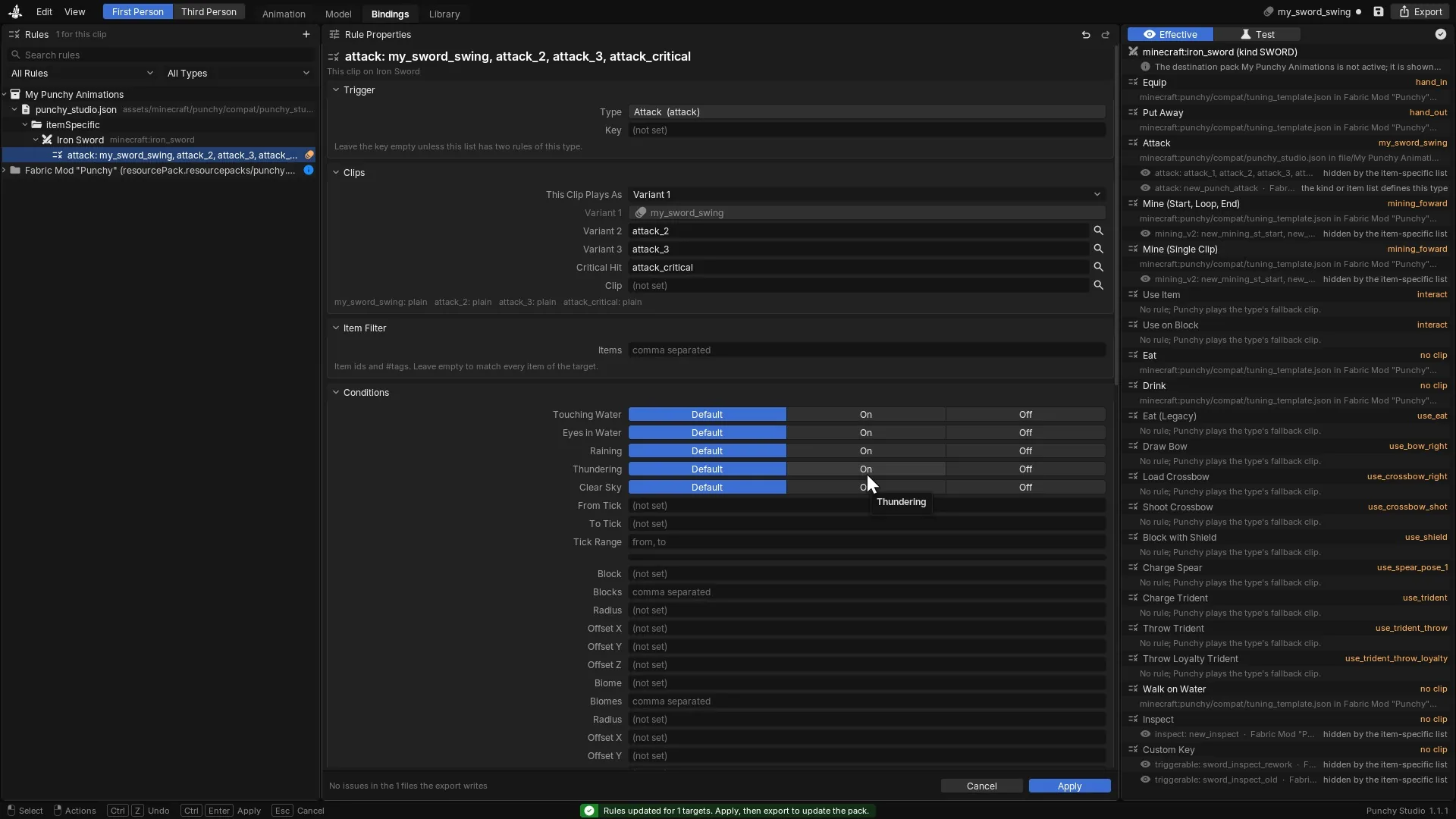
In the Bindings workspace a new rule names the clip for sword attacks, and Apply keeps it.

Video coming soon
Where to go for each symptom
| What you see | Go to |
|---|---|
| The pack is not in the list, is in the list but changes nothing, or a window says Punchy: resource pack disabled | The pack does not load |
| The normal swing plays where your clip should | My clip does not play |
| The normal item is in your hand where your 3D model should be | My model part does not show |
| No particles, particles all the time, or particles with the wrong look | Particles do not fire |
| A held item stays still | An item does not swing |
| An item is invisible or sits in the wrong place | An item vanished or sits in the wrong place |
| You cannot tell which file is at fault | What Punchy! drops without a message |
What Punchy! drops without a message
Punchy! reads each kind of file in its own way. Clip files leave a warning in the log. Everything else is skipped quietly.
| File | A mistake that drops it | What you lose | In the log |
|---|---|---|---|
Rule file in assets/ or assets/ | JSON that cannot be read, a trailing comma after the last member of an object, a value of the wrong type, a decimal where a whole number goes, text after the last brace, a root that is not an object, the same key twice inside item, item or another map | The whole file, every rule in it | No |
Clip file in assets/ | JSON that cannot be read, or a top level that is not an object | Every clip in the file | Yes |
| One clip inside a clip file | A key that does not hold exactly three values, a Molang expression that does not compile, a time key in rotation, position or scale that is not a number, bones, a bone or timeline that is not an object, an animation_ that is not a number | That clip only | Yes |
Clip file with no animations object | The object is missing | The whole file gives no clips | No |
| Model part definition | JSON that cannot be read, a root that is not an object, no items or item, no geo, no texture, any value of the wrong JSON type | The whole definition, and the item draws the normal way | No |
| Geometry file | No minecraft: list, no bones, a bone with no name, a value that is not a list of numbers where a list belongs | The model is not drawn and the normal item shows, but the definition still claims its items | No |
| Item clip file of a model part | A bad clip, or a time key in a bone track that is not a number | That clip and every clip after it in the file | No |
config/ | A mistake the game cannot read, such as a missing comma or a value of the wrong type | Your settings go back to the defaults and Punchy! writes a new file over yours | No |
Some mistakes keep the file and throw away one value:
- A misspelled key. Punchy! ignores keys it does not know, in every kind of file.
- A kind key such as
swordin lower case. Kinds underitemare exact capitals, such asSWORD. - A clip name written with other capitals than the clip has. It is another clip, which does not exist.
- A single number or a piece of text where a key needs three values. It is read as
0, 0, 0, or1, 1, 1forscale. - A time key in
timelineorsound_effectsthat is not a number. It is read as time 0. - A
loopvalue that is nottrue,"loop","true"or"hold_on_last_frame". The clip plays once. - A sound whose
.oggfile is missing. - A timeline token with extra text, such as
disable_arm_tuning: true. It is a different text and matches nothing. The token isdisable_arm_tuning. - A particle key it does not know and a vector that does not have three parts. Both are ignored. A
typethat matches no picture is drawn withflame.png, or with the soul, smoke or ash picture when its name hassoul,smoke,campfireorashin it.
One file, three mistakes
This rule file looks fine, and it does nothing:
{
  "item": {
    "sword": {
      "customAnimation": [
        { "type": "attack", "name": "Test_Sword_Swing", }
      ]
    }
  }
}
The comma after the last member of the entry drops the whole file. Once that is fixed, sword is ignored because the kind must be SWORD. Once that is fixed, Test_Sword_Swing is not the clip test_sword_swing, so the moment plays its built-in clip. This is the file that works:
{
  "item": {
    "SWORD": {
      "customAnimation": [
        { "type": "attack", "name": "test_sword_swing" }
      ]
    }
  }
}
Test with a pack that works
When you cannot tell a game problem from a problem in your files, put your pack aside and build this one. It has three files and replaces the sword attack with a wide swing of the right arm.
-
In
resourcepacks, make a folder calledPunchy test pack. -
Inside it, make
pack.mcmeta. The numbers are for Minecraft 26.3. The table on Resource packs has the other versions.{ "pack": { "description": "Punchy test pack", "pack_format": 97, "min_format": 97, "max_format": 97 } } -
Make the folders
assets/minecraft/punchy/animationsandassets/minecraft/punchy/compat. -
In
animations, save this astest_pack.animation.json:{ "format_version": "1.8.0", "animations": { "test_sword_swing": { "animation_length": 0.6, "timeline": { "0.0": "anim_speed_1;" }, "bones": { "right_arm": { "rotation": { "0.0": [0, 0, 0], "0.15": [-40, 20, -30], "0.35": [60, -10, -70], "0.6": [0, 0, 0] } } } } } } -
In
compat, save this astest_pack.json:{ "item": { "SWORD": { "customAnimation": [ { "type": "attack", "name": "test_sword_swing" } ] } } } -
Move the pack to Selected, above Punchy!, and press Done. Wait a second.
-
Join a world, hold a sword, switch to first person and attack.
If the arm swings, Punchy! and your pack setup are fine. Add your own files to this pack one at a time and reload after each. The one that stops the swing holds the mistake. If the arm does not swing, go through The pack does not load.
To see what a dropped clip looks like in the log, break this pack on purpose. In test_pack.animation.json, change "0.15": [-40, 20, -30] to "0.15": [-40, 20], so the key holds two values, save the file and press F3+T. The sword attack plays the built-in swing, and logs/latest.log has a line starting [Punchy] Could not load animation 'test_sword_swing'. Put the third value back and reload to get the arm swing again.
The pack does not load
Minecraft does not list the pack
- There is no
pack.mcmetanext toassets. Minecraft needs it at the top of the folder or zip. - The zip has an extra folder. Open the zip.
pack.mcmetaandassetsmust be at the top, not inside a folder that holds them.
The pack is listed, and nothing changes
Check these in order.
-
The pack is not in Selected, or it is below Punchy!. For a clip or a rule that both define, the pack higher in Selected wins. A pack below Punchy! loses to it.
-
You did not reload. Press F3+T and wait a second.
-
A file is in the wrong folder. Folder names are exact and lower case. A folder called
animationis not an error. Punchy! never looks in it.What Where it goes Clips assets/, anyminecraft/ punchy/ animations/ .jsonfile, subfolders too.assets/is read as well, but Punchy! files those clips under the built-in Punchy! pack, so keep your own clips in the first folderpunchy/ animations/ Rules (compat files) assets/orminecraft/ punchy/ compat/ assets/, anypunchy/ compat/ .jsonfile, subfolders tooModel part definitions assets/, any depth<namespace>/ punchy/ model_ parts_ items/ definitions/ Sounds assets/, and an event for each inpunchy/ sounds/ animationssounds/ <name>.ogg assets/(Studio writes the events for you)punchy/ sounds.json -
A name Minecraft cannot read. A file or folder name with a capital letter, a space or another character a resource id cannot hold is skipped by Minecraft itself, so Punchy! never gets it. Use lower case letters, digits,
_,-and.. -
The pack format does not cover your game. Minecraft marks a pack whose
pack_format,min_formatandmax_formatdo not fit your version as made for an older or a newer version, and asks before it loads it. The table on Resource packs has the numbers. Punchy! Studio writes them for you. -
Something is applied after the packs and wins. Punchy! applies things in this order, and a later step overrides an earlier one where both set the same thing:
- The rule files of all packs, merged. The higher pack wins each field.
config/punchy/punchy_tuning.json, the tuning you saved, only when no tuning profile is active.- Your choices in Mix Packs.
- The active tuning profile from
config/punchy/profiles/.
On Minecraft 26.2 the active tuning profile comes before your Mix Packs choices, and the positions it sets stay. So a choice you made in Mix Packs, a profile you saved in the Hand Editor or an old
punchy_tuning.jsoncan hide a pack. AcustomGroupsname saved inpunchy_tuning.jsondoes nothing, because only a rule file registers group names. In the Hand Editor, Reset To Default removes the saved tuning and deactivates the active profile. In Mix Packs, Use resource pack order clears every choice. See Mix the packs and Tuning editor and debug. -
Punchy! is off, or the item is left alone. With Enable Punchy OFF the game draws your hands the vanilla way. An item in the Item Blacklist never animates. The switches table lists the settings that can do this.
-
You are not in first person. Punchy! animates your own first person hands only.
Punchy: resource pack disabled
A window with this title opens the first time you attack, mine, use an item or inspect in first person while no active pack gives Punchy! a rule file or a first-person clip. It says Punchy! found neither in your active resource packs. Turn on the built-in Punchy! pack, or another pack made for Punchy!, in Options, Resource Packs, then press F3+T.
Your settings went back to the defaults
A mistake in config/punchy/punchy_config.json makes Punchy! write a new file with the default settings. Keep a copy before you edit it, and edit it with the game closed. See Settings and controls.
My clip does not play
A clip needs three things: the pack, the clip file and a rule that names the clip. Work through the questions in this order.
Is the clip loaded?
- The file is not in a clip folder. Clips are read from
assets/minecraft/punchy/animations/in every selected pack, from any.jsonfile at any depth. Use that folder for your own pack: clips inassets/punchy/animations/are read too, but filed under the built-in Punchy! pack. - The log names the file. A line starting
[Punchy] Could not read animations from packmeans the file is not valid JSON, or its top level is not an object. The file gives no clips until you fix it. The error under the line often points at the place where reading stopped. - The log names the clip. A line starting
[Punchy] Could not load animationnames one dropped clip. The usual causes are a key that does not have exactly three values, a Molang expression that does not compile, a time key that is not a number, abones, bone ortimelinethat is not an object, and ananimation_lengththat is not a number. - There is nothing in the log, and still no clip. Either the file has no
animationsobject, or the clip’s value is not an object, or the file is not in a selected pack. Punchy! stays silent about all three. - Two clips have one name. The clip from the pack higher in Selected wins as a whole. Punchy! never mixes the bones of two clips. Do not count on either of two files in one pack that hold the same clip name. Rename one. Studio’s Library says whether Punchy! plays this pack’s copy of a clip or another pack’s.
- The clip has no length. Without
animation_lengththe length is 0. Walk, sprint, jump, fall and landing clips of length 0 are ignored. Give every clip a length that fits its last key.
Does a rule play it?
A clip file alone plays nothing. A rule in a compat file has to name it. Punchy! does not report a rule that finds nothing, and a rule file with a mistake is dropped whole. Check these in order.
- The rule file was dropped. See the table above. Studio’s Bindings workspace reports Punchy would ignore this file and gives the reason.
- The kind is not exact. Keys under
itemare the exact capital names of the kinds, such asSWORDorPICKAXE. A lower caseswordis ignored. A custom group name has to match acustomGroupsentry exactly. - The item id is wrong. Keys under
itemSpecificare item ids in lower case with their namespace, such asminecraft:iron_sword. A key that is not a valid lower case id is dropped. Anitemslist inside an entry holds item ids and#tags. A custom group name there never matches. - The type is wrong.
typeis matched after it is put in lower case and_,-and spaces are removed, souse_bow,useBowanduseboware one type. A misspelled type matches nothing, and nothing is reported. - The clip name is wrong. Names are case sensitive. For an attack combo,
var_1,var_2andvar_3are used in turn, andnameonly when all three are blank. For a single clip,animationis read first, thenname, thenvar_1. A name that matches no clip is not reported. The moment plays its built-in clip instead, when one is loaded. - A list replaced yours. An item’s own
customAnimationlist replaces its group’s list as a whole, and an empty list does too. Types missing from it are filled fromdefault_animations. Copy the types you still want into the item’s list. - Two entries became one. When a
default_animationslist is also in play, entries with the sametypeandkeyin one list can collapse into the last one. Give them differentkeyvalues. - Another pack’s rule wins. A lower pack adds an entry only for a type the higher pack does not have. If the higher pack has an
attackentry forSWORD, yours is not used. Studio’s Effective tab shows the winner. - Something saved beats the pack. See the order of what is applied after the packs, in The pack is listed, and nothing changes. A setup you loaded in Mix Packs is applied again at every reload, so a pick you made after loading it goes back to the setup’s choice when you press F3+T. Click Save as… with the same name to keep the pick, or pick Current choices in the setup list. See Setups.
- A condition is not met. An entry with
items,in_water,inside_water,block_detection,weather_detection,time_detectionorbiome_detectionplays only when every one of them holds. A variation plays only when all of its conditions pass, and the highestprioritywins. - A more specific entry wins. Entries of one type are sorted by their selectors:
itemscounts most, then each of the world conditions above counts one. Entries with the same score keep their order in the list.
Does the moment happen?
- Walk, sprint, jump, fall and landing. These play only when Resource Pack Movement is ON on the Movement tab. It is OFF by default. A move with no clip keeps the built-in movement, and a fall clip plays only after a drop of more than 3 blocks.
- A bow release. A
use_bow_shotentry must exist, or nothing plays on release. The draw must reach a power of 0.1, and you need an arrow or creative mode. - A key animation. A
triggerableentry needs akey, or it never reaches the Controls screen. A key name that Punchy! does not know gives no default key. The key the player chose in Controls always beats the pack’s key. Entries with the sameidshare one binding, so the first one’s title and key are used. - An idle clip. It plays only while no other clip, swim, walk on water, mining or use is playing. Set
looptotrue, or it plays once. - An inspect clip. It plays when you press the Inspect key, I by default, and only with no screen open.
- The wrong moment. Studio’s Test tab, with Play in Game, plays your clip the way a chosen action would, at Punchy!‘s real speed. Its trace says how Punchy! picked the clip.

It plays, but not as you expect
- It is too fast to see. Without an
anim_speed_token, most clips play at the Animation Speed setting, 5.5 times faster than authored by default. Addanim_speed_1;to thetimelineat time0.0. The token takes values from 0.5 to 5.5. Bow, crossbow, shield, trident and swim clips already play at their authored speed. Equip clips always do. - A token does nothing. Tokens are exact text, split on
;and put in lower case.disable_arm_tuningis a token anddisable_arm_tuning: trueis not. The item switch tokens that hide an item need an underscore and an id or a star, as inhide_right_switch_item_*. - The combo starts over, or the next swing waits. An attack combo plays
var_1,var_2andvar_3in turn. It goes back tovar_1after more than 30 ticks without an attack, or when the number of clips in the combo changes. A new attack clip also waits about 5.7 ticks after the last one started. An entry with"trigger_on_input": trueand combo names plays on the input and skips that wait. - A clip from Blender turns the wrong way. A clip made with the Punchy Blender add-on uses the older key layout, so leave
use_keyframes_v2out of its timeline. With it, a turn about Y or Z plays 9 to 11 degrees off. The steps are in Create an animation. - The camera does not shake. Put the keys on the
camerabone, and check that Enable Camera Animations on the General tab is on. The keys move your view in legacy clips and in clips withuse_keyframes_v2alike. On Minecraft 1.21.11 even a shake of half a degree shows. On the other versions a turn of the bone reaches your view only when it is bigger than about 1.6 degrees or the bone also moves, so make a gentle shake a little stronger. - The left hand plays the right hand’s clip. Punchy! never mirrors a clip. To give a hand its own clip, name a second clip with
_leftor_rightat the end of the name. The side of the hand that plays wins, then the bare name. - A sound is silent. The file must be
assets/punchy/sounds/animationssounds/<name>.ogg, and the name insound_effectsmust match the file name exactly. Keep the file name in lower case, as Minecraft requires. Minecraft also needs an event for the sound inassets/punchy/sounds.json, and Studio writes it when it exports a sound. A clip that plays once plays every sound keyed on it, one at the very end included. A sound placed at time 0 plays when the clip starts, also in a clip that blends in from the current pose, and again each time a looping clip wraps.
For the full lists, see Why a clip does not play and Things that stop a rule working.
My model part does not show
Punchy! reports none of these in the game. A model part with a mistake often just disappears, and the normal item is drawn. Open Studio’s Model Parts Library (Ctrl+O in the Model workspace). It lists every definition in your loaded packs in Punchy!‘s order, and says for each item whether it is rendered, shadowed by another definition, blocked by a named one or never matching.
Video coming soon
The definition is dropped
Punchy! checks a definition when it loads the resources and removes the whole file for any of these:
- The file is in the wrong place. Definitions are read only from a
definitionsfolder underassets/<namespace>/punchy/model_parts_items/. - The JSON cannot be read, or the top level is not an object.
- There is no item. There is no
itemsand noitem,itemsis an empty list, or it holds only blank text. Whenitemsis present,itemis ignored. - There is no
geo, or notexture, or the id is not a valid resource id. A capital letter in an id is enough. - A value has the wrong JSON type. Examples are a
displayentry that is not an object, arotationortranslationthat is not a list of numbers, atexture_animcount that is not a number, anitemsthat is text instead of a list, and a field of amodelPartsAnimationentry of the wrong type, such as"items": "minecraft:lantern".
Fix the file and press F3+T. In Studio, the Lint panel on the Definition tab names the reason with Punchy drops this definition.
The definition is kept, but the normal item is drawn
- The geometry file is missing or cannot be read. Punchy! does not check the file when it loads the definition. The definition still claims its items, draws nothing and hides every later definition for them. A geometry with no
minecraft:geometrylist, nobonesor a bone with nonamedoes not load. - The
geoid is not complete. It is used exactly as written, so write the whole id with the ending:mypack:punchy/model_parts_items/geo/baton.geo.json. The ids inanimationsare used as written too, so they end in.animation.json. A texture id may leave out.png. - Another definition sorts first. Pack order does not decide. Punchy! sorts definitions by their full id as text, namespace first and capitals ignored, and uses the first one that matches the held item. Studio can put your definition first in the order when you export it.
- A named definition is in play. A definition with a
customNamebeats every unnamed one when the stack carries that name. When a named definition exists for an item and your stack does not match its name, no unnamed definition is used and the normal item draws. - The item does not match. Bare ids get the
minecraftnamespace. A#namespace:tagentry matches every item with that tag. An entry that cannot be read is skipped, so a typo shows as no match. - You are using the item. While you eat, drink, draw a bow or block with a shield, Punchy! draws the normal item instead of your model. The model stays when the definition has an animation entry of a use type (
useItem,useEat,useDrink,use_bow,use_bow_shot,use_crossbow,use_crossbow_shot,spear_chargeoruse_shield) or ausingstate model. - Punchy!‘s own renderer goes first. A held chest, boat, raft, minecart, piston or enchanting table is drawn by Punchy! before model parts get a turn.
- You look at it in third person or the inventory. Model parts draw in your own first person hands only.
- The whole system is off. Resource Pack Model Parts on the Items & World tab is OFF, or
disableResourcePackModelPartsistrueinconfig/punchy/punchy_config.json. Press F3+T after changing it.
It draws, but not as you meant
- A cube is missing. Every cube needs
originandsize. Give it auvobject with the faces you want, each withuvanduv_size. The faces arenorth,south,east,west,upanddown, and only the faces you list are drawn. Auvobject with no usable face drops the cube. - Only some cubes show. Once any cube has a
uvobject, a cube with the short[u, v]form is not drawn. A model made only of short form cubes does draw, but without glow, bone textures, particles or bone physics. - The texture looks stretched or shifted. Punchy! scales the UV by
texture_widthandtexture_heightof the geometry, 64 by 64 when they are missing, never by the size of your PNG. The geometry reads them fromdescriptionwhen that object exists, and from the top level only when it does not. A UV past the edge is clamped to the edge, not repeated. - The model is the wrong size or in the wrong place. The file is in pixels, 16 to a block, and the X axis is mirrored. Build the model around the middle and use
displayto fit it to the hand. Rotations are in degrees andtranslationis divided by 16. - The texture is missing or wrong. Punchy! does not check at load that the file exists. It adds
.pngwhen the id has none, and putstextures/in front unless the path already starts withtextures/orpunchy/model_parts_items/textures/. - A texture animation stands still. The PNG must be exactly
framestimes the frame height tall, andframesmust be more than 1. A mismatch stops the animation without a message. - A bone does not glow. The name in
bone_emissionmust match the bone exactly. A bone namedblur,clamp,strength,intensityorbrightnesscannot glow. Levels from 1 to 15 set how bright the glow is, and 15 is full brightness. Levels from 16 to 100 glow at full brightness and add bloom only whenbluris on.strengthset to 0 also turns the glow off. - The clip does not move it. An entry that names a clip that does not exist plays the
idleclip instead, when the part has one. Bone names in a clip must match the geometry exactly. See Item clips. - A bucket does not change. See Why my bucket does not change.
The complete lists are in Things that stop a model part from showing and Things that make Punchy! skip your model.
Particles do not fire
The emitters of a definition run while its model part is drawn, so if the part is not showing, start with My model part does not show. Emitters in a compat rule file also run on an item that has no model part.
Nothing appears
- Particles are off. Enable Particle System on the Effects tab is OFF. Every emitter is reset and none emits.
- Punchy! never reads the emitter. In a definition, the keys are
particle,particles,particle_effects,particle_emissionandparticleEmission.particle_emittersis read only in compat rule files, initemanditemSpecificentries. AnemptyHandentry has no particles. - A more specific list replaced yours. For an item, the compat list comes from the most specific
itemSpecificentry that has particles, from a match on the item’s name and custom model data down to the plain item id (matching enchantment variants add their emitters to it), and only then from the group. A more specific list replaces the lower ones, and does not add to them. The definition’s own list is added in front of whichever list wins. - The emitter was dropped.
"enabled": falseremoves it. An emptyparticle()makes none. A bare word that is not a valid id makes none. An object whose keys are all ignored makes none. - It spawns nothing. A
countof 0, achanceof 0 or atof 0 spawns no particle. - A clip silences it. The active animation entry has
"disable_all_particles": true. - The picture is not found. See The look is wrong.
It fires at the wrong times
- It fires 20 times a second. An emitter with no triggers, no
rateand noemit_intervalreleasescountparticles every game tick. Addchance, arateor anemit_interval. - A
rateis ignored. An emitter whose triggers are only jump, landing, attack, use or a clip moment fires once per event and never usesrateoremit_interval. Add a continuous trigger such aswalkingto get a stream.miningis both a pulse and continuous. - It never fires with two pulses. Several triggers on one emitter must all be true at the same time by default.
jumpandlandingnever are, because landing needs the ground and jumping needs the air. Add"trigger_mode": "any", or split the triggers into separate emitters. - My triggers are ignored in a definition. In a definition,
triggersmust be an object with named flags, such as{ "walking": true }. A list there is ignored and the emitter is always on. The list form is for compat rule files. A compat list means any of the names. A list whose names are all misspelled leaves the emitter always on. - An empty
triggersobject, or anon_animationwith only a name, leaves the emitter always on. Give it a flag, or a name and a timecode. use_itemdoes nothing in the object form of a definition. Write it as a flat key,trigger_use_item, or use a script string.- A walking, sprinting, swimming or falling emitter stays quiet. Walking is true on the ground while you move and do not sprint or swim. Sprinting needs movement too. Swimming is true in water. Falling needs a fall with downward speed, and
min_blocksraises the distance it needs. - The clip moment never fires.
on_animation_namemust match a clip that plays, in any capitals: an item clip of the model part, or the arm clip of acustomAnimationentry.on_animation_timecodeis in seconds into that clip. On an item clip, a timecode of 0 does not fire when the clip starts, so use a time after 0. - It stopped for good. An emitter with
emit_forstops after that many seconds of its own age. Editing its text or pressing F3+T starts it again. - It spawns too much. Each event spawns at most 120 particles, and a
rateis capped at 120 a second.
The look is wrong
- The picture is not the one you wrote in
type.typedoes not spawn the vanilla particle. It chooses the picture. With notexture, Punchy! looks for the type’s own particle definition, thentextures/particle/<type>.pngor<type>_0.png, then a guess by name (soul, smoke, campfire or ash), thenflame.png. - A new picture does not show. Punchy! remembers a texture it did not find, and it remembers how many frames a strip has. F3+T does not clear that. Restart the game after you add the file or its frames.
- An animated particle does not move. The base file ends in
_0, the frames count up with no gap to_63, and thetextureid ends in_0. A particle pinned withlock_in_modelnever animates. - There is no glow. Check these:
fullbright,full_day_lightorbright_at_darkis on.fullbrightis on by default, except for types withleaforleavesin the name and for particles withbright_at_darkon, unless you writefullbrightyourself.- For
fullbrightandfull_day_light, Enable Model Parts Glow is ON.full_day_lightalso glows only in daylight, in a level that has sky light. emissive_strengthis above 0.light_percentis not set, or it is 100.- A
bright_at_darkparticle does not need Enable Model Parts Glow, but it does need Enable Blur Glow At Dark ON on the Effects tab.
- The glow keys are ignored in an object.
emissive_strength,emission_strength,emissive_blur,emission_blur,emissive_clampandemission_clampare ignored in object form. Write them in aparticle(...)script string, or use the short keysemissive,strength,blurandclamp. - A script breaks. In a script string a comma ends a pair. Write a vector with colons, as in
offset=0:0.2:0, and a list of blocks or biomes with|between the names. - It appears at the hand, not at the bone. A
bonename that matches no bone puts the emitter at the hand position instead of dropping it. Check the spelling and the capitals against the geometry. - A list of three became a vector. In an object, a list of exactly three values is read as
x:y:z. Write block and biome lists as one text joined with|.
Studio’s Particles tab shows the default of every key. Its Trigger Test panel toggles walking, sprinting, swimming and falling, fires jumps, landings, attacks, mining and uses, and says which emitters would emit now.
Video coming soon
The long list is in Things that go wrong on the Particles page.
An item does not swing
Held items swing as pendulums, driven by turning the camera, walking, jumping and landing. An item that is standing still does not move, so test by turning and jumping.
The whole item
- Item physics are off. Enable Item Physics on the Items & World tab is OFF. The pendulums stop, and so does the slime wobble.
- The item has no mode. An item swings only when a
physicsentry gives itFULL_PENDULUMorFORWARD_PENDULUM. Punchy!‘s own rules do that for lanterns.NONEmeans no pendulum. The names are not case sensitive, but they must be spelled out.fullandforwardwork only in bone physics. - The entry is ignored whole. In a group, pattern or
itemSpecificentry, a physics object whosenameis not a valid mode is ignored with its settings. A physics object with settings and nonamedoes nothing. - The keys are not read. The physics object takes camelCase names:
limitDeg,limitDegUp,limitDegDown,force,speed,cameraSens,gravity,motionSens,invertandhandSpace.limit_degand the other snake case names are ignored without a message. - A pose changed the mode. A pose you write for one hand has its own
physics, as text, and the pose decides that hand’s mode. Writephysicsin the pose or in the entry that holds it. An object in thephysicsof a pose drops the whole rule file. - The limits hold it still. A limit of 0 on both sides holds the swing still.
limitDegUpwritten alone leaves the down limit at 55, not atlimitDeg. - A clip pauses it. While a clip with the token
disable_pendulumordisable_pendulum_physicsplays on the arm, the swing is suppressed. - A profile or saved tuning sets the same item. See the order in The pack is listed, and nothing changes.
Single bones of a model part
- The bone spec has no effect. A bone entry in
bone_physicsis kept only when it hasenableCreaturePhysics,enableSlimePhysicsor a pendulum mode. Limits and percentages alone are dropped. The mode is read frompendulum_mode,pendulumMode,pendulumorphysics_mode, and the first one that is notNONEwins. Herefullandforwardare valid. - The bone is named wrong. Bone names are case sensitive and must match the geometry. A bone with no spec of its own uses the nearest parent’s spec.
- The bone is switched off. A bone listed in
disable_physics_bones, or whose parent is, gets no item physics. The list in the active animation entry replaces the definition’s list, even when it is empty. - The model is made of short form cubes. A model that uses only
[u, v]cubes draws without bone physics. Give each cube auvobject. - The feedback pose does nothing.
physicsFeedbackworks only on models shaped like an axolotl: boneshead,bodyorbody_root, andlegs_frontorleg1.
Studio’s Physics Test Rig drives a virtual player that turns, walks, sprints, jumps, drops and kicks, and draws the swing of each pendulum as a graph.
Video coming soon
The long list is in Things that stop a swing.
An item vanished or sits in the wrong place
- A pose has no
scale. A pose withoutscaleis scaled to 0, so the item is drawn at size 0 and cannot be seen. Write"scale": 1.0in every pose. - The
rightandleftshorthand sits in the wrong place. It works under a kind key or a custom group key, only whentransformsis absent. It is not read initemSpecificentries, and a pattern entry loses it. Put the poses undertransforms. - The kind is not what you think. A kind written in an
itemSpecificentry must be in exact capitals. A lower case value is ignored, and the item’s own kind is used. A pattern entry with nokindand a key that is not a kind turns its items intoINGREDIENT. - A saved profile or tuning moves it. Check the order above, then try Reset To Default in the Hand Editor. See Tuning editor and debug.
- Your arms disappear when you look down. If you have the First Person Model mod, see the FAQ.
Switches that hide a pack’s work
Each of these settings can make a working pack look broken.
Settings that change what a pack shows
| Label and tab | Default | File key | What it does when it is the wrong way |
|---|---|---|---|
| Enable Punchy, the switch under Done | ON | enableMod | OFF draws your hands the vanilla way, with no Punchy! animation. |
| Item Blacklist tab | empty | item | A listed item or mod looks like normal Minecraft. |
| Animation Speed, General | 5.5 | animation | Most clips play that many times faster than authored, unless they set their own speed. |
| Enable Camera Animations, General | ON | enable | OFF keeps your view still when a clip keys the camera bone, so no camera shake shows. |
| Resource Pack Movement, Movement | OFF | disable | While OFF, a pack’s walk, sprint, jump, fall and landing clips never play. The file key is the opposite of the menu row. |
| Enable Particle System, Effects | ON | enable | OFF stops every model part particle. |
| Enable Model Parts Glow, Effects | ON | enable | OFF removes the glow and full bright from model part particles (fullbright and full_). The particles stay, and the bone_ glow of the model’s own bones is not affected. |
| Enable Blur Glow At Dark, Effects | ON | enable | OFF hides the particles that use blur_. |
| Enable Item Physics, Items & World | ON | disable | OFF stops every item pendulum and the slime wobble. The file key is the opposite of the menu row. |
| Resource Pack Model Parts, Items & World | ON | disable | OFF turns the whole model parts system off. The file key is the opposite of the menu row. Takes effect after F3+T. |
Settings and controls lists every row of every tab.
Report a bug
If you still cannot find it, ask in the Punchy Discord. The Help & Support tab of the F8 menu has a Discord row and a Report a bug (Discord) row, each with an Open button, and both open the same invite. A report is easier to answer when it has:
- The Punchy! version, the Minecraft version and the loader. The Copy debug info row on the Help & Support tab puts them on the clipboard, together with the settings you changed, so you can paste them into your report.
- The packs that are in Selected, in order, and the other mods that touch first person, such as Better Combat or First Person Model.
- The file that does not work, or the line of it, and what you expected to see.
logs/latest.logfrom after a F3+T reload, or at least the lines that contain[Punchy].- What Studio’s checks say, if you use it: the Check for Problems list, the Bindings Effective tab or the Lint panel.
Related pages
- Resource packs has where each file goes and which pack wins.
- Create an animation takes a clip from nothing to playing in game.
- Animation types and triggers lists every moment a rule can play a clip for.
- Compat rules explains rule files and what drops one.
- Model parts covers definitions, geometry, item clips and particles.
- Item physics covers pendulums and bone physics.
- Mix the packs and Tuning editor and debug cover the saved choices that can override a pack.
- Punchy! Studio runs the checks used on this page.
- FAQ answers the short questions.
- Punchy! Moves troubleshooting is the page for the third person mod.
Last checked against the mod on 30 October 2026.