
Troubleshooting
Why a Punchy! Moves pack does not load, a clip or emote does not play, a face does not show or the body turns wrong, how to read the log, and what drops a file.
-


This page has not been translated into Polish yet, so it is shown in English. Read in English
On this page
Punchy! Moves says very little when a pack goes wrong. A file with a mistake is usually left out, and your character then moves like plain Minecraft, so a pack can look as if it did nothing. This page takes the usual symptoms one at a time: a pack that does not load, a clip or an emote that does not play, a face that does not show, a body that turns wrong and a camera that misbehaves. It also says where Moves does leave a message and which mistakes drop a file in silence.
It is for players whose pack changed nothing and for pack makers whose files misbehave. Each symptom lists its causes from the likeliest down, with the fix.
Before you start
- The labels and behavior here are checked against Punchy! Moves 1.0.0 for Fabric on Minecraft 1.21.11. Another build can differ.
- Know your game folder: the one that holds
mods,resourcepacks,configandlogs. - Press F3+T in a world after every change to a pack. Moves reads a pack’s files, and writes its warnings, each time resources reload.
- The Moves clips on this wiki come from the example pack provided by Crafto, Fluid & Foolish. Names that start with
my_in the examples are placeholders for your own clips.
How Moves reports a problem
Moves speaks in three places: on the screen, on the emote wheel and in the game’s log. Most mistakes use none of them, so the last part of this section lists what stays silent.
On the screen
These short texts show above the hotbar, except the last one, which shows on the emote wheel.
| You see | What it means |
|---|---|
| Punchy Camera: enabled, Punchy Camera: disabled | The camera key switched the shoulder camera on or off. |
| Orbit camera: enabled, Orbit camera: disabled | The orbit key started or ended the orbit camera. |
| Enable the custom camera first | You pressed the orbit key while the custom camera was off. |
| Punchy: playing align_ingame | You pressed G and the pack sets an alignment action whose clip is loaded. |
| Punchy: align_ingame was not found | You pressed G and no alignment action with a loaded clip is set. |
| No emotes in the active pack | The wheel has nothing to list: no pack that is on has an emote whose clip is loaded. |
In the log
Moves writes its warnings to the game’s log, never to the screen. A pack maker reads it like this:
- In a world, press F3+T. Moves reads its files again and writes a warning for each compat file or face file it cannot use.
- Open your game folder, then the
logsfolder, and openlatest.login a text editor. - Search for
Could not load animation compat, then forFace:. - Read the line. For a compat file it names the file and the member that is wrong. Fix it, save, and press F3+T again.
Video coming soon
Every log line begins with the time and the thread, as in any Minecraft log. This is the message of a dropped compat file:
Could not load animation compat punchy_moves:compat/my_pack.json: Compat defaults.animations.turn_in_place: declare left e right juntosThe text after Compat and the path of the member is written in Portuguese. What the words after the path mean translates the ones you are likely to meet.
| Key | What it does |
|---|---|
Could not load animation compat <file>: <reason> | A warning. That compat file was dropped whole. <file> is its id, such as punchy_. <reason> starts with Compat and the path of the member, or, when the text is not JSON or its top level is not an object, is the JSON reader's own words, in English (for example Not a JSON Object: [1], or Expected name at line 9 column 8 path ... followed by a See line with a link). |
Face: <what>: <reason> | A warning. A look, an eye shape or triggers.json could not be read and is left out. The other face files still load. See A look or an eye shape is missing. |
Faces from resource packs: N looks, N eye shapes, N reaction changes | Information. The faces that the packs bring were read. It is written only when a pack brings some. |
Face rig for <skin> (<source>): <eyes> | Information, once per skin after each reload. It ends with none when the finder found no eyes on that skin. |
Could not read the skin <skin> for its face rig | A warning. A skin that comes from a resource pack could not be read as a picture. |
Could not read Better Combat animation preference; using AUTO | A warning. better_ could not be read, so the Better Combat pack attacks choice is Automatic. |
Could not read the Spatial GUI preference; using FULL | A warning. spatial_ could not be read, so the Spatial GUI panel choice is Full. |
Other warnings that name Better Combat or Player Animation Library | Moves could not use an optional part of that mod's interface, usually because the mod is a version Moves does not know. Moves carries on without that part. |
What stays silent
Moves writes nothing for these, so do not read a quiet log as a sign that all is well:
- A clip name that no animation file defines. The action plays nothing, and an emote with that clip is left off the wheel.
- An animation file that is not valid JSON, or whose root is not an object. Its clips are missing.
- A clip that cannot be read. It and every clip after it in the same file are lost.
- A misspelled key inside an action. Only the root,
defaults, an item or item group, asequenceand its phases,turn_in_place,camerasandbetter_combatcheck their keys. Inside any other action, an unknown key is ignored. - A valid action name that Moves does not read, such as
walkin. It is accepted and never played. - A rule that is skipped and not dropped: a riding rule without
entities, a biome rule withoutposeorevent, an emote entry withoutanimation, a walking candidate without a clip, an overlay whose clip is missing.
Where to go for each symptom
| What you see | Go to |
|---|---|
| The pack is not in the list, or is in it and changes nothing | The pack does not load |
| The body moves like plain Minecraft, or one moment has no clip | A clip does not play |
| The emote wheel is empty, lacks your emote, or the emote does nothing | An emote is missing from the wheel |
| The face is missing, in the wrong place or not the one you made | A face does not show |
| The body never steps, steps late or turns the wrong amount | The body turns wrong |
| The camera does nothing, goes off or sits wrong | The camera misbehaves |
| You cannot tell which file is at fault | JSON mistakes |
| You cannot tell a problem in the game from a problem in your files | Check your setup with a pack that works |
The pack does not load
Minecraft does not list the pack
- There is no
pack.mcmetaat the top. Minecraft needs it next toassets, at the top of the folder or the zip. - The zip has an extra folder. Open the zip.
pack.mcmetaandassetsmust be at the top, not inside a folder that holds them. Zip the contents of the pack folder, not the folder. pack.mcmetais not valid JSON, or its numbers do not fit. For Minecraft 1.21.11 the format number is 75. A pack whose numbers do not cover your game is flagged in the list as made for another version. Resource packs explainspack_format,min_formatandmax_format.
The pack is listed, and nothing changes
Check these in order.
-
The pack is not in the right-hand list. Under Options, then Resource Packs, move it to the right-hand list and press Done.
-
You did not reload. Press F3+T in a world. Changing the pack list reloads too.
-
A file is in the wrong folder. The namespace folder is
punchy_moves, spelled exactly, and the folder names below are lower case.What Where it goes Clips assets/, any file that ends inpunchy_ moves/ animations/ .json, subfolders tooCompat files assets/, any file that ends inpunchy_ moves/ compat/ .json, subfolders tooLooks assets/, directly in that folderpunchy_ moves/ faces/ looks/ <name>.json Eye shapes assets/, directly in that folderpunchy_ moves/ faces/ shapes/ <name>.json Reaction changes assets/punchy_ moves/ faces/ triggers.json -
A name Minecraft cannot read. A file or folder name with a capital letter, a space or another character that a resource id cannot hold is skipped by Minecraft itself, so Moves never sees it. Use lower case letters, digits,
_,-and.. -
Another pack has the same file. When two active packs have a file at the same path, only the one higher in the list is read. Files with different names all load, and the compat files of every pack are read in the order of their paths. How the game reads the files has the rest.
-
The compat file was dropped. Look in the log for
Could not load animation compat. JSON mistakes lists the causes. -
The pack has nothing to play. Moves ships no clips of its own. Without a pack that names clips, the camera, the faces and the settings work and the body does not animate.
The quickest sign that Moves read a compat file is the emote wheel: if the file lists emotes and their clips exist, they are on the wheel.
Moves itself is missing, or the game crashes
- The key group is missing. Open Options, then Controls, then Key Binds. Without the group Punchy Moves (on Minecraft 1.21.1 and 1.20.1 it shows as
key.categories.punchy_moves), the mod did not load. Check that the Moves file inmodsis the one for your profile’s Minecraft version and loader. Getting started has the table. - The game crashes while it starts or loads a world. Minecraft writes a report into the
crash-reportsfolder of your game folder. Keep the newest file for a bug report.
A clip does not play
A clip needs three things: the pack, the clip file and something that names the clip. Go through these in order.
- The pack is on and reloaded. See the checklist above.
- The clip file is in
assets/punchy_moves/animations/and ends in.json. - Something names the clip. A compat action such as
walking,attackoridle, or an emote entry. A clip that nothing names never plays, however good it looks in Punchy! Studio’s Game view. - The name matches exactly. Clip names are case-sensitive:
Waveis notwave. For an action played by one arm, Moves looks for<name>_rightor<name>_leftfirst, then the plain<name>. - The compat file was dropped. Look for
Could not load animation compatin the log. - An earlier clip in the same animation file lost the rest. A
bonesthat is not an object loses its clip and every clip after it. Move the clip up, or fix the one before it. - Another file defines the same name. Animation files are read in the order of their paths, and the one read later wins, even when it comes from another pack. Rename one.
- The action is in the wrong place. Body actions (
walking,jump,falling,swimming,crouch, riding rules, biomes and the like) are read fromdefaultsonly. In an item group they do nothing. An id underitemsneeds its namespace, as inminecraft:trident, or it never matches. Each item belongs to the first item group it matches. - The moment does not happen. Moves poses your character in third person only. An emote starts only while you stand still on the ground. With Better Combat installed and Better Combat pack attacks on Automatic, Better Combat’s attacks use the pack’s clips only when the pack has Better Combat clips, and a warning in the log that names Better Combat may mean Moves could not use that mod.
It plays, but not as you expect
- It plays once and stops. Only the JSON value
trueloops. The text"true"and the number1play the clip once. - It jumps when it loops. Key the first pose again at the end of the clip.
- It moves too little. Rotation is in degrees and position in pixels, and a position of 1 is a sixteenth of a block.
- The motion is flat where you used a formula. A key part that is text, such as a Molang expression, is replaced by the channel’s default. Bake the expression into keys before you export.
- Only one arm moves, or the wrong one. Clips are not mirrored for you. A
_leftclip has to be keyed for the left side.
Animation files and Why a clip does not play go further.
An emote is missing from the wheel
The wheel opens with C unless the pack or you changed the key. It lists the emotes of the packs that are on.
| What you see | Why, and what to do |
|---|---|
| The wheel says No emotes in the active pack | No pack that is on has an emote whose clip is loaded. Turn the pack on and press F3+T. If it is on, its compat file may have been dropped: search the log. |
| One emote is not on the wheel | Its animation is not spelled exactly like the clip’s name, no active pack has that clip, or the entry has no animation. Moves writes nothing for a skipped emote, so compare the spelling with the animation file. |
| The wheel opens but nothing plays | You were moving, in the air or in the middle of another action. Stand still on the ground and try again. Moving also stops an emote. |
| The emote’s own key does nothing | The keybind is a name the game does not know, so the emote has no key. Or a screen is open, or the key belongs to something that comes first: V, B, F7, the wheel key, or an emote above it in the list. Give the emote another key. |
I changed keybind or menu_key and the key stayed | The key bind is created once, and the game keeps the key it saved. Set the key under Controls. |
| A second emote never plays from its key | Two entries have the same id, so they share one key and the first gets the press. Give each its own id. |
| The face is always Happy | The emote has no face, or its face is not exactly the lower-case name of a built-in look. Both give Happy. |
| Only I see the emote | That is right. Emotes are never sent to other players. |
Why my emote is not on the wheel or does not play goes through each one.
A face does not show
The face is drawn from each player’s own skin, on your screen. It needs no pack.
- There is no face at all. First person draws none, and a spectator or an invisible player you cannot see gets none either. Otherwise the finder found no eyes on that skin: the log has a line
Face rig for <skin> (...): none. Open the face editor, use Marks to paint the eyes, and press Export skin if others should see the face. See Face editor. - The eyes are in the wrong place. The finder can misread an eye. Mark them by hand: your marks come first. Reset to found removes your marks and goes back to the skin’s marker or the finder.
- Hair or glasses hide the face. Turn on Over the hat layer in the Face tab.
- There is no Face tab. The tab is part of Punchy’s new menu, and Moves adds it only when that menu is installed. The menu comes with Punchy!, from Modrinth or CurseForge. Without it, edit
face.jsoninconfig/punchy_moves/by hand, with the game closed. - My marks do nothing. Hand marks work only for a skin that is 64 pixels wide. Export skin writes only 64 by 64 skins.
- Other players do not see my marks. Hand marks stay on your computer. Press Export skin and upload the new picture as your skin. See Why my marks do not show.
- A reaction never shows. Its switch in the Face tab is off, or a stronger reaction is playing. Open the Test tab and play it: if it shows there, something outranks it in play. See Face reactions.
- My edits to
face.jsonare ignored in part. The file is read once, when the settings are first used. A value the game cannot read, such as a color that is not hex, stops the read at that key: the keys before it are used and the keys after it keep their defaults. A file that does not parse keeps every default. The game reads the keys in this order, whatever the order in your file:over_hat,blinking,glances,blink_seconds,daydream_seconds,sparkle,sparkle_color,line_color,reactions,trigger_looks.
A look or an eye shape is missing
Unreadable face files are named in the log on Face: lines, once per file or per look. The other looks and shapes still load. Press F3+T after a fix.
| The log says | What is wrong |
|---|---|
Face: look cheeky: no look called smirk to extend | The look’s extends names a look that does not exist. |
Face: look cheeky: no eye shape called wink2 | The look’s eyes names a shape that does not exist. |
Face: shape wink2: no grids | The shape has no grids object. |
Face: shape wink2: grid 2x2 has 3 rows | A grid has a different number of rows from the second number of its key. A row with a different width from the first number gives grid 2x2 row 1 is 3 wide. |
Face: shape open: the painted eye and its blank white cannot be redrawn | A shape named open or blank is refused. |
Face: followed by a file id and a reason | The file is not JSON, or its root is not an object. |
A look is also left out when pupils or brows has too few numbers, or a value is not a number. A look or shape file in a subfolder is never read. Faces in packs and clips lists the rest.
The body turns wrong
Without a pack, the body turns the way Minecraft turns it. A pack can add turn in place: while you stand still, the body keeps its heading when you look around, then steps round with a clip. All of the feature is in the turn_in_place action of defaults. Its keys are in Camera and features.
Video coming soon
- The body never steps. The feature is off until
enabledistrue. It also stays off when either step clip is missing (a name no animation file defines) or lacks a track forleft_legorright_leg.leftandrightgo together: one without the other drops the whole file, and the log says so. - The body steps only sometimes. The steps play while you stand still on the ground. They do not play while you crouch, ride, climb, crawl, fly, fall, swim or wade, or stand on a fence. As soon as you walk or crouch, the body goes back to Minecraft’s own turning over
fade_out_seconds(0.12 by default). - The body turns later than my head. That is how it works: the head turns first and the body waits. While your view still moves, the body steps only after the head has stayed
minimum_turn_degreesaway (60 by default) for 0.15 seconds, and that step turns exactly that angle. Once the view has rested forlook_idle_seconds(2 by default), one step turns the body the rest of the way to the head. So a quick look 90 degrees round is a step of 60 degrees and then one of 30. Lowerlook_idle_secondsto make the body follow sooner. The example pack provided by Crafto uses 0.25. - The steps are too big or too small.
minimum_turn_degreessets the angle of a step while the view still moves. It is kept between 2 and 90. - The feet step the wrong way. The
leftclip plays for a turn to the left and therightclip for a turn to the right. If the compat file has them swapped, swap them back. If the names are right, the keys of the clip are what is wrong, because Moves does not mirror clips. - The turn is too fast, too slow or comes at the wrong moment of the step. The
rootbone’s rotation around Y paces the turn: the body has turned as far as the root has rotated from its first key to its last. A root rotation that ends where it began counts as none. A step clip without one turns the body evenly over the whole clip, easing in and out, and the turn ends with the clip. The step clips in the example pack provided by Crafto have no root track, so that pack turns this way. - The body does not turn in the orbit camera, or while you hold a filled map and look down at it. Turn in place is off then. The map case applies only when the Map third-person camera switch is on. In the orbit camera the character keeps its heading until you press B again, and then turns to face where the camera was pointing.
- The body is stuck facing a ladder. The Face the ladder switch on the Features page turns your body to the ladder and keeps it there. Vines are not affected. Switch it off to let the body turn.
The camera misbehaves
- V does nothing. The keys work in a world with no screen open. Check the key under Options, Controls, Key Binds, in the group Punchy Moves: Toggle Custom Camera.
- The custom camera went off when I pressed F5. Minecraft’s perspective key (F5 by default) turns the custom camera off while the view passes through first person and the front view.
- B says “Enable the custom camera first”. The orbit camera needs the custom camera on. Press V first, then B.
- A feature camera does nothing. The fence, ladder, nearby-block, elytra and aiming cameras need all five numbers in their block (
horizontal,vertical,depth,fovandresponse, withresponseabove 0), or that camera stays off. A map camera never needs all five: a number you leave out keeps its default. A riding camera needs four numbers (horizontal,vertical,depthandfov) and has no switch. For the other feature cameras (fence, ladder, nearby block, elytra, map, bow and crossbow, spear and trident), check their switch on the Features page too. - My camera values went back to the defaults.
camera.jsoncould not be read, or a value in it has the wrong type. Moves writes no warning. Close the game before you edit it by hand. - My character fades or disappears. The character fades as the camera comes close to its body, and disappears when the camera would be inside it. Raise Depth.
- I see no pose in first person. Moves poses nothing there.
How the camera behaves has the rest.
JSON mistakes
Two kinds of mistake exist. Text that is not JSON cannot be read at all. A file that is JSON but breaks the format’s rules is refused by Moves. Both drop the file.
What drops a file
| File | A mistake that drops it | What you lose | In the log |
|---|---|---|---|
| Compat file | JSON that cannot be read, an empty file, a root that is not an object, or any format error (see the table below) | The whole file, with every action, camera and emote in it | Yes, Could not load animation compat |
| Animation file | JSON that cannot be read, a root that is not an object, or an animations that is not an object | Every clip in the file | No |
| One clip in an animation file | A bones that is not an object, or a face whose look is an object | That clip and every clip after it in the file | No |
| Look or eye shape file | JSON that cannot be read, a root that is not an object, or a value the look or shape cannot use | That look or shape; the others load | Yes, Face: |
faces/ | JSON that cannot be read, a root that is not an object, or a reaction value of the wrong type | The whole file | Yes, Face: |
camera.json | JSON that cannot be read, or a value of the wrong type | Every camera value goes back to its default | No |
face.json | A value the game cannot read stops the read at that key; a file that does not parse keeps every default | The keys after the bad one | No |
better_ | A file that cannot be read | The choice goes back to Automatic | Yes |
spatial_ | A file that cannot be read | The choice goes back to Full | Yes |
Animation files lists the mistakes that drop one key of a clip.
Moves reads its files with a JSON reader that is more forgiving than most. Comments, single quotes and keys without quotes get through it, so a file can load in Moves and fail in another tool. Write plain JSON. Two things are not forgiven: a comma after the last member of an object, and a missing comma between two members. A comma after the last item of a list does not stop the file, but it adds an empty item, which the format can then refuse.
These are what text that is not JSON looks like. They are text blocks because they would not parse:
"enabled": true
"left": "my_step_left"
A comma is missing between two members. The log says Unterminated object, then the line, the column and the path of the member before the gap, for example Unterminated object at line 7 column 10 path $.defaults.animations.turn_in_place.enabled, when the two lines sit inside turn_in_place in a file laid out like the one in the next section.
"minimum_turn_degrees": 60,
}
A comma sits after the last member. The log says Expected name, then the line, the column and the path of that member.
What the words after the path mean
When the text is JSON but the format refuses it, the warning reads Compat <path>: <words>. The path is in English and names the member. The words are in Portuguese. These are the ones you will meet.
| The words | In English |
|---|---|
campo desconhecido | Unknown field. A key the format does not take at that place. The path names it. |
o formato novo precisa de format_ | The new layout needs format_ 2. The file has defaults, item_, items, empty_hand, cameras or emotes and no format_. |
versão suportada: 2 (ou omita para packs antigos) | The supported version is 2 (or leave it out for old packs). format_ has another value. |
use o nome da ação, sem sequence_ ou type | Use the action’s name, without sequence_ or type. The name is not lower case letters, digits and underscores starting with a letter, or it starts with sequence_, or it is item_. |
use um objeto com variants para variações | Use an object with variants for variations. An action is a list, and only biome, passenger_ and sitting_ may be. |
escolha clip ou variants | Choose clip or variants. The action has both. |
informe uma lista não vazia | Give a list that is not empty. variants is empty or not a list. |
declare left e right juntos | Declare left and right together. turn_ has only one of them. |
use o nome de um clip | Use the name of a clip. A left, right, left_ or right_ is empty or not text. |
use true/ | Use true or false. turn_ is something else. |
esperado um objeto | Expected an object. The member is a list, a number or text (an action may be text, which is read as its clip name). |
esperado um nome não vazio | Expected a name that is not empty. A clip name is missing, empty or not text. |
esperada uma lista | Expected a list. overlays or one_ is not a list. |
use a chave da ação, clip e hold_ | Use the action’s key, clip and hold_ in format 2. The action holds type, name or start_, which belong to the older layout. |
use variants em vez de var_ | Use variants instead of var_1, var_2 and so on. |
use true/ | hold_ is not true or false, or sits outside a sequence phase. |
sequence só pode ser usado em itens | A sequence belongs on an item group or an item, never on empty_hand. |
comportamento desconhecido: <name> | Unknown behavior. A sequence needs a lower case behavior from the list on Compat files. |
disponível em attack, mining e fases de sequence | base_ works only on attack, mining and the phases of a sequence. |
osso desconhecido or esperado um número entre 0 e 1 | In base_: an unknown bone, or a value that is not a number from 0 to 1. |
campo desconhecido; timing/ | In a better_ block: unknown key. Timing keys such as retrigger_ do not belong there. |
ID de animação inválido: <id> | In better_: the key must be an id with a namespace, such as bettercombat:. |
mantenha variants e one_ | Keep variants and one_handed inside the action. A sequenced item has an action named attack_<n> or ending in _. |
variants de sequência pertence à ação attack | The variants of a sequence phase belong to the attack action only. |
ajustes por variação exigem sequence; use os ajustes na ação | Settings for one variation need a sequence. Outside one, put the settings on the action. |
fora de sequence, informe apenas o nome do clip | Outside a sequence, give only the clip’s name. one_handed is an object where only a phase may have one. |
esperado um objeto por osso | Expected an object per bone. base_ is not an object of bones. |
esperado objeto, esperado nome não vazio, esperado número | In a better_ block: a member that should be an object, a clip name or id that is empty or not text, a number that is not a number. |
número fora do intervalo | Number out of range. A number in a better_ block is outside the limits that the words give. |
esperado true/ | Expected true or false. better_ is something else. |
esperada uma lista na ordem do combo do Better Combat | Expected a list in Better Combat’s combo order. attacks is not a list. |
mode: additive, override ou exclusive | In the overlays of a better_ attack: mode is none of additive, override or exclusive. |
bones deve ser uma lista | In the overlays of a better_ attack: bones is not a list. |
Things that drop a whole file lists every cause by topic.
One file, three mistakes
This compat file looks fine and does nothing. Assume the pack’s animation files define the clips my_step_left, my_step_right and my_wave:
{
  "format_version": 2,
  "defaults": {
    "animations": {
      "turn_in_place": {
        "enabled": true,
        "left": "my_step_left",
        "minimum_turn_degrees": 60,
      }
    }
  },
  "emotes": {
    "entries": [
      { "id": "wave", "display_name": "Wave", "animation": "My_Wave", "face": "happy" }
    ]
  }
}
The comma after 60 is not JSON. The log says:
Could not load animation compat punchy_moves:compat/my_pack.json: com.google.gson.stream.MalformedJsonException: Expected name at line 9 column 8 path $.defaults.animations.turn_in_place.minimum_turn_degrees
See https://github.com/google/gson/blob/main/Troubleshooting.md#malformed-json
The See line is the JSON reader’s own pointer to its help page. Delete the comma. The file is JSON now, and Moves refuses it for a different reason:
Could not load animation compat punchy_moves:compat/my_pack.json: Compat defaults.animations.turn_in_place: declare left e right juntosturn_in_place has left and no right. Add right. The file loads, and the emote is still not on the wheel, with no message at all: the clip is my_wave, and My_Wave is another name. This is the file that works. Its numbers come from the example pack provided by Crafto:
{
  "format_version": 2,
  "defaults": {
    "animations": {
      "turn_in_place": {
        "enabled": true,
        "left": "my_step_left",
        "right": "my_step_right",
        "minimum_turn_degrees": 60,
        "look_idle_seconds": 0.25,
        "fade_out_seconds": 0.12
      }
    }
  },
  "emotes": {
    "menu_key": "C",
    "entries": [
      { "id": "wave", "display_name": "Wave", "animation": "my_wave", "keybind": "H", "face": "happy" }
    ]
  }
}
Both step clips need tracks for left_leg and right_leg, or the turn stays off without a word.
To try the file yourself, make the pack from Make a pack with one emote, rename its clip wave to my_wave in animations/wave.json, and save this file as compat/my_pack.json in place of emotes.json. The step clips my_step_left and my_step_right are clips you key yourself (see Animation files). Until they exist the turn stays off, and the emote still works.
Check a file before the game does
Punchy! Studio reads your files the way the game does, so it finds these mistakes while you type.
-
In a world, press F6 to open Punchy! Studio. Pick Third Person with the switch between the menus and the workspace tabs.
-
Open the Bindings tab with Ctrl+B and select the pack’s compat file in the Compat Files outliner.
-
Choose File > Raw JSON. The Verdict panel says The game reads it or The game drops this file, and a member that would make the game drop the file is marked in the sheet.
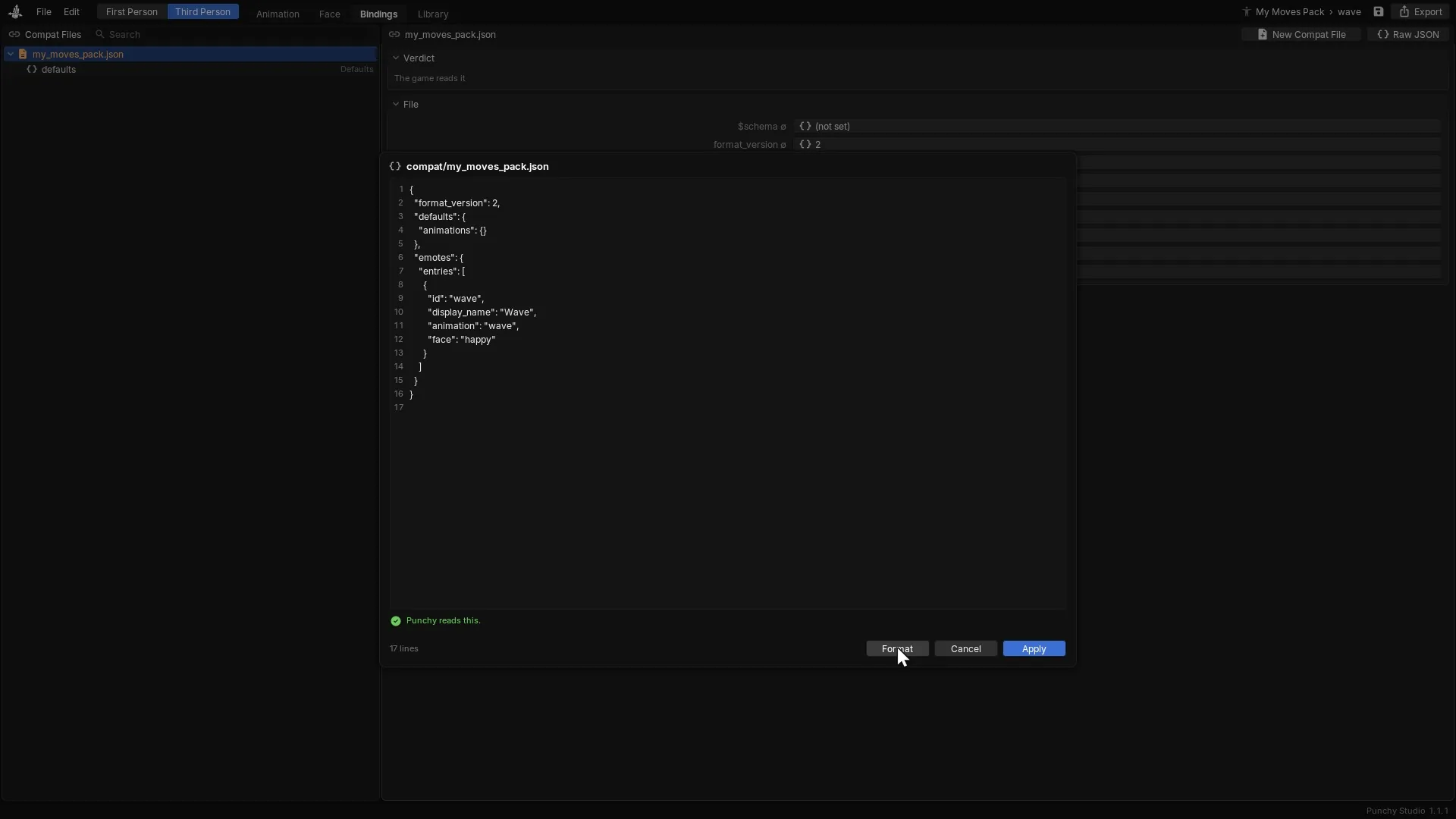
Bindings, File > Raw JSON: the text, the game's verdict, and Apply. -
Open the Animation tab and select a clip. Checks in the Properties panel lists anything the game would read differently from what you see.
-
Choose View > Game View and press Space. The real game plays the clip on your own player. The Game view plays the clip itself and ignores compat files, so a clip can look right there and never play in the game. The compat file’s Verdict is the answer to that.

The Game view shows its own short messages when it cannot play a clip. When the view shows a message explains each.
Check your setup with a pack that works
When you cannot tell a problem in the game from a problem in your files, set your pack aside and make the pack from Make a pack with one emote. It has three small files and one emote.
-
Make the pack as that page shows and move it to the right-hand list under Options, Resource Packs.
-
Join a world, stand still in third person and press C. Pick Wave.
Video coming soon
-
If your character waves, Moves and your setup are fine. Add your own files to this pack one at a time and press F3+T after each. The file that stops the wave holds the mistake.
-
If the character does not wave, go back to The pack does not load.
Report a bug
If you still cannot find it, ask in the Punchy Discord. A report is easier to answer when it has:
- The Punchy! Moves version, the Minecraft version, your loader (Fabric, Forge or NeoForge) and its version, and whether Better Combat or Punchy’s new menu is installed.
- The packs that are on, in order, and the file that does not work, or the line of it, with what you expected to see.
- Every
Could not load animation compatandFace:line fromlogs/latest.log, after a F3+T reload. - For a crash, the newest file in
crash-reports. - What the Verdict and Checks in Punchy! Studio say, if you use it.
Related pages
- Getting started installs Moves and adds a pack.
- Compat files is the whole format, with the list of mistakes that drop a file.
- Animation files holds the clips and what drops a key.
- Keys and emotes covers the wheel and every key.
- Camera and features covers the camera, the switches and turn in place.
- Faces and Faces in packs and clips cover the face and the files that change it.
- Punchy! Studio for Moves and the Game view check a pack while you make it.
- The FAQ answers the short questions.
- Punchy! troubleshooting is the page for the first-person mod.
Last checked against the mod on 30 October 2026.