
Animation files
Write or edit the clips Punchy! Moves plays: where the files go, bones, every keyframe form, lerp_mode, all 30 easing curves, loops, and what makes a key or a whole file drop.
-

-


This page has not been translated into Polish yet, so it is shown in English. Read in English
On this page
This page is the reference for the animation files that Punchy! Moves plays in third person. Use it when you write a clip by hand, when you edit a file that Blockbench or Punchy! Studio made, or when a clip plays differently from what you keyed.
A clip file is plain JSON in the Bedrock animation format, the same format Blockbench writes with Animation > Export Animations. The file only says how a motion looks. A separate compat file decides when a clip plays, and that is on the compat files page. Where a recording shows a real pack, it is the example pack provided by Crafto, Fluid & Foolish.
Before you start
- Punchy! Moves installed. If it is not installed yet, start with getting started.
- A resource pack folder in your
resourcepacksfolder, with itspack.mcmeta. Getting started shows how to make one. - A plain text editor. Keep the clip file plain JSON, because one wrong character can cost you the whole file (see the pitfalls below).
Write and play your first clip
This pack has two clips and puts both on the emote wheel. The first waves the right arm. The second nods the head and then snaps it, to show a sudden change.
The folder inside your resourcepacks folder:
My Moves Clips/
  pack.mcmeta
  assets/
    punchy_moves/
      animations/
        my_clips.json
      compat/
        my_clips.json
The pack’s pack.mcmeta, at the top of the My Moves Clips folder. The three 75s are the resource format of Minecraft 1.21.11. On another version, put that version’s number from the table on Resource packs in their place:
{
  "pack": {
    "description": "My Punchy Moves clips",
    "pack_format": 75,
    "min_format": 75,
    "max_format": 75
  }
}
The clip file, animations/my_clips.json:
{
  "format_version": "1.8.0",
  "animations": {
    "wave": {
      "animation_length": 1.2,
      "loop": true,
      "bones": {
        "right_arm": {
          "rotation": {
            "0.0": [0, 0, 0],
            "0.3": { "post": [0, 0, 140], "lerp_mode": "catmullrom", "easing": "easeOutBack" },
            "0.6": { "post": [0, 0, 110], "lerp_mode": "catmullrom" },
            "0.9": { "post": [0, 0, 140], "lerp_mode": "catmullrom" },
            "1.2": [0, 0, 0]
          }
        },
        "head": {
          "rotation": {
            "0.0": [0, 0, 0],
            "0.3": [0, 0, 8],
            "1.2": [0, 0, 0]
          }
        }
      }
    },
    "nod_snap": {
      "animation_length": 1.0,
      "bones": {
        "head": {
          "rotation": {
            "0.0": [0, 0, 0],
            "0.4": { "post": [25, 0, 0], "easing": "easeInOutSine" },
            "0.5": { "pre": [25, 0, 0], "post": [-10, 0, 0] },
            "1.0": [0, 0, 0]
          },
          "scale": {
            "0.0": [1, 1, 1],
            "0.5": { "post": 1.15 },
            "1.0": [1, 1, 1]
          }
        }
      }
    }
  }
}
The compat file, compat/my_clips.json, which lists both clips as emotes:
{
  "format_version": 2,
  "emotes": {
    "entries": [
      { "id": "wave", "display_name": "Wave", "animation": "wave", "face": "happy" },
      { "id": "nod_snap", "display_name": "Nod", "animation": "nod_snap" }
    ]
  }
}-
In your
resourcepacksfolder, make the folderMy Moves Clipsand save thepack.mcmetaabove in it. Inside it, make the two foldersassets/punchy_moves/animationsandassets/punchy_moves/compat. -
Save the clip file in
animationsand the compat file incompat. Both are namedmy_clips.jsonhere, but any name that ends in.jsonworks. -
In the game, open Options, then Resource Packs, move your pack to the right-hand list and press Done. If the pack was already on, press F3+T to reload.
-
Join a world and press F5 to go to third person.
-
Stand still, press C to open the emote wheel and pick Wave. Your player waves with a happy face. Pick Nod to see the head snap.
Video coming soon
From a file in the pack folder to a wave on the emote wheel. -
Change a number in the file, press F3+T and play the emote again.
What the wave does:
waveis the clip’s name. The compat file calls it by this exact name.animation_lengthis 1.2 seconds, andloopmakes it repeat.right_armhas arotationchannel with keys at 0.0, 0.3, 0.6, 0.9 and 1.2 seconds. The arm goes up to 140 degrees around Z and waves between 110 and 140.- The keys that carry
lerp_modemake the motion a smooth curve. The key at 0.3 also haseasing, so the arm swings past 140 and settles back. headtilts a little at 0.3 seconds and returns, so the loop closes where it started.
What the nod does: the head eases down to 25 degrees by 0.4 seconds and holds there until 0.5. At 0.5 the key’s pre says the head arrives at 25, and its post says it leaves at -10, so it snaps up in one frame. The scale key uses a single number, 1.15, which sets all three scale parts at once.
Make the file in a tool
Blockbench and Punchy! Studio both write this format, so you rarely type a whole file. The steps below cover the format-specific parts: easing a key and exporting. For a clip from nothing, see how to create custom animations.
In Blockbench
Ease a key and export in Blockbench
You need the Punchy! Moves rig and its plugin. They are on the Blockbench rig page.
-
Choose File > Plugins, click Load Plugin from File and pick
punchy_moves_rig.js. Open the rig with File > Open Model. -
Open the Animate tab and add an animation in the Animations panel. Name it
bow_greetingand set it to loop. -
Select head in the Outliner and key it at 0 and at 0.5 seconds. Type 20 in the Keyframe panel’s Z field at 0.5.
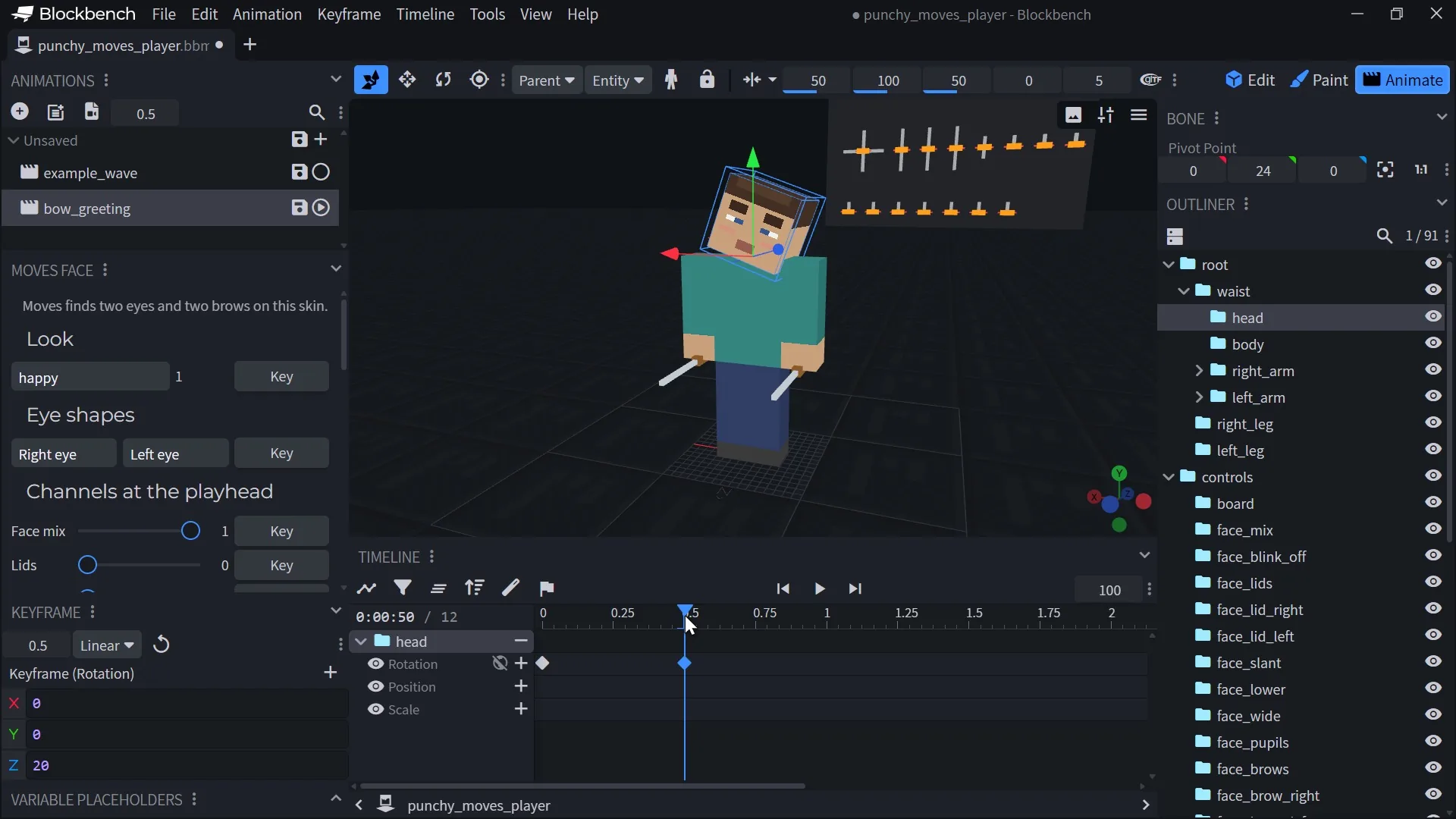
A new animation, bow_greeting, with the head keyed at 0 and at 0.5 seconds. -
Right-click the key at 0.5 seconds and choose Easing (Punchy Moves), then Back, then Out. Press Play: the head tilts past its pose and settles back.
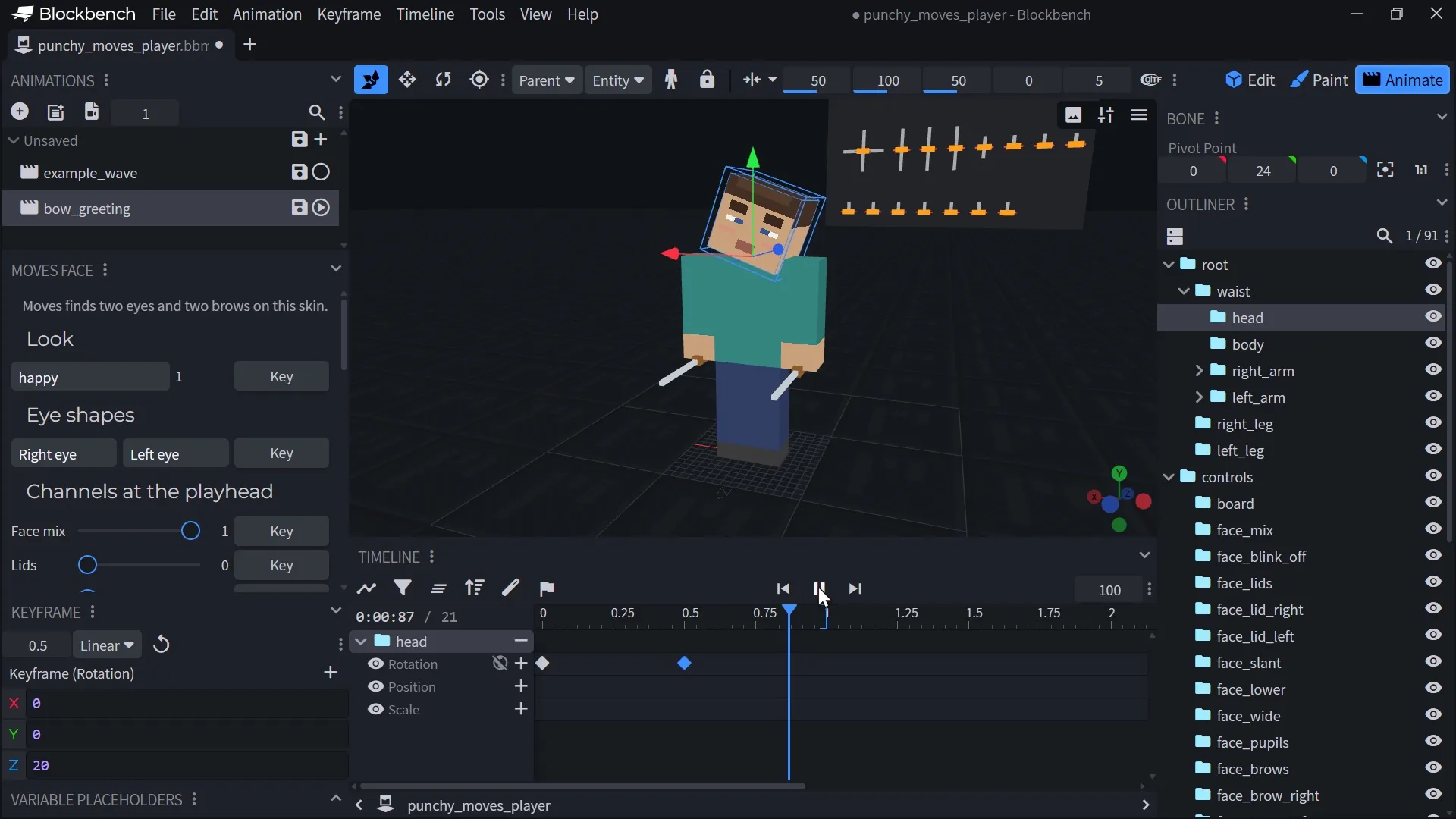
Easing (Punchy Moves) > Back > Out on a key. The file gets easing: easeOutBack. -
Choose Animation > Export Animations. Untick any animation you do not want, then press Confirm and save into your pack’s
assets/punchy_moves/animationsfolder.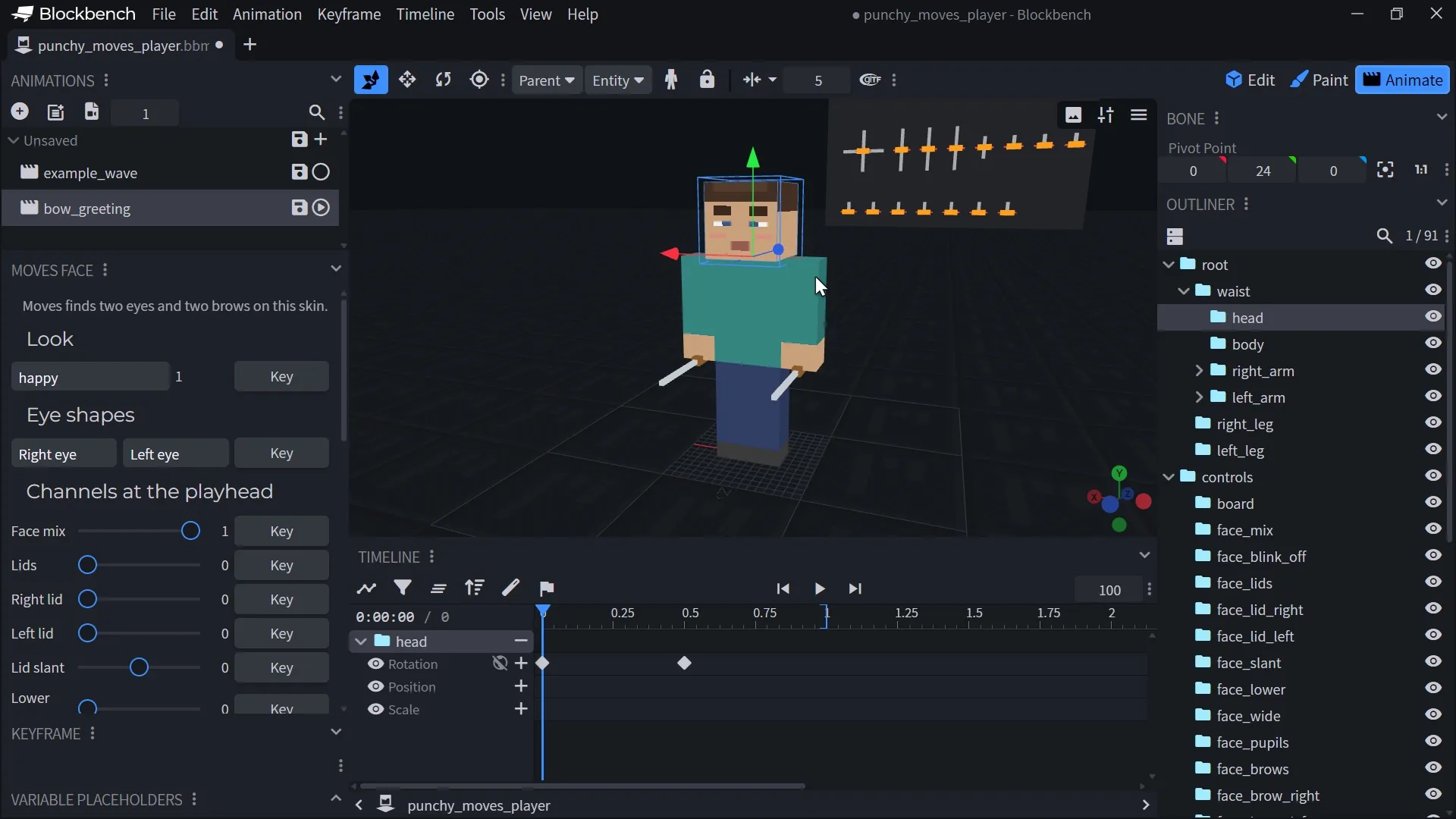
Export Animations writes the clip with the eased key in it.


The exported key is an object with post and easing. Moves reads what Blockbench exports, so key on the rig and export instead of copying numbers by hand.
To read a real pack in Blockbench, choose Animation > Import Animations, pick one of the animation files of the example pack provided by Crafto and play its clips on the rig.

In Punchy! Studio
Ease a key and export in Punchy! Studio
Studio’s third person workspace keeps a pack’s clips, compat files and faces together. See Punchy! Studio for the whole tool.
-
Join a world and press F6. Pick Third Person with the switch between the menus and the workspace tabs.
-
Choose File > Packs (Ctrl+O). In the Punchy Moves Packs menu, choose New Pack, type
My Moves Packas the Pack name and press Create. -
Choose File > New Clip (Ctrl+N). Type
waveas the Name, set the Length to 1.2, tick Loop and press Create. -
Select Right Arm in the Outliner, press E for rotation and press I to key the arm at 0. Move the playhead to 0.3, 0.6 and 0.9 seconds and type 140, 110 and 140 in the rotation’s Z field.
-
Press Shift+Left to go back to 0, choose Edit > Copy Pose (Ctrl+C), press Shift+Right to jump to the end and choose Edit > Paste Pose (Ctrl+V). The loop now closes where it started.
-
Select Head in the Outliner, move the playhead to 0.3 seconds and type 8 in the rotation’s Z field. With this one key, the head holds a small tilt for the whole clip.
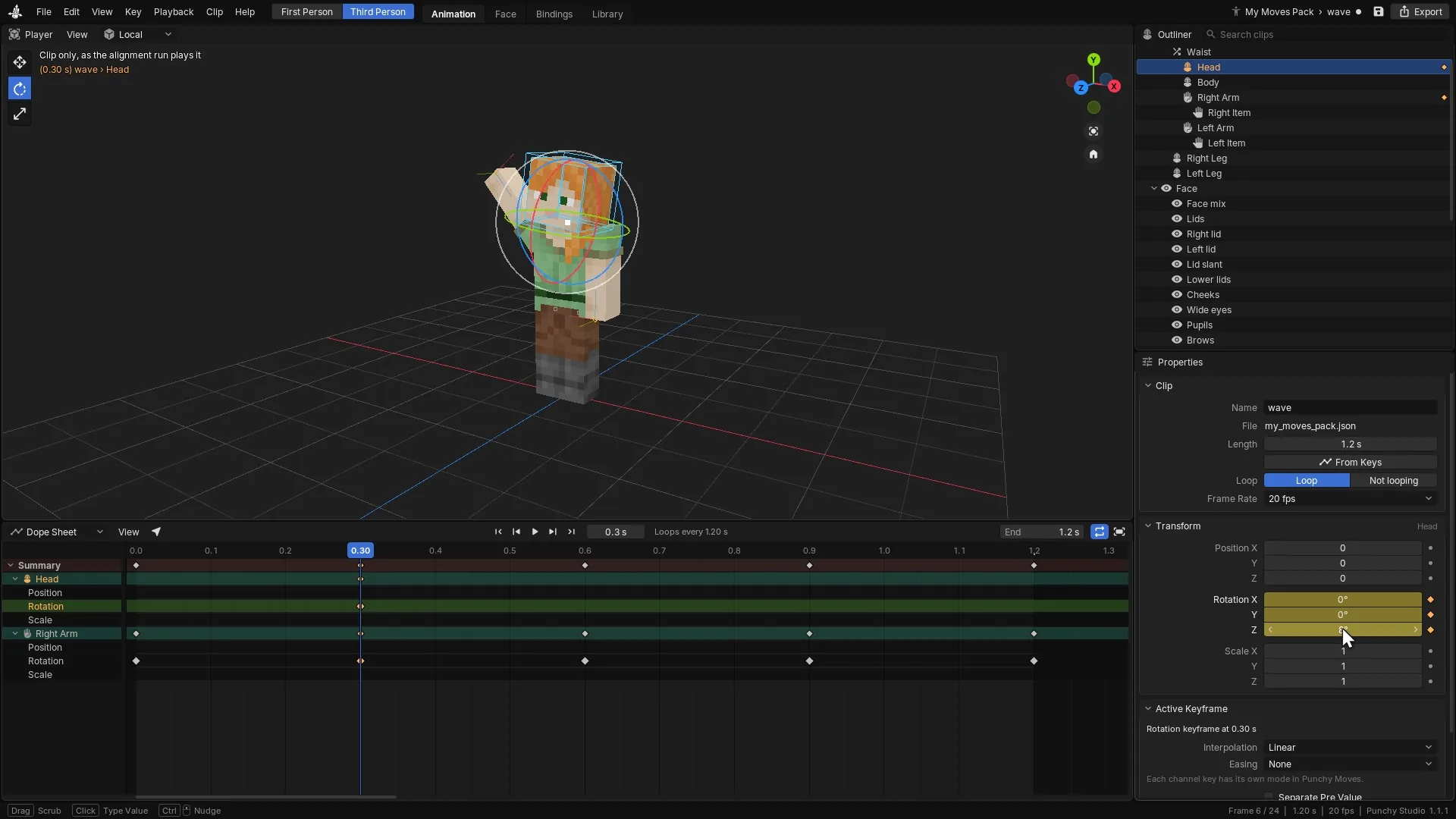
A wave clip keyed on the Right Arm, its first pose copied to the end, then one key for a small head tilt. -
Select Right Arm again, put the playhead on its key at 0.3 seconds (Up and Down jump between keys) and press T. Under Interpolation, choose Smooth. That writes
lerp_mode: catmullrom. -
Press T again. Under Easing, choose Out Back. The arm now swings past 140 and settles. Ctrl+Tab shows the Graph Editor with the curve.
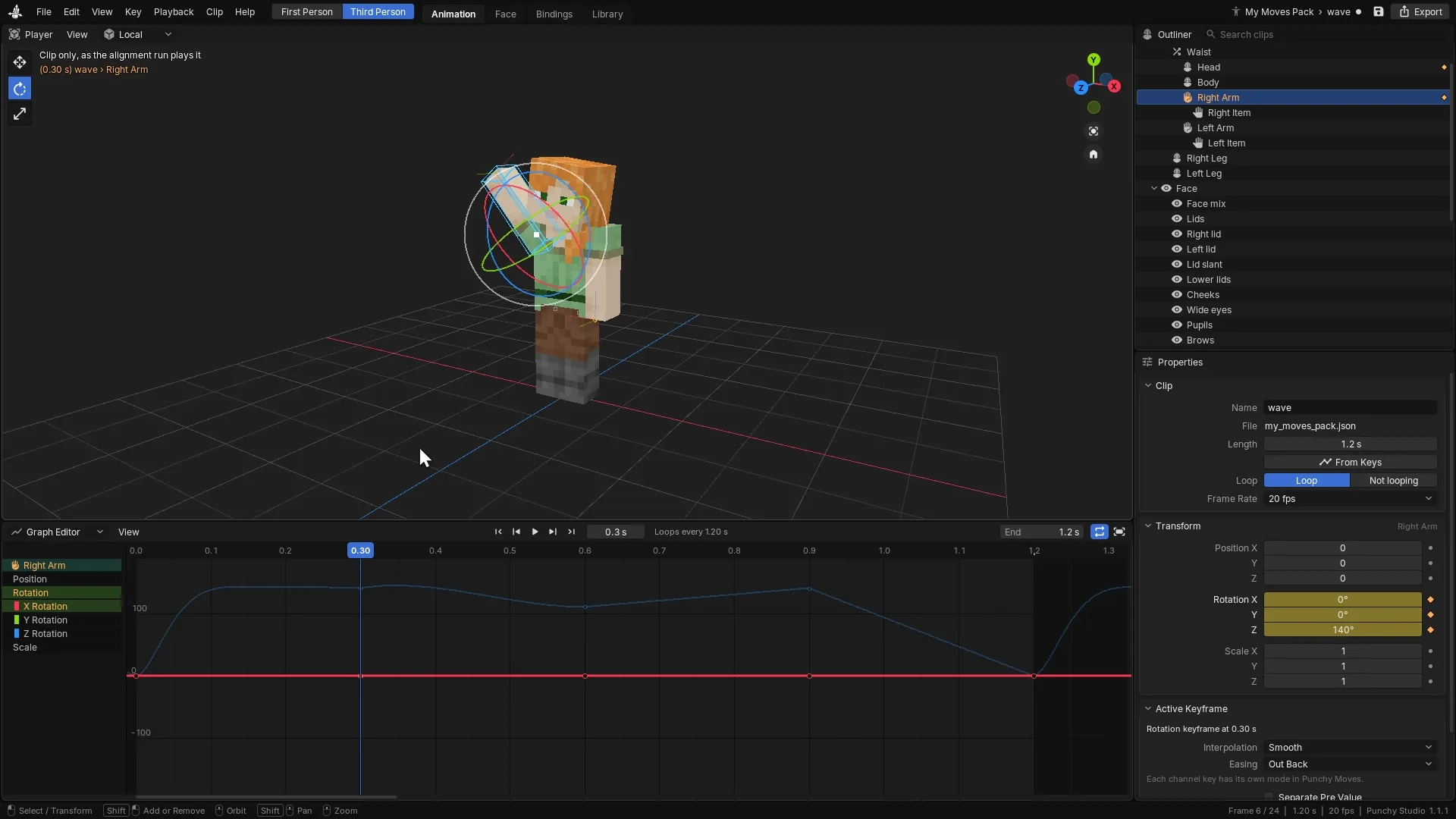
Smooth, then Out Back, on the key at 0.3 seconds. -
For a sudden change, select a key and tick Separate Pre Value in the Active Keyframe panel. The Pre fields set the value the clip arrives with, and the main value is what it leaves with.
-
A clip plays only when a compat file names it, so put the wave on the emote wheel. Press Ctrl+B for the Bindings tab and select the pack’s compat file in the Outliner. Choose File > Raw JSON, replace the text with the compat file shown below these steps and press Apply.


- Press Ctrl+E. In Export Punchy Moves Pack, keep Turn the pack on and reload ticked and press Export.
- Close the editor with F6, press F5 twice to see your player from the front, press C and pick Wave.

The compat file for step 10:
{
  "format_version": 2,
  "defaults": { "animations": {} },
  "emotes": {
    "entries": [
      { "id": "wave", "display_name": "Wave", "animation": "wave", "face": "happy" }
    ]
  }
}
The Checks panel in the properties lists anything the game would read differently from what you see: a key it would drop, a bone nothing follows, a value that is not a number. Interpolation and Easing also have drop-down lists in the Active Keyframe panel.
Where Punchy! Moves loads clip files
Moves reads every .json file at any depth under this folder of every active resource pack:
assets/punchy_moves/animations/The folder name is spelled punchy_moves, all in lower case with an underscore. A file in another namespace is not read. Blockbench names its exports something.animation.json, and that works, because only the .json ending counts.
- Order. Files are read in the order of their full path text. When a later file has a clip with the same name as an earlier one, the later clip replaces the earlier one completely. Clips are never merged.
- Compat first. Moves reads the compat files before the animation files. Both are read again whenever resources reload.
- One path, two packs. When two active packs have a file at the same path, only the copy from the higher pack in the player’s resource pack list is read.
- Different paths, two packs. Files at different paths are all read, and the path order above decides which clip wins. To replace a clip from another pack, give your file the same path as the file that defines it, or a path that sorts after it.
- Reload. Press F3+T after editing a file, or change the resource packs. Studio’s export does this for you when Turn the pack on and reload is ticked.
A clip
Each member of animations is one clip, named by its key. Clip names are case-sensitive: compat files and emotes must spell a name exactly as it is written here. Moves reads four members of a clip.
| Key | Type | Default | What it does | Example |
|---|---|---|---|---|
animation_ | number | the time of the last key | How long the clip lasts, in seconds. A value above 0 wins. Left out, 0 or negative, the clip lasts until the last key on any bone, face bones and unknown bones included. A clip is never shorter than 0.0001 seconds. | 1.2 |
loop | boolean | false | Only the JSON value true loops. false, a missing key, the text "true", the number 1 and "hold_ all play the clip once. | |
bones | object | The keys of each bone, by bone name. See the next section. | ||
face | string or object | A look the face holds for the whole clip: "face": "sleepy", or { "look": "sleepy", "mix": 1 }. Bones that start with face_ key the face by hand, and a face_mix or face_ bone that the clip keys itself wins over this member. See faces in packs and clips. | sleepy |
The format_version line at the top of a file is not read by Moves. Blockbench writes it, so leave it in. Any other member of a clip is left alone and changes nothing.
The bones
A clip moves the bones of the player rig. Bone names are read in any case, so Right_Arm and right_arm are the same bone.
| Bone | What it moves |
|---|---|
root | The whole player, about the neck point. |
waist | The upper body: it turns and moves the head, body and both arms about the neck. The legs and the root do not follow it. There is no waist part: Moves folds a waist key into the bones it carries. |
head, body | The head and the body, about the neck point. The game adds where the player looks on top of the head’s keys. |
right_arm, left_arm | The arms, about the shoulders. |
right_leg, left_leg | The legs, about the hips. |
right_item, left_item | The held item, in the hand. They count only in actions that hold an item: attacks, uses, held poses, item sequences and the like. Walking and other body clips never move them. |
face_... | The face: lids, pupils, brows, marks, looks and drawn eye shapes. See faces in packs and clips. |
Units and directions:
- Position is in pixels, a sixteenth of a block. X points toward the player’s left, Y up and Z toward the back.
- Rotation is in degrees. A positive X rotation swings a hanging arm backward and tips the head down.
- Scale is a factor. 1 is the normal size and 2 doubles the part.
- Item bones move in the arm’s own frame. Their scale Y is forward and back, and Z runs along the arm.
The skin’s second layer (hat, jacket, sleeves, pants) follows its part, so keys on those names do nothing. Key the part itself. A bone that is not in the rig and is not a face_ bone, such as one an artist added, is kept and nothing follows it. When the clip has no animation_length, its last key still counts toward the clip’s length. A bone with no keys stays at its rest pose.
Channels and keys
Each bone has up to three channels. A channel you leave out holds its default for the whole clip.
| Channel | Unit | Default |
|---|---|---|
position | pixels | [0, 0, 0] |
rotation | degrees | [0, 0, 0] |
scale | factor | [1, 1, 1] |
A channel is either one value for the whole clip, such as "rotation": [0, 0, 8], or an object of keys by time. A key’s name is a time in seconds, written as text. A key’s value is three numbers or an object.
Every way to write a key
| Form | Example | What Moves does |
|---|---|---|
| One value for the clip | "rotation": [0, 0, 8] | Holds that value for the whole clip. |
| Three numbers | "0.5": [0, 0, 20] | The motion arrives with this value and leaves with it. The key has no lerp_mode or easing of its own. A segment that touches it is smooth when the key at its other end says catmullrom. |
Object with post | "0.5": { "post": [0, 0, 20] } | The value the key holds. The object can also carry lerp_mode and easing. |
Object with vector | "0.5": { "vector": [0, 0, 20] } | The same as post. Used when post is missing. |
Object with pre and post | "0.5": { "pre": [0, 0, 0], "post": [0, 0, 90] } | The motion arrives with pre and leaves with post: an instant change at that time. |
Object with only pre | "0.5": { "pre": [0, 0, 20] } | The key holds pre on both sides. |
| One number for all three parts | "0.5": { "post": 1.15 } | Sets all three components to that number. Works in pre, post and vector. |
| Key | Type | Default | What it does | Example |
|---|---|---|---|---|
post | array of 3 numbers, or a number | vector, else pre | The value the key holds, and the value the motion leaves with. | |
vector | array of 3 numbers, or a number | Read as post when post is absent. | ||
pre | array of 3 numbers, or a number | the key's post | The value the motion arrives with. Set it only when the arrival and the departure differ. | |
lerp_mode | string | linear | How the motion goes through this key: linear, or catmullrom for a smooth curve. Every other value plays as linear. Any case works. | |
easing | string | One of 30 curves that shapes the segment that ends on this key, such as ease. An unknown name, linear or no easing leaves the segment at an even pace. | ease |
A key with nothing in it, { }, holds the channel’s default at that time.
Sudden changes with pre and post
Between two keys, Moves goes from the first key’s post to the second key’s pre. Give a key different pre and post values and the motion jumps at that key’s time:
{
  "format_version": "1.8.0",
  "animations": {
    "head_snap": {
      "animation_length": 1.0,
      "bones": {
        "head": {
          "rotation": {
            "0.0": [0, 0, 0],
            "0.5": { "pre": [0, 0, 0], "post": [0, 0, 90] },
            "1.0": [0, 0, 0]
          }
        }
      }
    }
  }
}
In this clip, the head stays at 0 until 0.5 seconds, jumps to 90 degrees around Z, then returns to 0 by 1.0 second. Use this for a hit, a snap or a blink-fast pose change. A key with only post arrives and leaves with the same value, so it never jumps.
Time and holds
- Key times are read as decimal numbers.
"1"and"1.0"are the same time, so two keys written that way collide and the one written last in the file wins. - Before the first key, the bone holds the first key’s
pre. After the last key, it holds the last key’spost. - A key placed after the end of a clip that does not loop is never reached, but it still shapes the curve of the last segment.
- A bone, or a channel, with no keys holds its default (position and rotation 0, scale 1).
Read a real clip
The example pack provided by Crafto has a clip called shears_use_one_handed_right. It is 1.2083 seconds long and plays once. This is a trimmed copy of it that keeps only the rotation of its right_item bone:
{
  "animations": {
    "shears_use_one_handed_right": {
      "animation_length": 1.2083,
      "bones": {
        "right_item": {
          "rotation": {
            "0.0": { "post": [0, 0, 0], "lerp_mode": "catmullrom" },
            "0.2083": [2.3516, 38.3394, -86.0029],
            "0.9167": { "pre": [2.3516, 38.3394, -86.0029], "post": [2.3516, 38.3394, -86.0029], "lerp_mode": "catmullrom" },
            "1.2083": { "post": [0, 0, 0], "lerp_mode": "catmullrom" }
          }
        }
      }
    }
  }
}
It shows three of the forms at once: an object with only post, three numbers, and an object with pre and post. The key at 0.2083 is plain three numbers and has no lerp_mode, yet both segments next to it curve, because the key at the other end of each one says catmullrom. It is an item bone, so it counts only while an action holds an item, which here is the shears being used.
lerp_mode
lerp_mode says how the motion goes from one key to the next.
| Key | Type | Default | What it does |
|---|---|---|---|
linear | string | yes | A straight blend between the two keys at an even pace. Also what a key has on its own when lerp_mode is missing, when the key is written as three numbers and for every unknown value. A neighbor that says catmullrom can still curve the segment. |
catmullrom | string | A smooth curve through the keys around the segment, so the motion flows through the key with no corner. Written in any case. |
A segment is smooth when either key at its ends says catmullrom: the key it starts from or the key it ends on. A smooth segment also looks at the key before it and the key after it to shape the curve. At the ends of a clip that does not loop there is no neighbor, so the curve uses its own end. In a looping clip, the neighbor before the first key wraps around to the last key that comes before the clip’s end (a key at exactly the end does not count). The neighbor after the last key wraps around to the key that follows the first key, but only when the channel has more than two keys. Otherwise the curve uses the segment’s own end.
A smooth curve can swing a little past a key’s value between keys when its neighbors pull it. If a value must not go past a key, make that key and the keys next to it linear.
Any other lerp_mode text, such as bezier or step, plays as linear. For a sudden change use pre and post. That is what Punchy! Studio’s Constant interpolation writes: step on the key, and a pre with the same values on the next key, so the pose holds until that key and then jumps.
Easing
A key’s easing reshapes the segment that ends on that key. Moves works out how far through the segment the clip is, bends that progress with the curve, and then runs the segment’s own interpolation, linear or smooth, with the bent progress. So easing goes on the key the motion arrives at.
{
  "bones": {
    "right_arm": {
      "rotation": {
        "0.0": [0, 0, 0],
        "0.3": { "post": [0, 0, 140], "lerp_mode": "catmullrom", "easing": "easeOutBack" }
      }
    }
  }
}
The key at 0.3 is the one the arm arrives at, so the swing from 0.0 to 0.3 follows the curve.
- The motion from the key before to this one follows the curve. The motion after this key does not.
- A key with nothing before it has no motion arriving, so its easing is never used.
- A key written as three numbers cannot carry
easing. Turn it into an object first:{ "post": [0, 0, 140], "easing": "easeOutBack" }. - Names are read without case, underscores, dashes or spaces.
easeOutBack,ease_out_backandEase Out Backare the same curve. - No
easing,linearor a name Moves does not know leaves the segment at an even pace. - Back and Elastic curves go past the key’s value and come back. Check that a limb does not pass through the body when you use them.
All 30 curves
The 30 curves are the ones on easings.net, in 10 families with three directions each. In curves start slowly and arrive fast. Out curves start fast and arrive slowly. In and out curves do both. The numbers show how far through the move the motion is (0 is the start, 1 is the end) after a quarter, half and three quarters of the time. An even pace would read 0.25, 0.50 and 0.75.
| Curve | 25% | 50% | 75% | What the motion does |
|---|---|---|---|---|
easeInSine | 0.08 | 0.29 | 0.62 | A very gentle start that speeds up slowly. |
ease | 0.38 | 0.71 | 0.92 | A quick start with a soft landing. |
ease | 0.15 | 0.50 | 0.85 | Soft at both ends, fastest in the middle. |
easeInQuad | 0.06 | 0.25 | 0.56 | Starts slowly and speeds up steadily. |
ease | 0.44 | 0.75 | 0.94 | Starts fast and slows steadily. |
ease | 0.13 | 0.50 | 0.88 | Eases out of the start and into the end. |
ease | 0.02 | 0.13 | 0.42 | Stays near the start longer than Quad, then speeds up. |
ease | 0.58 | 0.88 | 0.98 | A strong push that settles gently. |
ease | 0.06 | 0.50 | 0.94 | A pronounced slow, fast, slow. |
ease | 0.00 | 0.06 | 0.32 | Barely moves at first, then picks up hard. |
ease | 0.68 | 0.94 | 1.00 | Nearly there after half the time, then creeps in. |
ease | 0.03 | 0.50 | 0.97 | Lingers at both ends and moves fast in the middle. |
ease | 0.00 | 0.03 | 0.24 | Almost still for half the time, then a rush. |
ease | 0.76 | 0.97 | 1.00 | A sharp jump that settles over most of the time. |
ease | 0.02 | 0.50 | 0.98 | Holds at both ends and sweeps across the middle. |
easeInExpo | 0.01 | 0.03 | 0.18 | Almost motionless, then an explosive finish. |
ease | 0.82 | 0.97 | 0.99 | A burst at the start that glides to a stop. |
ease | 0.02 | 0.50 | 0.98 | Holds, then bursts through the middle, then holds. |
easeInCirc | 0.03 | 0.13 | 0.34 | Follows a quarter circle: starts gently and ends steeply. |
ease | 0.66 | 0.87 | 0.97 | Starts steeply and curves into a soft stop. |
ease | 0.07 | 0.50 | 0.93 | A rounded slow, fast, slow with a steep middle. |
easeInBack | -0.06 | -0.09 | 0.18 | Pulls back about 10 percent behind the start, then swings forward. |
ease | 0.82 | 1.09 | 1.06 | Swings about 10 percent past the target, then settles back onto it. |
ease | -0.10 | 0.50 | 1.10 | Pulls back at the start, overshoots at the end, settles. |
ease | -0.01 | -0.02 | 0.09 | Wobbles around the start with growing swings, then snaps to the target. |
ease | 0.91 | 1.02 | 1.01 | Shoots to the target, springs past it by up to 37 percent and wobbles in. |
ease | 0.01 | 0.50 | 0.99 | A spring at each end: wobbles away from the start and into the target. |
ease | 0.03 | 0.23 | 0.53 | Bounces off the start with growing bounces, then arrives. |
ease | 0.47 | 0.77 | 0.97 | Falls onto the target like a dropped ball and bounces, each bounce smaller. |
ease | 0.12 | 0.50 | 0.88 | Bounces away from the start and bounces in to the end. |
Values below 0 mean the motion goes behind its start, and values above 1 mean it goes past its target.
Loops and length
- Length.
animation_lengthin seconds. Without it, the clip lasts until its last key. In Studio, From Keys in the clip’s properties removes the written length so the keys decide it. - Looping.
"loop": truemakes the clip start over when it reaches its length. The clip’s time wraps around, so a key after the length is never reached. Only the JSON valuetrueloops. - Not looping. A clip without
loopplays once and ends on its last pose. What follows, such as a fade back to idle, is up to the action that played it. - Closing a loop. Key the first pose again at the end of the clip, as the wave above does with
"1.2": [0, 0, 0]. Without it, the loop jumps from the last pose back to the first. In Studio, copy the pose at 0 with Ctrl+C and paste it at the end with Ctrl+V.
Set the loop in Blockbench in the animation’s properties, and in Studio with Loop or Not looping in the clip’s properties.
How Moves finds a clip
Moves does not play a clip because it exists. Something has to name it.
- A compat file names it. An action such as
attack,walkingoridleholds a clip name, and an emote lists one inanimation. The name must be spelled exactly as in the animation file, capitals included. See compat files. - An emote needs a loaded clip. An emote whose clip no file defines is not on the wheel.
- A missing name is silent. An action that names a clip nobody defines just does not play. Nothing warns about it in game.
Left and right clips
Clips for held-item actions, such as attacks, mining, equipping and using items, are played per arm. For a name in the compat file, Moves looks for these, in order, and plays the first it finds:
<name>_rightor<name>_left, for the arm that does the action.- If the name ends in
_alt:<base>_right_altor<base>_left_alt, where<base>is the name without_alt. - The plain
<name>.
So one clip can serve both arms, or you can give each side its own. In the example pack provided by Crafto, the compat file says "clip": "punch" for an empty hand attack, and the animation files define punch_right and punch_left. The arm decides which one plays: a right-handed player’s main hand uses _right and the off hand uses _left. A left-handed player’s main hand uses _left, and the off hand uses _right.
Moves does not mirror these clips. A _left clip has to be keyed for the left side. In Studio, Clip > Mirror to Twin (Ctrl+Shift+M) builds the other side from the open clip. It adds the twin next to it with the arm, leg and item bones swapped and the keys mirrored. In Blockbench, key both sides.
Body clips such as walking, jumping, an emote and idle are played by the name you give, with no side suffix.
Things that drop a key or a whole file
Moves does not log a problem with an animation file. When something is wrong, the only sign is that a clip does not play or moves wrongly. Studio’s Checks panel reads your clip the way the game does and lists these cases while you key.
| What you wrote | What Moves does |
|---|---|
| A file that is not valid JSON, such as a missing comma, bracket or quote. | The whole file is lost. |
A root that is not an object, or animations that is not an object. | The whole file is lost. |
bones that is not an object, such as a list. | That clip and every clip after it in the file are lost. The clips before it stay. |
A clip’s face object whose look is an object. | That clip and every clip after it in the file are lost. |
| A clip that is not an object. | That clip is skipped. |
| A bone whose value is not an object. | That bone is skipped. |
| A channel that is a bare number or text. | The channel is ignored and holds its default. |
A channel array with fewer than three numbers, such as "rotation": [0, 8]. | The channel holds its default for the whole clip. |
A key time that is not a number, such as "start". | That key is skipped. |
A key whose value is a bare number, text or null, such as "0.5": 20. | That key is skipped. Write [20, 20, 20] or { "post": 20 }. |
A lerp_mode that is an object. | That key is skipped. |
A key value that is not three numbers, such as [0, 0]. | The key holds the channel’s default. In an object with a valid pre, a short post takes the pre value instead. |
Two keys with the same time, such as "1" and "1.0". | The one written last wins. |
Two bones that differ only in case, such as Head and head. | The one written last wins. |
loop as text or a number. | The clip plays once. |
An easing that is a name Moves does not know. | The segment stays at an even pace. |
Numbers only
Every part of a key must be a plain number. A part that is text and not a number, such as a Molang expression like Math.sin(query.anim_time * 90) * 10, is replaced by the channel’s default: 0 for position and rotation, 1 for scale (or by the matching part of the key’s pre, when a key object has its own valid pre). An expression does not stop the key from loading, so the clip plays but the motion is wrong. Bake an expression into keys before you export.
Why my clip does not play
Go through the list in order.
- Is the pack on, and reloaded? Turn it on under Options, Resource Packs, then press F3+T.
- Is the file in the right folder? It must be under
assets/punchy_moves/animations/and end in.json. - Does something name the clip? Check the compat action or the emote entry. A missing clip in an emote leaves the emote off the wheel.
- Is the name spelled the same? Clip names are case-sensitive:
Waveis notwave. For an arm action, check the_rightand_leftnames. - Did an earlier problem drop it? A
bonesthat is not an object loses its clip and every clip after it in the file. Move the suspect clip to the end of the file, or fix it. - Is another file defining the same name? The file that sorts later by path wins, even if it comes from another pack.
- Does it play but not move? Check that the bone is one of the rig’s bones, that it is not the skin’s second layer, that item bones are used in an item action, and that the keys are objects with a
postwhen you givelerp_modeoreasing. - Does it move too little? Rotation is in degrees and position in pixels. A position of 1 is a sixteenth of a block.
To watch a clip on your own player while you edit it, use Studio’s Game view. See the Game view.
Related pages
- How to create custom animations takes you from the rig to a clip playing in game.
- Compat files lists every action a clip can be wired to.
- Faces in packs and clips shows the
facemember and theface_bones. - The Blockbench rig has the rig, the plugin and its easing menu.
- Punchy! Studio and the Game view cover the editor.
- Keys and emotes explains the emote wheel.
- Recipe: a walk cycle and recipe: an emote go through two common clips step by step.
- Troubleshooting helps when a clip still does not play.
Last checked against the mod on 30 October 2026.