
The Blockbench rig
Download the Punchy! Moves rig and plugin for Blockbench, and set them up to animate clips with a face.
-

-


This page has not been translated into Norwegian Bokmål yet, so it is shown in English. Read in English
On this page
The Punchy! Moves rig is the third-person player as a Blockbench model, with its whole body and its face. With the plugin loaded, the head shows the face Punchy! Moves draws while you scrub and play, and a panel keys looks, eye shapes and face channels for you. This page is for anyone who already animates in Blockbench, or wants to.
You will download the rig and the plugin, set them up, key a clip with a face and an easing curve, and export it into a resource pack. The finished clips you look at in Look at a finished pack first come from the example pack provided by Crafto, Fluid & Foolish.
Before you start
- Blockbench 5.2.2. The rig and the plugin were checked in this version. The rig files are saved in Blockbench’s 5.0 project format.
- The rig files from the next section, kept somewhere that stays put. Blockbench loads the plugin from where it is every time it starts.
- Your skin, if you want to see it on the rig in place of the skin it comes with: a 64 by 64 PNG in the standard Minecraft skin layout. Slim arms need the slim rig.
- A resource pack folder to export into, with
assets/punchy_moves/animations/inside it. A new pack is made in Punchy! Studio for Moves packs or by hand in Create an animation.
Download the rig and the plugin
| File | What it is |
|---|---|
punchy_ | The player with wide (classic) arms. |
punchy_ | The player with slim arms. |
punchy_ | The Blockbench plugin: it draws the face on the rig’s head, adds the Moves Face panel and gives keys Punchy! Moves’ easing. |
README.txt | The short version of this page. |
The models are Bedrock entity models saved as Blockbench 5.0 project files, the same kind of model that the first-person rig of Punchy! is. Punchy! Studio makes the same files for any pack, with bones for that pack’s own looks and eye shapes (see Make the rig for your own pack).
Set up Blockbench
-
In Blockbench, choose File > Plugins.
-
Click Load Plugin from File, the file icon beside the search box, and pick
punchy_moves_rig.js.Blockbench loads the plugin again every time it starts, so do not move or delete the file.
File > Plugins, then Load Plugin from File. -
Choose File > Open Model and pick
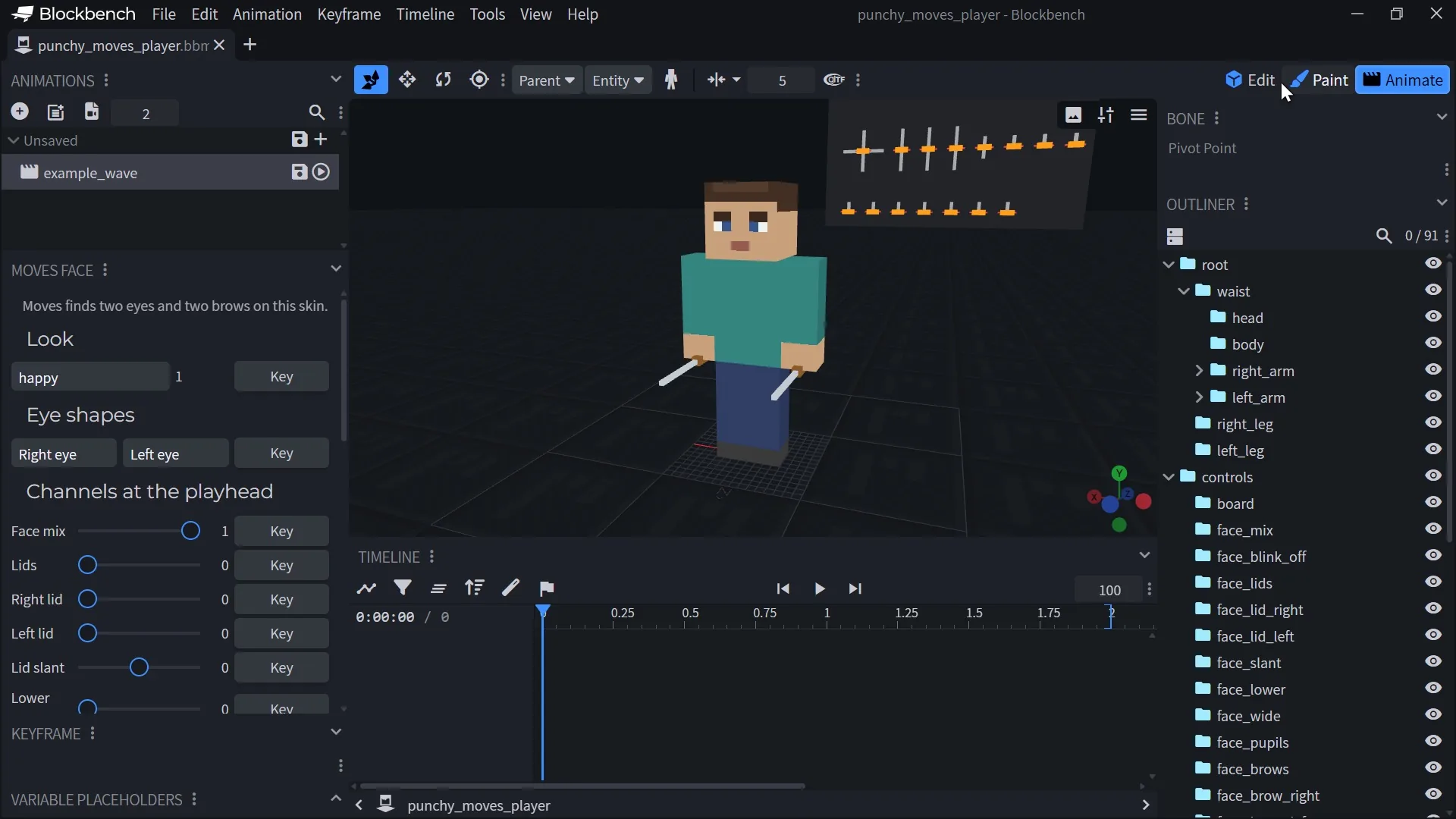
punchy_moves_player.bbmodel, or the slim one if your skin has slim arms.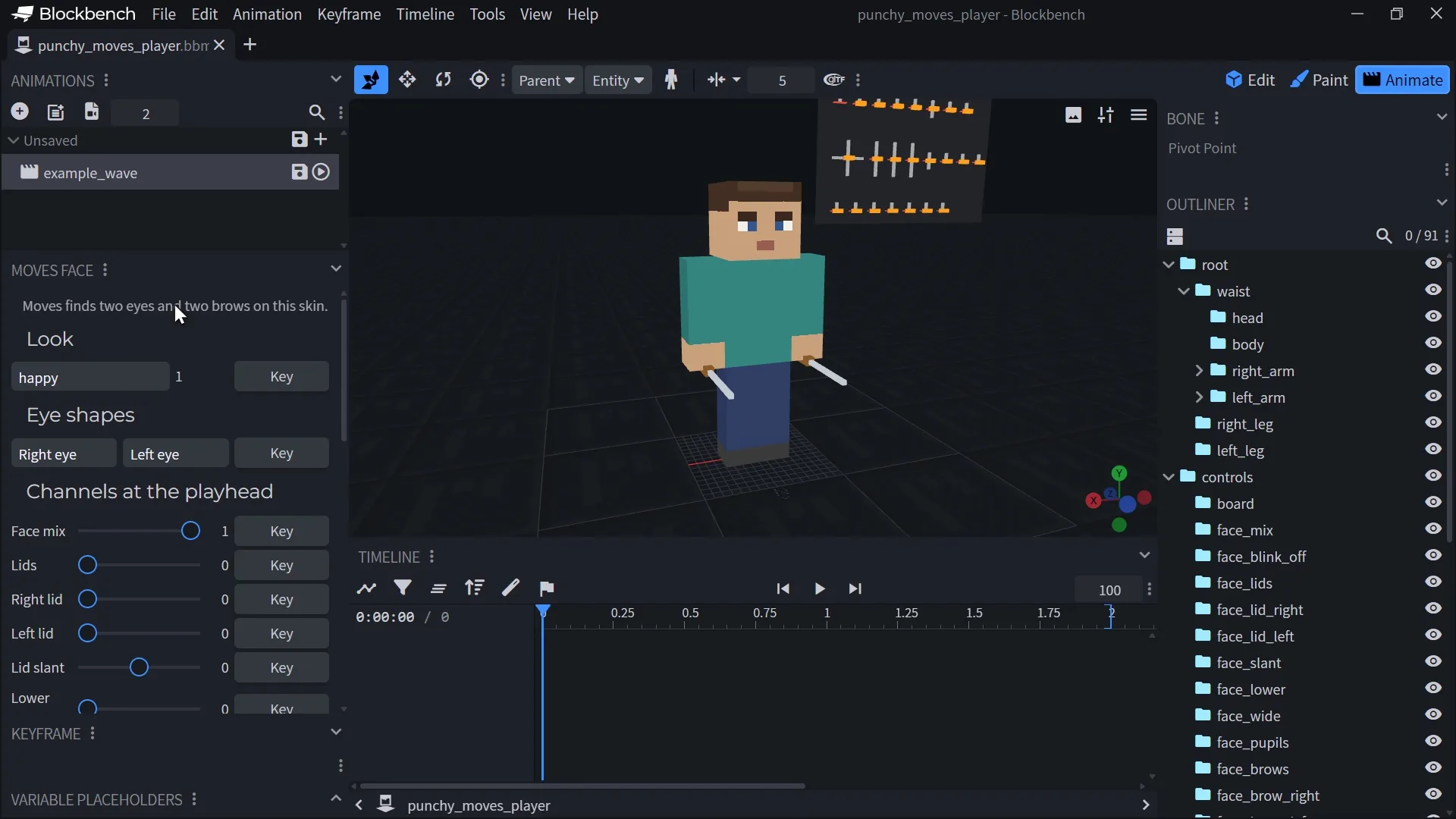
The rig open, with the face board beside the head. -
If you want your own skin on the rig, click Use a skin in the Moves Face panel and pick it.
The panel tells you which eyes it found, for example that it finds two eyes and two brows on this skin.
Video coming soon
-
Open the Animate tab. The rig comes with one animation,
example_wave: press play to see a wave, a head tilt, a happy look, a blink and a glance to the side.


The Moves Face panel shows in the Animate and Edit tabs, and only on a Punchy! Moves rig. Another model in Blockbench has no panel and no Easing (Punchy Moves) menu.
The rig
The rig is built the way Punchy! Moves poses the player, at the game’s own pivots, so a key on a bone moves the same part in game.
| Bone | What it moves |
|---|---|
root | The whole player, about the neck point. |
waist | The upper body: head, body and both arms, about the neck. The legs and the root do not follow it. |
head | The head, about the neck. The game adds where the player looks on top of your keys. |
body | The body, about the neck. |
right_arm, left_arm | The arms, about the shoulders. |
right_leg, left_leg | The legs, about the hips. |
right_item, left_item | The held item, in the hand. They count only in actions that hold an item, such as attacks, uses and held poses, not in walking. |
Positions are in pixels, rotations in degrees and scale is a factor. Key the bones as on any Blockbench model. The skin’s second layer (hat, jacket, sleeves, pants) follows its part, so it has no bones of its own.
- Hand guides. A small guide in each hand, a brown grip and a gray blade, shows how a held item sits in the hand. It is not your item.
- The face board. Beside the head, in the
controlsfolder, a board holds one knob for each face channel. A knob’s position is the channel’s value, so a knob rises as you key it up. You rarely move the knobs by hand, because the Moves Face panel keys them for you. - The
looksfolder. One bone for every built-in look, namedface_look_and the look’s name, such asface_look_happy. - The
eye_shapesfolder. One bone for each side of each drawn eye shape:face_shape_arc_rightandface_shape_arc_left, and the same forline,cup,press,cross,spiralandheart. - The skin texture. The controls are colored in a corner of the skin that no part uses (x 56 to 63, y 32 to 43). The face marker block of a marked skin (x 56 to 63, y 16 to 31) stays as the skin has it.
The face bones are ordinary bones with position keys, so they export with the clip and Punchy! Moves reads them. Faces in packs and clips lists every face bone and how a clip’s face adds up.
Animate a clip with a face
You will make a short bow called bow_greeting. The full walk to the game, with the emote that plays it and the keys of the finished bow, is in Create an animation.
Look at a finished pack first
To see how a real clip is built, import animations from the example pack provided by Crafto and play two of them. That pack keeps its clips in several animation files under assets/punchy_moves/animations/, so import the file that holds the clip you want to look at.
- In the menu bar, choose Animation > Import Animations (the same button sits above the list in the Animations panel) and pick the file that holds
normal_forward, the pack’s walking loop. - Leave every box in Select Animations to Import ticked and press OK.
- Pick
normal_forwardin the Animations panel and press play. It loops. - Import the file that holds
sword_attack_1the same way, pick it and play it. It plays once. Click a bone such asright_armto see its keys.
The rig plays a whole pack’s clips, held items included.

Key the bow
-
Press the + button (Add Animation) in the Animations panel.
-
Set Name to
bow_greeting. Write the plain name, because a compat file will use it and it is case-sensitive. -
Set Loop Mode to Play Once and press Confirm.
Only Loop makes Punchy! Moves loop a clip. Hold On Last Frame plays once in the mod.
-
Select
headin the outliner, with the playhead at 0, and add a rotation key with the + beside Rotation in the timeline. -
Move the playhead to 0.5 s and turn the head down with the rotate tool until it bows. Add more keys later in the clip and bring the head back to 0 at the end.
-
With the playhead at 0, open the Moves Face panel. Under Look, pick
happyand press Key.The panel also keys Face mix at 1 when the clip has none yet, so the clip’s face takes over from the game’s reactions.
-
Scrub the timeline. The head shows the face for the keys at the playhead, and the knobs on the face board follow.
-
Press play to check the motion and the face.

The Moves Face panel
The panel keys at the playhead, into the selected animation. It has four parts.
Look
Pick one of the built-in looks and how much of it (0 to 1, 1 is the whole look), then press Key. A look stays on until you key it back down. Key its weight at 0 where the look should end, or key a second look to cross fade. A look also shows before its first key, because a channel holds its first key’s value from the start of the clip: key the look at 0 first, then key it up where it should begin. To change a look’s weight later, select its bone under looks in the outliner and edit its Position Y.
The list holds the 40 built-in looks: neutral, happy, joyful, excited, sparkly, love, proud, smug, relaxed, zen, wink, sly, sneaky, curious, focused, squint, determined, furious, menacing, strain, surprised, shocked, scared, nervous, worried, sad, crying, pain, wince, dizzy, knocked, sick, tired, sleepy, bored, cold, hot, blinded, wary and shut. A rig that Punchy! Studio made for a pack lists the pack’s own looks as well.
Eye shapes
Pick a shape for the avatar’s Right eye, the Left eye or both, then press Key. The shapes are line, arc, cup, press, cross, spiral and heart, plus the pack’s own on a rig made by Studio. Leave one side empty to key only the other.
An eye takes a shape while the shape’s bone is above 0.5, and a shape bone keyed at 1 stays on. It also holds that value before its first key, so key the bone at 0 earlier in the clip, where the eye should still be open. To bring the eye back, move the playhead to where it should open, select the shape’s bone under eye_shapes and key its Position Y at 0.
Video coming soon
Channels at the playhead
A slider and a Key button for each face channel. Move the slider, move the playhead, press Key. Each channel is a bone whose position Y is the value, and the pupils use X as well. Several channels move the same part of the face as a key of the same name in a look file; Faces in packs and clips lists those keys.
| Key | Type | Default | What it does |
|---|---|---|---|
face_mix | slider, 0 to 1 | 0 | Face mix. How much of the face the clip takes over from the reactions. At 0 your keys add to the face the game shows. At 1 the face is only what the clip keys. |
face_lids | slider, 0 to 1 | 0 | Lids. Both top lids, added on top of the looks. A short key up and down is a blink. |
face_ | slider, 0 to 1 | 0 | Right lid and Left lid. One eye shut at least this far: a wink. |
face_slant | slider, -1 to 1 | 0 | Lid slant. The slant of the lids, as the look key of the same name. |
face_lower | slider, 0 to 1 | 0 | Lower lids. The lower lids, as the look key. |
face_ | slider, 0 to 1 | 0 | Cheeks. The smile part, as the look key. |
face_wide | slider, 0 to 1 | 0 | Wide eyes. As the look key. |
face_ | two sliders, -2 to 2, in texels | 0, 0 | Pupils. The first slider is X, positive toward the avatar's left. The second is Y, positive up. Use the sliders and not the timeline's X box, see Things that go wrong. |
face_brows | slider, -2 to 2, in texels | 0 | Brows. Both brows, up when positive, down when negative. |
face_ | slider, -2 to 2, in texels | 0 | Right brow and Left brow. One brow. |
face_tilt | slider, -1 to 1 | 0 | Brow tilt. As the look key. |
face_swing | slider, 0 to 1 | 0 | Pupil sway. As the look key. |
face_ | slider, 0 to 1 | 0 | Tremble. As the look key. |
face_bob | slider, 0 to 1 | 0 | Brow bob. As the look key. |
face_blush | slider, 0 to 1 | 0 | Blush. The blush mark. |
face_tears | slider, 0 to 1 | 0 | Tears. The tears mark. |
face_sweat | slider, 0 to 1 | 0 | Sweat. The sweat mark. |
face_bags | slider, 0 to 1 | 0 | Eye rings. The eye-ring mark. |
face_anger | slider, 0 to 1 | 0 | Anger vein. The anger vein mark. |
face_ | slider, 0 to 1 | 0 | Glint. A second small glint low in each pupil. It shows past 0.35, and only while Eye sparkle is Line or Dot. |
face_ | slider, 0 to 1 | 0 | No blinks. Above 0.5, the face's own blinks stop. Use it when your clip keys every blink itself. |
Skin and eye sparkle
- Use a skin puts a 64 by 64 PNG on the rig and keeps the controls’ colors. A skin of another size is refused with a message.
- Eye sparkle shows the face with each sparkle a player can pick: Off, Line, Dot or Skin’s own, the glint a skin paints on its eye, which then moves with the pupil. Each player picks the sparkle with Eye sparkle in the Face tab of Punchy’s new menu (see The face editor), so the panel only previews it and nothing is keyed. A glint a skin paints on its eye hides while the eye is closed.
Video coming soon
Which eyes the face fits
The face fits the eyes on the skin as Punchy! Moves reads them: two eyes, one eye in the middle, eyes that touch, eyes of two colors or at two heights, one eye with the other under hair, or dark eyes without a white. A skin whose PNG carries a face marker, which its owner writes with Export skin in the game’s face editor, is read from those marks. The panel says what it found at the top. When it says Moves finds no eyes, the rig shows no face, as the game would. See The face marker to mark them.
Shape the motion with easing
An easing gives the motion into a key a curve instead of an even pace. It works on any key that has another key before it, a bone’s or a face channel’s.
- Right-click the key at 0.5 s in the timeline.
- Choose Easing (Punchy Moves), then Back, then Out.
- Play the clip again. The head now dips past the bow and settles back into it.
- To take an easing off, right-click the key and choose Easing (Punchy Moves), then None.

The menu offers None and ten curve families of easings.net, each as In, Out or In and out: Sine, Quad, Cubic, Quart, Quint, Expo, Circ, Back, Elastic and Bounce.
- In curves start slowly, Out curves arrive slowly, In and out curves do both.
- Back and Elastic overshoot the key and come back. Bounce bounces into it.
- The easing shapes the segment that ends on the key you set it on, so an easing on the first key of a channel changes nothing.
- Do not set an easing on the only key of a channel: unless the key is Smooth, Blockbench then writes that channel without times and Punchy! Moves ignores it. Leave a lone key without an easing.
- The current choice is marked in the menu. With several keys selected, your choice goes to all of them.
- The rig plays the curve as Punchy! Moves does, the project keeps it, and Export Animations writes it.
- Importing a clip that has easings keeps them, so you can edit it and export again.
- Interpolation is separate: set a key to Smooth for a smooth curve through your keys, or Linear for an even pace. A key can have both.
Export to your pack
- Choose Animation > Export Animations.
- In Select Animations to Export, tick
bow_greeting, untickexample_waveand press Confirm. - Save the file inside your pack, in
assets/punchy_moves/animations/, for example asbow_greeting.animation.json.

Punchy! Moves reads every .json file in that folder, subfolders too. The export carries the easing of every key.
An export to copy
This is the rig’s example_wave, trimmed, with an easing added to the head’s first tilt. A key that has Smooth interpolation or an easing is written as an object, and most other keys as three numbers. Your numbers will differ a little.
{
  "format_version": "1.8.0",
  "animations": {
    "example_wave": {
      "loop": true,
      "animation_length": 2,
      "bones": {
        "head": {
          "rotation": {
            "0.0": [0, 0, 0],
            "0.5": { "post": [0, 0, 8], "easing": "easeOutBack" },
            "1.5": [0, 0, -8],
            "2.0": [0, 0, 0]
          }
        },
        "face_mix": { "position": [0, 1, 0] },
        "face_look_happy": {
          "position": {
            "0.0": [0, 0, 0],
            "0.3": [0, 1, 0],
            "1.7": [0, 1, 0],
            "2.0": [0, 0, 0]
          }
        },
        "face_lids": {
          "position": {
            "0.9": [0, 0, 0],
            "1.0": [0, 1, 0],
            "1.1": [0, 0, 0]
          }
        },
        "face_pupils": {
          "position": {
            "0.0": [0, 0, 0],
            "0.6": [1, 0, 0],
            "1.4": [-1, 0, 0],
            "2.0": [0, 0, 0]
          }
        }
      }
    }
  }
}
The easing member is the easings.net name, such as easeOutBack. A look keyed from 0 to 1 and back, a blink on the lids and a glance with the pupils are three ways to key the face.
Then play it
A pack needs a compat file that says when the clip plays, for example on the emote wheel. Create an animation puts bow_greeting on the wheel step by step, and Compat files lists everything a compat file can do. To keep working on the pack in Punchy! Studio, copy it in from the game and watch the clip on your own player in the Game view.
Make the rig for your own pack
Punchy! Studio writes the same rig for any pack, with bones for the pack’s own looks and eye shapes, and in your skin when it can read it. Open your pack in Studio’s third-person Animation workspace and choose File > Export Blockbench Rig.

It writes punchy-studio/blockbench/<pack>/ in your game folder:
<pack>_rig.bbmodeland<pack>_rig_slim.bbmodel: the classic and slim rigs. The one that matches your player’s arms wears your skin when Studio can read it.punchy_moves_rig.js: the plugin, the same one as on this page.
Set it up as in Set up Blockbench. The Look and Eye shapes lists of the Moves Face panel then include your pack’s own. Punchy! Studio for Moves packs has the rest.
How Blockbench and the game differ
Punchy! Moves plays the export as Blockbench shows it, with these small differences:
- Moves bends the waist its own way, so a strong waist bend moves the arms a little differently in game.
- The hand guides only show the hand, not your item.
Blockbench’s Bedrock export also mirrors some axes, such as a position’s X and a rotation’s X and Y, and Moves reads that export. So key on the rig and export with Export Animations, and never copy numbers by hand between the project and a file.
Things that go wrong
- The Moves Face panel is missing. The plugin is not loaded, or the open model is not a Punchy! Moves rig. Check File > Plugins, then open
punchy_moves_player.bbmodeland switch to the Animate tab. After a restart Blockbench loads the plugin from the file you picked, so a moved file means no plugin. - A message says to select an animation first. The panel keys into the selected animation. Pick one in the Animations panel.
- A message says the rig has no bone for a look or a shape. The downloaded rig has the built-in looks and the seven drawn eye shapes only. The Eye shapes list can also offer
blank, which has no bone on it. Pick one of the rig’s own, or make the rig for your pack in Studio. - A skin is refused. A skin is 64 by 64 pixels. Resize it first.
- The panel finds no eyes on the skin. The rig then shows no face, as the game would. Mark the eyes in the game and export the skin, as in The face marker.
- An eye keeps its shape, or a look never ends. A key holds until you key it back. Key the shape’s or the look’s bone at 0 where it should end.
- A look, shape or channel shows before its first key. A channel holds its first key’s value from the start of the clip, not only after it. Key it at 0 first, then key it up where it should begin.
- The pupils glance the wrong way. Blockbench’s export flips the X of a position key, and the panel’s sliders do that for you. Key the pupils from Pupils, not by typing X in the timeline.
- The clip does not loop in the game. Only Loop loops. Set Loop Mode to Loop in the animation’s properties.
- The compat file cannot find the clip. Clip names are case-sensitive. Blockbench’s default name for a new animation starts with
animation.and the model’s name, so rename it to the plain name before you export. - An animation file adds no clips. A file that is not valid JSON, or whose root is not an object, adds nothing, and the game logs nothing. If one clip in a valid file cannot be read, the clips before it stay and the rest of that file is skipped. Re-export from Blockbench instead of editing the file by hand.
- No Easing menu. Select a key first, then right-click it, on a Punchy! Moves rig with the plugin loaded.
- An easing does nothing. It does nothing on the first key of a channel, and on a channel’s only key it can make the game ignore the channel. Put it on the key the motion arrives at.
Related pages
- Create an animation: the whole path from the rig to a clip on the emote wheel.
- Animation files: everything a clip file can hold.
- Faces in packs and clips: looks, eye shapes and every face bone.
- The face marker: marking the eyes of a skin.
- Compat files: which clip plays when.
- Punchy! Studio for Moves packs and the Game view: the other way to make clips, and a way to check them on your own player.
Last checked against the mod on 30 October 2026.