
How to create custom animations
Make your own third person animation for Punchy! Moves in Blockbench or Punchy! Studio, from the rig to a clip playing in game.
-

-


This page has not been translated into Hungarian yet, so it is shown in English. Read in English
On this page
You can make your own full-body animation for Punchy! Moves and see it play on your player in third person. This page takes you from the rig to a clip that plays in game, in Blockbench or in Punchy! Studio. It is for anyone who wants to add a wave, a bow, a sword swing or a new walk to a pack.
The clips on this page come from the example pack provided by Crafto, Fluid & Foolish, the animation pack used for the Punchy! Moves demos on this wiki. You can follow along with your own clips or look at how the example pack’s are made.
Before you start
- Punchy! Moves installed (Getting started has the steps). Finished clips play in game, so you need the mod to see your work.
- For the Blockbench path: Blockbench 4.8 or newer (checked in 5.2.2), plus the Punchy! Moves rig and plugin. You get them from The Blockbench rig or from Punchy! Studio.
- For the Punchy! Studio path: Punchy! Studio. It works inside Minecraft, so you animate on your own skin and see the result in the game itself.
- Blender: the Blender tab has no steps yet, so the steps here are for Blockbench and Punchy! Studio.
A clip is only half of the job. The clip says how the body moves. A compat file says when it plays. Both paths below end with the two together, and the sections after them show other ways to wire a clip.
Make your first clip
In Blockbench
You will make a short bow called bow_greeting, give it an easing curve and a happy face, export it into a resource pack and play it from the emote wheel.
Set up the rig
-
In Blockbench, choose File > Plugins and click Load Plugin from File (the file icon beside the search box). Pick
punchy_moves_rig.js.Blockbench loads the plugin again every time it starts, so keep the file where it is.
Loading the Punchy! Moves plugin from its file. -
Open the rig:
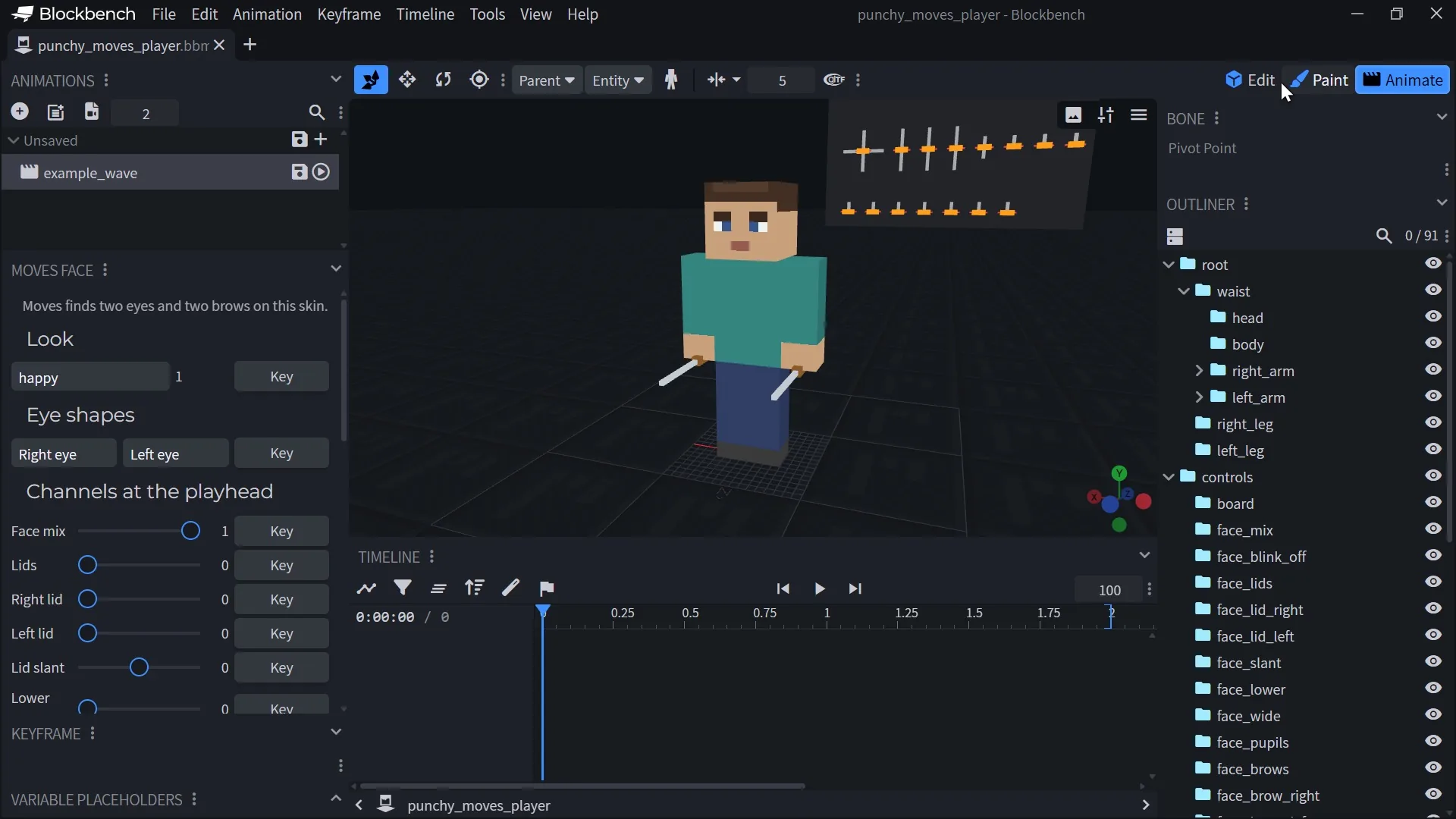
punchy_moves_player.bbmodel, orpunchy_moves_player_slim.bbmodelif your skin has slim arms.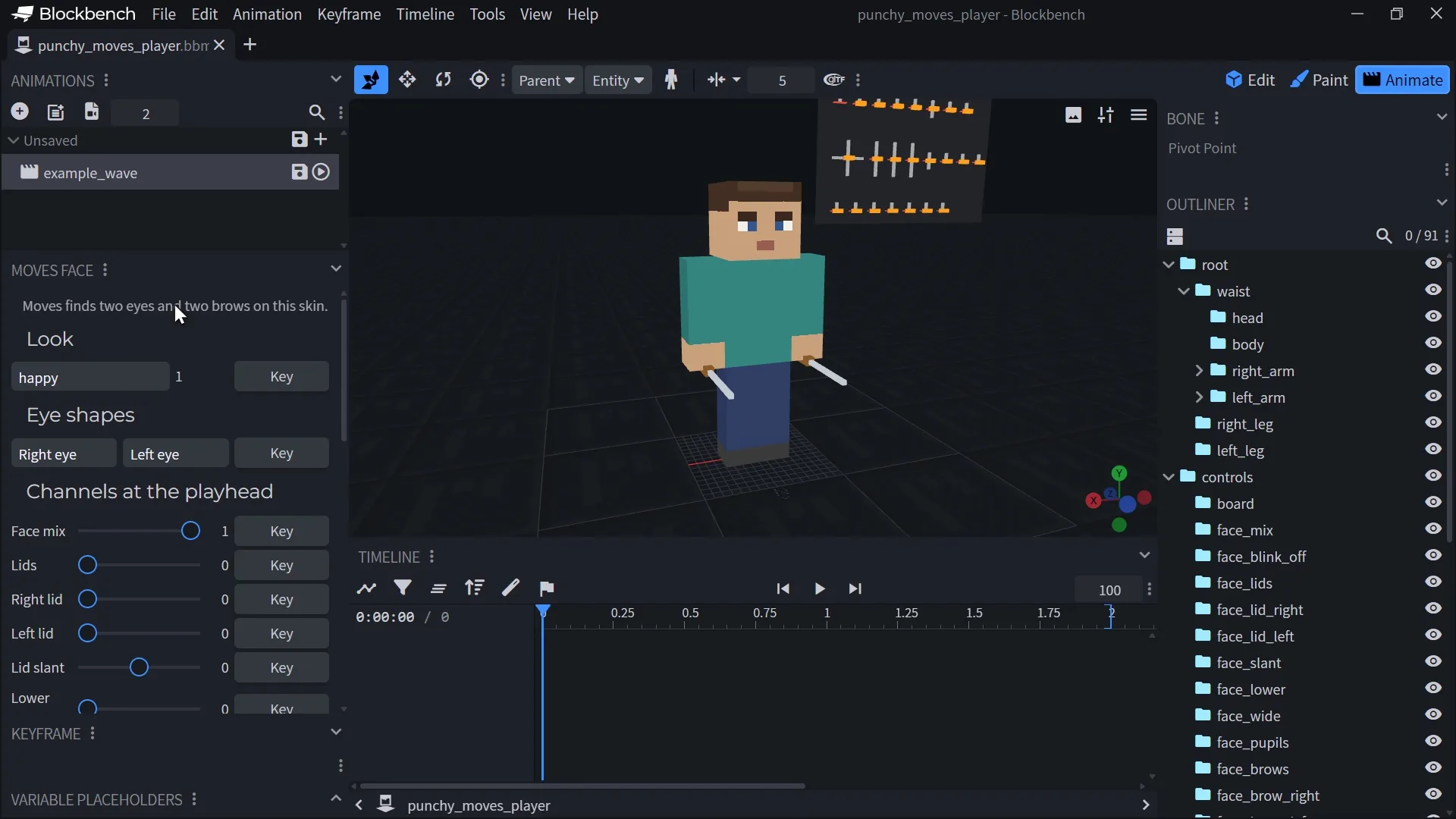
The rig open, with the face board beside the head. -
In the Moves Face panel, click Use a skin and pick your skin, a 64 by 64 PNG. The panel says which eyes it found.
-
Open the Animate tab. The
example_waveanimation of the rig shows a wave, a head tilt, a happy look, a blink and a glance.


Studio makes the same rig for any pack with File > Export Blockbench Rig, with bones for that pack’s own looks and eye shapes. See The Blockbench rig for the files and the whole rig.

Look at a finished pack first
To see how a real clip is built, import animations from the example pack provided by Crafto and play two of them. The example pack keeps its clips in several animation files under assets/punchy_moves/animations/, so import the file that holds the clip you want to look at.
- In the Animations panel, choose Animation > Import Animations (the same button sits above the animation list) and pick the file that holds
normal_forward, the example pack’s walking loop. - Leave every box in Select Animations to Import ticked and press OK.
- Pick
normal_forwardin the Animations panel and press the play button under the viewport. The legs and arms swing in a loop. - Import the file that holds
sword_attack_1the same way, pick it and play it. It plays once. Click a bone such asright_armto see its keys in the timeline.

Add a new animation and key it
-
In the Animations panel, press the + button (Add Animation).
-
In the dialog, set Name to
bow_greeting. Write the plain name: this is the name a compat file will use, and it is case-sensitive. -
Set Loop Mode to Play Once and press Confirm.
Only Loop makes Punchy! Moves loop a clip. Hold On Last Frame plays once in the mod, so leave it for clips that should not repeat.
-
Select
headin the outliner, with the playhead at 0. Add a rotation key with the + beside Rotation in the timeline. -
Move the playhead to 0.5 s. Turn the head down with the rotate tool until it bows. Judge it by the head in the viewport: the keyframe panel shows about -28 on X. The exported file holds 28, because Blockbench’s export flips the sign of X and Y rotation.
-
Move to 1.0 s and key the same pose again so the bow holds. Then go to 1.6 s and set the rotation back to 0.
-
In the Moves Face panel, under Look, pick
happyand press Key with the playhead at 0. The panel also keys Face mix at 1 when the clip has none yet.The head shows the face for the keys at the playhead as you scrub or play. To key the eyes or a channel such as the pupils, use Eye shapes and Channels at the playhead in the same panel. See Faces in packs and clips.
-
Press play to check the motion.

Shape the motion with easing
-
Right-click the key at 0.5 s in the timeline.
-
Choose Easing (Punchy Moves), then Back, then Out.
-
Play the clip again. The head now dips past the bow and settles back into it.
The easing shapes the motion into the key you picked. The rig plays it as Punchy! Moves does, and the export writes it.
-
For a smooth curve through your keys, set a key’s Interpolation to Smooth in the keyframe panel. Linear keeps an even pace.

The menu offers None and ten curve families of easings.net, each as In, Out or In and out: Sine, Quad, Cubic, Quart, Quint, Expo, Circ, Back, Elastic and Bounce. Back and Elastic overshoot, and Bounce bounces.
Export the clip
- Choose Animation > Export Animations.
- In Select Animations to Export, tick
bow_greetingand untickexample_wave, then press Confirm. - Save the file as
bow_greeting.animation.jsoninside your pack, inassets/punchy_moves/animations/.

The file Blockbench writes looks like this, trimmed to what we keyed. Your numbers will differ a little.
This is the file when the 0.5 s and 1.0 s keys have Interpolation set to Smooth (step 4 above). Left on Linear, the 0.5 key is written as { "post": [28, 0, 0], "easing": "easeOutBack" } and the 1.0 key as [28, 0, 0].
{
  "format_version": "1.8.0",
  "animations": {
    "bow_greeting": {
      "animation_length": 1.6,
      "bones": {
        "head": {
          "rotation": {
            "0.0": [0, 0, 0],
            "0.5": { "pre": [28, 0, 0], "post": [28, 0, 0], "lerp_mode": "catmullrom", "easing": "easeOutBack" },
            "1.0": { "post": [28, 0, 0], "lerp_mode": "catmullrom" },
            "1.6": [0, 0, 0]
          }
        },
        "face_mix": { "position": [0, 1, 0] },
        "face_look_happy": { "position": [0, 1, 0] }
      }
    }
  }
}
This is a complete clip file. To build the pack below without Blockbench, save this JSON as bow_greeting.animation.json yourself.
Put it in a pack and play it
A resource pack needs a pack.mcmeta, your animation file and a compat file. Make this folder in your resourcepacks folder:
My Moves Pack/
  pack.mcmeta
  assets/
    punchy_moves/
      animations/
        bow_greeting.animation.json
      compat/
my_moves_pack.jsonpack.mcmeta, with the resource format of Minecraft 1.21.11. On another version, put that version’s number from the table on Resource packs in place of the 75s:
{
  "pack": {
    "description": "My Punchy Moves pack",
    "pack_format": 75,
    "min_format": 75,
    "max_format": 75
  }
}
compat/my_moves_pack.json puts the bow on the emote wheel:
{
  "format_version": 2,
  "defaults": { "animations": {} },
  "emotes": {
    "entries": [
      { "id": "bow_greeting", "display_name": "Bow", "animation": "bow_greeting", "face": "happy" }
    ]
  }
}
Video coming soon
- In the game, open Options, then Resource Packs, move My Moves Pack to the right-hand list and press Done. If the game was already running, press F3+T to reload.
- Switch to third person with F5.
- Press C to open the emote wheel and pick Bow.
Standing still, your player bows with a happy face. Moving stops an emote.
Video coming soon
Keep working in Blockbench by editing the animation and exporting it again over the same file. If you would rather keep the pack in Punchy! Studio, its Library copies a pack in from the game, so you can edit it there too (see the Punchy! Studio tab).
Look at more clips from the example pack
The example pack provided by Crafto animates the whole rig, including held items. Try climbing_up and mace_slam_right on the rig.

Two small things differ between Blockbench and the game. Moves bends the waist its own way, so a strong waist bend moves the arms a little differently in game. And the hand guides on the rig show the hand only, not your item. Blockbench’s Bedrock export also mirrors some axes, and Moves reads that export. So key on the rig and use Export Animations, and do not copy numbers by hand.
In Punchy! Studio
You will make a waving clip called wave, give it easing and a face, watch it on your own player, put it on the emote wheel and play it in game. Studio keeps everything for one pack together: its clips, its compat files and its faces.
Start a pack
- Join a world and press F6 to open Punchy! Studio. Pick Third Person with the switch between the menus and the workspace tabs.
- Choose File > Packs (Ctrl+O). In the Punchy Moves Packs menu, choose New Pack.
- Type the Pack name
My Moves Packand press Create.

The new pack has one compat file and one animation file, both named after it, and a first clip, new_clip. Studio keeps an editable copy in punchy-studio/moves/ until you export.
Make the clip and key it
- Choose File > New Clip (Ctrl+N). Type the Name
wave, set the Length to 1.2, tick Loop and press Create. - In the outliner, select Right Arm and press E for rotation.
- With the playhead at 0, press I to key the arm where it rests.
- Move the playhead to 0.3 s. Type it in the timeline’s time field, or press Right to step frame by frame. In the Transform panel, type 140 in the rotation’s Z field. Typing a value keys it at the playhead.
- At 0.6 s, type 110 in the same field. At 0.9 s, type 140 again.
- Go back to 0 with Shift+Left, choose Edit > Copy Pose (Ctrl+C), jump to the end with Shift+Right and choose Edit > Paste Pose (Ctrl+V). The loop now closes where it started.
- Select Head and key a small tilt at 0.3 s (Z about 8).
- Press Space to play, and again to stop.

K keys the whole pose at the playhead in one go, which is handy for blocking out a clip. The waist has a handle of its own: it turns the head, body and both arms about the neck. Alt+I deletes the key at the playhead. X does the same, unless the pointer is over a bone’s row in the names column of the timeline: there it takes the whole bone out of the clip, so use Alt+I to be safe. Undo brings anything back.
Shape the motion
- Select Right Arm in the outliner and put the playhead on its key at 0.3 s. Up and Down jump between keys.
- Press T. Under Interpolation, choose Smooth for a curve through the keys. Linear keeps an even pace.
- Press T again, and under Easing choose Out Back. The arm now swings past 140 and settles back.
- Press Ctrl+Tab to open the Graph Editor and see the curve.

The Active Keyframe panel in the properties has the same two choices, and a Separate Pre Value for a sudden change at a key. The easing menu lists None and the ten curve families of easings.net, each as In, Out or In-out. Studio shows the curve as Punchy! Moves plays it.
Key a face
These steps key cheeky, a look of the pack’s own. Make it first in the Face tab, as Faces in packs and clips shows: File > New Look named cheeky, Extends set to happy, then Left lid 1, Blush 1 and Brow tilt -0.5.
- Put the playhead at 0.3 s in the Animation tab.
- Open the Face tab. In the Faces list, select the
cheekylook and press Key in Clip (K). - Back in the Animation tab, the Dope Sheet has keys at 0.3 s for Look: cheeky and for Face mix, which Studio keys with it. Select Lids under Face in the outliner and set its Value in the Face panel to 0 at 0.9 s, 1 at 1.0 s and 0 at 1.1 s, a blink.

See Faces in packs and clips for every face part, and Faces for how the face fits your skin.
Watch it on your player
- Choose View > Game View. The game appears beside the stage, with Punchy! Moves playing your clip on your own player.
- Scrub the timeline or press Space. Use Front and Back to look from either side, and drag with the right mouse button to turn the player.
- Change a key. The Game view shows it at once, before you export anything.
- Choose View > Game View again to close it. Your player and camera go back as they were.

More about it is on Studio and the Game view.
Put it on the emote wheel
Clips play when a compat file names them. Make the wave an emote:
-
Open the Bindings tab (Ctrl+B) and select the pack’s compat file in the outliner.
-
Choose File > Raw JSON (or the Raw JSON button at the top) and replace the text with:
{ "format_version": 2, "defaults": { "animations": {} }, "emotes": { "entries": [ { "id": "wave", "display_name": "Wave", "animation": "wave", "face": "happy" } ] } } -
The line under the text says as you type whether the game reads the file (Punchy reads this.). Press Apply. The sheet’s Verdict panel says the same.

Export and play it
- Press Ctrl+E (File > Export to Resource Pack). In Export Punchy Moves Pack, keep the Pack name, keep Turn the pack on and reload ticked and press Export. The status bar says when the pack is on and loaded.
- Close the editor with F6, press F5 twice to see your player from the front and press C to open the emote wheel. Pick Wave.

Standing still, your player waves with the cheeky look, winking with pink cheeks. In the recording the look’s right eye is also the gem eye shape that Faces in packs and clips draws. Moving stops an emote. Ctrl+S saves the editable copy without exporting. It never changes a resource pack.
Study the example pack
To see how the clips of a real pack are keyed, copy the example pack provided by Crafto into Studio and open its clips. Studio lists the packs in your game’s resourcepacks folder, so put the example pack there first.
- Choose File > Packs. Under Copy a pack from the game, pick the example pack. Studio makes a copy named after it with
Studioadded. The pack itself stays as it is. - Select a clip in the outliner (Search clips finds one by name), for example
sword_attack_1, and play it with the Game view on.

Studio only writes the clips you changed, so a pack of hundreds of clips keeps every other clip exactly as it was. A copy also works as a way to move a pack between Studio and Blockbench: File > Export Blockbench Rig writes the rig with your pack’s looks and eye shapes, you animate there, and Studio’s Library copies the exported pack back in.
Wire a clip to an action
A clip does nothing by itself. A compat file in assets/punchy_moves/compat/ names the clip for a moment: a held item, walking, climbing or an emote. Every compat file is a complete JSON file, starts with "format_version": 2, and its action names go under defaults.animations or an item group. The whole format is on Compat files.
The examples below use clips from the example pack provided by Crafto and are trimmed to the settings that matter, so the pack’s own compat file has more. They play those clips as they stand with that pack on, except the emote, which plays the bow_greeting clip you made above. Put each example in its own file, or merge their objects into one file.
An emote
The emote you made above, with the common keys. keybind gives the emote its own key. Without it, the emote is on the wheel only.
{
  "format_version": 2,
  "emotes": {
    "menu_key": "C",
    "entries": [
      {
        "id": "bow_greeting",
        "display_name": "Bow",
        "animation": "bow_greeting",
        "keybind": "H",
        "face": "happy"
      }
    ]
  }
}| Key | Type | Default | What it does | Example |
|---|---|---|---|---|
animationRequired | string | The clip the emote plays, spelled exactly as in the animation file. name and clip work too. An entry without a clip, or whose clip no file defines, is left out of the wheel. | ||
id | string | the clip name | Names the emote. Two entries with the same id share one key. | bow_ |
display_ | string | the id | The name on the wheel and in the Controls list. label and title work too. | Bow |
keybind | string | no key | The emote's own default key, such as H or J. A player's own choice in Controls always wins. | H |
face | string | happy | The look that plays with the emote. Use the lower-case name of a built-in look. A look that only your pack has plays Happy instead. | |
menu_key | string | C | On the emotes object, not an entry: the key that opens the emote wheel. |
Emotes start only while the player stands still on the ground, and only you see your own emotes.
A sword swing
Held items go in an item group. The example pack’s SWORD group plays two swings in turn. After more than 20 ticks without a swing, the combo starts again from the first clip.
{
  "format_version": 2,
  "item_groups": {
    "SWORD": {
      "animations": {
        "attack": {
          "variants": ["sword_attack_1", "sword_attack_2"],
          "retrigger_progress": 10
        }
      }
    }
  }
}
retrigger_progress is the percent of the clip that must play before the next click can start the next swing.
Video coming soon
Walking
Body actions go under defaults. This is trimmed from the example pack’s walking entry, which also layers extra clips on top and sets how walking blends. It plays the normal_forward loop when you walk forward, plays the same loop in reverse when you walk backward (reverse), and uses the two sidestep clips for left and right. All three clips loop in the example pack.
{
  "format_version": 2,
  "defaults": {
    "animations": {
      "walking": {
        "directions": {
          "forward": "normal_forward",
          "backward": { "clip": "normal_forward", "reverse": true },
          "left": "sidestep_left",
          "right": "sidestep_right"
        }
      }
    }
  }
}
For sprinting, more walking clips and how they blend, see Recipe: a walk cycle.
Climbing
One clip serves for climbing. With timer_effect set to vertical_delta, it follows your vertical speed and plays backward when you climb down. timer_scale calibrates that speed: your climbing speed is a small number, so without it the clip plays very slowly. The example pack uses 8.
{
  "format_version": 2,
  "defaults": {
    "animations": {
      "climbing": {
        "clip": "climbing_up",
        "timer_effect": "vertical_delta",
        "timer_scale": 8
      }
    }
  }
}
A mace sequence
A mace has phases. This is the example pack’s group, trimmed to the clips that matter. Its clip names, such as mace_slam, are written without a side: the pack holds mace_slam_right and mace_slam_left, and the mod picks the one for the arm that does the action.
{
  "format_version": 2,
  "item_groups": {
    "MACE": {
      "static_when_using": true,
      "sequence": {
        "behavior": "mace",
        "charge_height": 3,
        "smash_distance": 1.5,
        "defaults": { "over_idle": true }
      },
      "animations": {
        "equip": { "clip": "mace_idle" },
        "idle": { "clip": "mace_idle", "hold_last_frame": true },
        "charge": { "clip": "mace_charge" },
        "slam": { "clip": "mace_slam" },
        "attack": { "variants": ["mace_attack_1", "mace_attack_2"] }
      }
    }
  }
}
over_idle is for phases whose clips were animated as a change from the idle pose. The example pack sets it for every phase of its mace, so the swings, the charge and the slam add onto the raised mace of mace_idle. With "over_idle": true, such a phase plays on top of the last frame of the idle clip. Without it, the clip drops the idle pose while it plays. Put it on one phase, or in sequence.defaults for every phase, as here. It takes the JSON value true or false without quotes (text is ignored), and it does nothing on equip and idle.
More sequences (a bow, a bucket and more) are in Recipe: an item sequence. Every other action is in Compat files, and emotes in particular are in Recipe: an emote.
More actions you can wire
Body actions go under defaults.animations. Held-item actions go under animations in an item group, as in the sword example. Each row is the shortest form that works, with placeholder clip names for you to swap for your own.
| Action | Where | Example |
|---|---|---|
idle: the standing loop | defaults. | "idle": "my_ |
jump: a clip for each side | defaults. | "jump": { "left": "my_ |
landing: a light and a heavy landing | defaults. | "landing": { "light": "my_ |
crouch: the sneaking pose, with a clip for getting in and out | defaults. | "crouch": { "clip": "my_ |
swimming: a clip for the surface, under water and swimming vertically | defaults. | "swimming": { "surface": "my_ |
mining: the loop while you break a block | item group animations | "mining": "my_ |
hand_in: the clip when you pick the item up | item group animations | "hand_ |
useitem: a one-shot when you use the item | item group animations | "useitem": "my_ |
interact: the gesture for interacting with the world | item group animations | "interact": "my_ |
Every row goes inside a complete compat file with "format_version": 2, like the examples above. The keys of each action, and the many actions not listed here, are on Compat files.
How the pack folder fits together
| What | Where in the pack | How it is read |
|---|---|---|
| Clips | assets/ | Every .json file, at any depth, in the order of its path. A later file’s clip replaces an earlier clip with the same name. |
| Compat files | assets/ | Every .json file, in path order, before the animation files. A later file’s single values replace earlier ones, and lists such as emotes add up. |
| Faces | assets/ | Looks, eye shapes and reaction changes. See Faces in packs and clips. |
When two packs have a clip or compat file at the same path, the copy from the higher pack in the player’s resource pack list is the one read. Reaction changes in faces/triggers.json from every pack are combined, and the higher pack wins for each reaction it sets.
What a clip file holds
Punchy! Moves reads the Bedrock animation format, which is what Blockbench writes and Punchy! Studio writes too. Here is a small hand-written clip in the format the two tools export:
{
  "format_version": "1.8.0",
  "animations": {
    "wave_right": {
      "animation_length": 1.2,
      "loop": true,
      "bones": {
        "right_arm": {
          "rotation": {
            "0.0": [0, 0, 0],
            "0.3": { "post": [0, 0, 140], "lerp_mode": "catmullrom", "easing": "easeOutBack" },
            "0.9": { "post": [0, 0, 120], "lerp_mode": "catmullrom" },
            "1.2": [0, 0, 0]
          }
        },
        "head": { "rotation": [0, 0, 8] }
      }
    }
  }
}
Here is a real excerpt from the example pack provided by Crafto, the first two keys of the arm in sword_attack_1 (0.8333 seconds long, it does not loop):
{
  "animation_length": 0.8333,
  "bones": {
    "right_arm": {
      "rotation": {
        "0.0": { "post": [-154.7935, 41.0047, -36.8323], "lerp_mode": "catmullrom" },
        "0.0833": { "post": [-24.0428, -4.4934, -84.4029], "lerp_mode": "catmullrom" }
      }
    }
  }
}| Key | Type | Default | What it does | Example |
|---|---|---|---|---|
animationsRequired | object | Each member is one clip, named by its key. A file whose root is not an object is dropped. | ||
animation_ | number | the last key | How long the clip lasts, in seconds. Left out or 0, the clip lasts until its last key on any bone. | 1.2 |
loop | boolean | false | Only the JSON value true loops. false, "hold_ and a missing key all play the clip once. | |
bones | object | Keys of each bone, by bone name. Bone names are read in any case. | ||
position | channel | [0, 0, 0] | In a bone: one value for the whole clip, such as [0, 0, 8], or an object of keys by time in seconds. | |
rotation | channel | [0, 0, 0] | In a bone: written the same way as position. | |
scale | channel | [1, 1, 1] | In a bone: written the same way as position. | |
post | array of 3 numbers | In a key object: the value the key holds. vector works the same way. | ||
pre | array of 3 numbers | the key's post | In a key object: the value the motion arrives with, for a sudden change at the key's time. | |
lerp_mode | string | linear | In a key object: linear, or catmullrom for a smooth curve through the keys around it. Every other value plays as linear. | |
easing | string | none | In a key object: a curve of easings.net that shapes the motion into this key, such as ease. Names ignore case, underscores, dashes and spaces. | ease |
face | string or object | Holds a look for the whole clip: "face": "sleepy", or { "look": "sleepy", "mix": 1 }. face_ bones key the face the same way. | sleepy |
A key written as three bare numbers, like "0.0": [0, 0, 0], is linear and has no easing. To ease or smooth a key, write it as an object.
The bones
| Bone | What it moves |
|---|---|
root | The whole player, about the neck point. |
waist | The upper body. It turns and moves the head, body and both arms about the neck. The legs and the root do not follow it. |
head, body | The head and the body, about the neck point. The game adds where the player looks on top of the head’s keys. |
right_arm, left_arm | The arms, about the shoulders. |
right_leg, left_leg | The legs, about the hips. |
right_item, left_item | The held item, in the hand. They count only in actions that hold an item, such as attacks, uses and item sequences. |
Positions are in pixels, rotations in degrees, and scale is a factor where 1 is the normal size. A positive X rotation swings a hanging arm backward and tips the head down. The skin’s second layer (hat, jacket, sleeves, pants) is not keyed on its own, so keys on those names do nothing. A clip reads only its length, loop, bones and face. There is no Molang, no sound and no particle in a clip.
The full format, with every easing curve, is on Animation files.
Left and right clips
Many actions play a clip for the arm that does them. Moves looks for <name>_right or <name>_left first, then the plain <name>. A clip whose name ends in _alt also looks for <base>_right_alt and <base>_left_alt. That is how mace_slam in the compat file finds mace_slam_right in the example pack.
Clips are not mirrored for you, so a _left clip has to be keyed for the left side. In Studio, Clip > Mirror to Twin (Ctrl+Shift+M) builds one from the other. In Blockbench, key both.
Things that stop a clip from playing
- The name does not match. Clip names are case-sensitive.
Bow_Greetingin the compat file will not findbow_greetingin the animation file. A clip name that no file defines plays nothing, and the log says nothing about it. Blockbench’s default name for a new animation starts withanimation.and the model name, so rename it to the plain name before you export. - The clip does not loop. Only
"loop": trueloops. In Blockbench, set Loop Mode to Loop. Hold On Last Frame plays the clip once. - A whole compat file is dropped. Any error in a format 2 file drops the file: a
format_versionother than 2, a root key the format does not know, an action name with a capital letter, an unknown key insidesequenceorturn_in_place. Nothing in that file applies. Look inlogs/latest.logfor a line that saysCould not load animation compatand your file’s name. After the colon, the text starts withCompatand the field path in English, then a message that may be in Portuguese. Studio’s Verdict panel tells you before you export. - Broken JSON drops an animation file. A file that is not valid JSON, or whose root is not an object, adds no clips at all. If one clip cannot be read, the clips before it stay and the rest of that file is skipped. Animation files log nothing when they fail, so check the JSON in Blockbench or Studio, which write valid JSON for you.
- A changed emote key does not move. The emote wheel key and each emote key are set up once, when the game first installs them, and the key the game saved earlier can win over a new default from the pack, even after a restart. After you change
keybindfor an emote the game already knows, or changemenu_key, set the key under Options, Controls, Key Binds. - The pack is off, or not reloaded. Turn the pack on under Options, Resource Packs, then press F3+T. Studio’s export does this for you when Turn the pack on and reload is ticked.
- A higher pack has the same file. Packs are read in the player’s pack order, and for the same clip or compat path the highest pack wins. Give your files their own names.
- An emote does nothing. Emotes start only when you stand still on the ground, and they are not sent to other players. An emote whose clip no file defines is not on the wheel.
- The face stays Happy. An emote’s
facetakes the lower-case name of a built-in look. A look only your pack has plays Happy. - Two clips with one name. The later file in path order wins. Rename one.
Related pages
- Animation files has every key of a clip and every easing curve.
- Compat files lists every action you can wire a clip to.
- The Blockbench rig has the rig, its face board and the plugin.
- Punchy! Studio and the Game view cover the editor.
- Faces in packs and clips shows how to key a face in a clip.
- Keys and emotes explains the emote wheel and its keys.
- Recipe: a walk cycle, an emote and an item sequence go step by step through the common clips.
- Troubleshooting helps when something still does not play.
Last checked against the mod on 30 October 2026.