
Emote
Turn a clip into an emote: list it in a compat file, see it on the emote wheel and give it a key, with Hello from the example pack provided by Crafto.
-

-


This page has not been translated into Finnish yet, so it is shown in English. Read in English
On this page
An emote is a short animation your player plays when you ask for it: you pick it from the emote wheel, or press a key you gave it. This recipe takes one clip, lists it as an emote in a compat file and gives it a key, so it plays from the wheel and from the keyboard.
It is for pack makers who have a clip and want it on the wheel. The example is Hello, one of the four emotes of the example pack provided by Crafto, Fluid & Foolish, the animation pack behind every Punchy! Moves demo on this wiki.
Before you start
- Punchy! Moves, from Modrinth or CurseForge (Getting started has the steps). Moves ships no clips of its own, so an emote lives in a resource pack.
- A tool for the clip: Blockbench with the Punchy! Moves rig, or Punchy! Studio, from Modrinth or CurseForge. A short clip is enough. If you have never made one, How to create custom animations goes through the rig and the keys first.
- The example pack provided by Crafto, only if you want to play its Hello in game before you make your own.
What an emote is made of
An emote has three pieces, and only the first two are files.
| Piece | Where it lives | What it decides |
|---|---|---|
| The clip | An animation file in assets/ | How the body moves. |
| The entry | The emotes object of a compat file in assets/ | The name on the wheel, the default key and the face. |
| The key | Made by the game from the entry | Plays the emote at once. The player can change it in the key binds. |
Hello in the example pack provided by Crafto is one clip and one entry. This is its entry, on its own in a compat file:
{
  "format_version": 2,
  "emotes": {
    "entries": [
      { "id": "hello", "display_name": "Hello", "animation": "hello_nleg", "keybind": "H" }
    ]
  }
}animationnames the clip,hello_nleg, spelled exactly as in the animation file.display_nameis the label on the wheel and in the key binds.idtells emotes apart.keybindis the key Hello starts on, H.
The clip is 1.25 seconds long. The right arm swings up and sways, the head dips and turns a little, and every bone is back at rest on the last key. This is a simplified look at it: two bones out of the seven the real clip keys, with only some of the rotation keys, written as plain values. The real clip also smooths between its keys.
{
  "format_version": "1.8.0",
  "animations": {
    "hello_nleg": {
      "animation_length": 1.25,
      "bones": {
        "head": {
          "rotation": { "0.0": [0, 0, 0], "0.2083": [19.5, 0, -1], "0.875": [-5, 0, 9], "1.25": [0, 0, 0] }
        },
        "right_arm": {
          "rotation": {
            "0.0": [0, 0, 0],
            "0.2083": [0, 71, -5],
            "0.3333": [0, 90, 135],
            "0.625": [-1.4269, 90, 110.1139],
            "0.875": [0, 90, 135],
            "1.25": [0, 0, 0]
          }
        }
      }
    }
  }
}
The clip starts and ends at rest, so the emote blends in from your standing pose and back out to it without a jump. See Animation files for every key of a clip.
Make your own Hello
You will make a clip called hello_wave, list it as the emote Hello wave on H, and play it in game with the happy face. Pick your tool.
In Blockbench
Make the clip in Blockbench
- Open the Punchy! Moves rig in Blockbench with its plugin loaded. The Blockbench rig has the files.
- In the Animations panel, press the + button (Add Animation). Set Name to
hello_wave, set Loop Mode to Play Once and press Confirm. - Select
right_armin the outliner. With the playhead at 0, add a rotation key with the + beside Rotation in the timeline. - Move the playhead to 0.35 s and raise the arm with the rotate tool until the hand is up in a wave. Key it again at 0.65 s and 0.95 s with the arm swayed a little each time.
- Go to 1.25 s and set the rotation back to 0, so the clip ends at rest.
- Add a nod if you like: select
head, key it at 0, tilt it down a little at 0.25 s and put it back to 0 at 1.25 s. - Press the play button under the viewport to check the motion.
You do not copy numbers from the clip in the example pack provided by Crafto. Blockbench’s Bedrock export turns some axes round and Moves reads that export, so key on the rig and let Export Animations write the file. How to create custom animations shows easing and the face keys too.
Export it into a pack
- Choose Animation > Export Animations.
- In Select Animations to Export, tick only
hello_waveand press Confirm. - Save the file as
hello_wave.animation.json. It goes into the pack folder in the next part.
Write the pack
Make this folder in your resourcepacks folder:
Hello Pack/
  pack.mcmeta
  assets/
    punchy_moves/
      animations/
        hello_wave.animation.json
      compat/
hello_wave.jsonpack.mcmeta, with the resource format of Minecraft 1.21.11. On another version, put that version’s number from the table on Resource packs in place of the 75s:
{
  "pack": {
    "description": "One emote for Punchy Moves",
    "pack_format": 75,
    "min_format": 75,
    "max_format": 75
  }
}
compat/hello_wave.json is the entry that puts the clip on the wheel:
{
  "format_version": 2,
  "emotes": {
    "entries": [
      { "id": "hello_wave", "display_name": "Hello wave", "animation": "hello_wave", "keybind": "H", "face": "happy" }
    ]
  }
}
Video coming soon
- In the game, open Options, then Resource Packs, move Hello Pack to the right-hand list and press Done. Minecraft reloads for you. Later, after you change a file of the pack while it is on, press F3+T in the world to reload.
- Stand still on the ground and press F5 to look at your player in third person.
- Press C to open the emote wheel and click Hello wave, or skip the wheel and press H.
In Punchy! Studio
Studio keeps the clip, the compat file and the pack together, and tells you as you type whether the game reads the compat file.
Make the clip in Studio
- Join a world and press F6. Pick Third Person with the switch between the menus and the workspace tabs.
- Choose File > Packs (Ctrl+O). In the Punchy Moves Packs menu, choose New Pack, type
Hello Packas the Pack name and press Create. The new pack already holds a first clip callednew_clip, sohello_waveis a second clip next to it. - Choose File > New Clip (Ctrl+N). Type
hello_waveas the Name, set the Length to 1.25, leave Loop unticked and press Create. - In the outliner, select Right Arm. Press E for rotation, and with the playhead at 0 press I to key the arm at rest.
- Move the playhead to 0.3 s: type it in the timeline’s time field, or press Right to step frame by frame. In the Transform panel, type 140 in the rotation’s Z field. Typing a value keys it at the playhead.
- At 0.6 s type 110 in the same field, and at 0.9 s type 140 again.
- Go back to 0 with Shift+Left, choose Edit > Copy Pose (Ctrl+C), jump to the end with Shift+Right and choose Edit > Paste Pose (Ctrl+V), so the clip ends at rest.
- Press Space to play it and again to stop.
How to create custom animations covers easing and the face keys, and Studio: Game view and live preview shows your clip on your player while you key it.
Put it on the wheel
-
Open the Bindings tab (Ctrl+B) and select the pack’s compat file,
hello_pack.json, in the outliner. -
Choose File > Raw JSON and replace the text with this:
{
  "format_version": 2,
  "emotes": {
    "entries": [
      { "id": "hello_wave", "display_name": "Hello wave", "animation": "hello_wave", "keybind": "H", "face": "happy" }
    ]
  }
}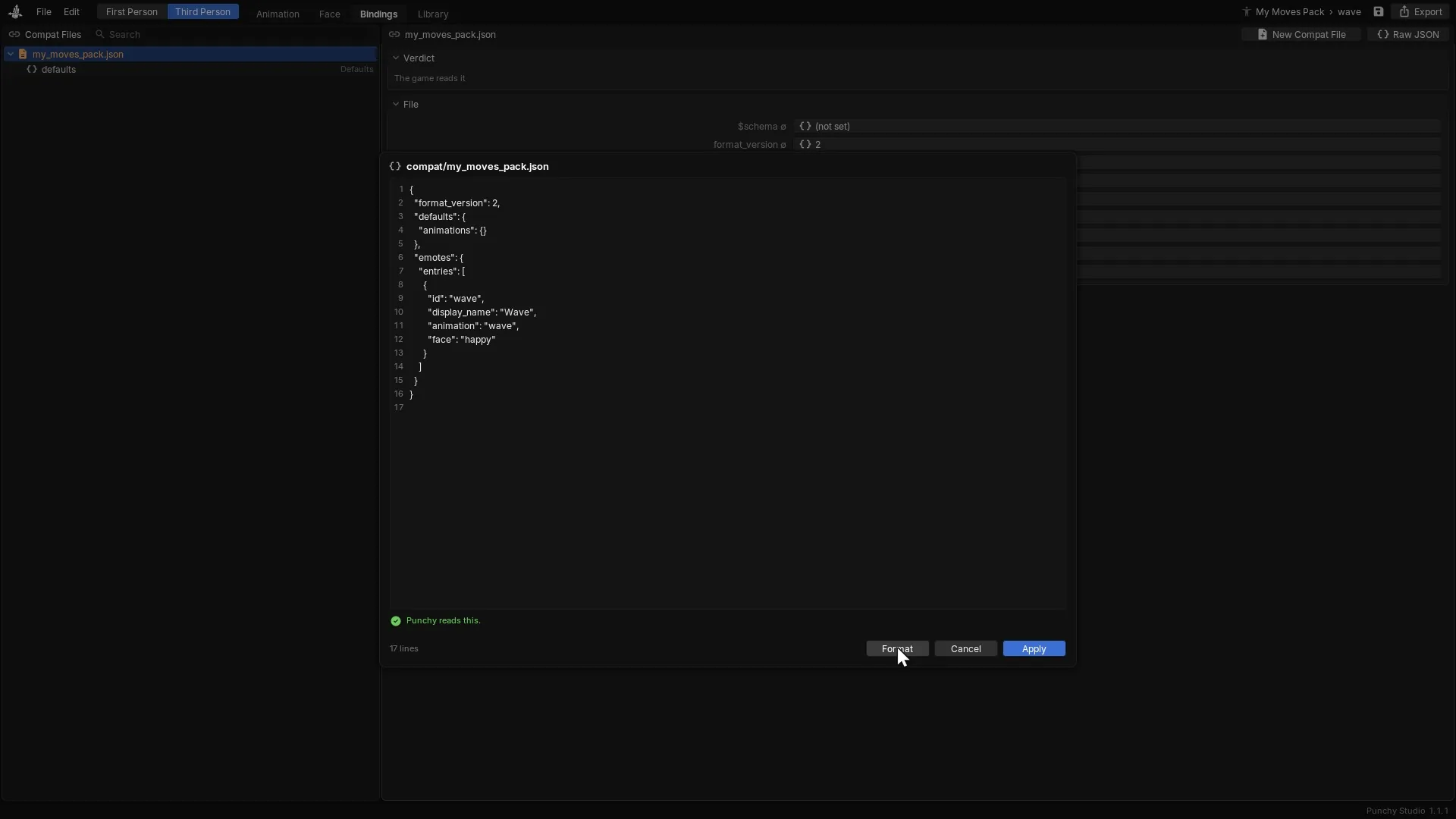
The same steps in My Moves Pack, made on Punchy! Studio for Moves packs: File > Raw JSON, an entry for its wave clip typed in with no keybind, then Format, the line saying Punchy reads this, and Apply. Your entry is hello_wave on H. -
Wait for the line under the text to say Punchy reads this. and press Apply.

You can also select the Emotes object in the outliner and edit its entries in the sheet.
Export and play it
- Press Ctrl+E. In Export Punchy Moves Pack, keep the Pack name, keep Turn the pack on and reload ticked and press Export.
- Close the editor with F6 and press F5 to look at your player in third person.
- Stand still and press C, then click Hello wave. Or press H to skip the wheel.
Studio names the files after the pack, so this pack differs a little from the Blockbench folder. In resourcepacks/Hello Pack it writes a pack.mcmeta, the compat file assets/punchy_moves/compat/hello_pack.json with the entry above, and the animation file assets/punchy_moves/animations/hello_pack.json, which holds your hello_wave clip and the starter clip new_clip. It also keeps a small .editor-projects folder of its own in the pack. The game reads the pack the same way.
Standing still, your player waves and the face smiles. Moving, or doing anything else with the body, ends the emote early.
Video coming soon
Give it a key
The keybind in the entry is the key the emote starts on the first time the game sees it. From then on the key belongs to the player.
- No
keybind. The emote is on the wheel only, until a player gives it a key. The tile shows the game’s own text for a key that is not set. - Writing the key.
Handhare the same, and so is the full namekey.keyboard.h. See Key names for the list. A name the game does not know leaves the emote without a key. - A key is made once. The game makes the key the first time it sees the emote’s
idand keeps it for the session. If you changekeybindand reload, the key that exists does not move, and a key the game has already saved for the emote comes back after a restart too. Set it by hand as below. - Press once. Only a key press counts, with no screen open. Holding the key does nothing more.
A player changes an emote’s key like any other:
- Press Esc, then open Options, Controls and Key Binds.
- Scroll to the category Punchy Moves. The rows are in alphabetical order, so the emote rows, named Emote: Hello wave, come before Open Camera Settings.
- Click the button beside Emote: Hello wave and press the new key, say G.
Video coming soon
A key a player sets always wins over the pack’s keybind. When two things share a key, Moves checks the camera keys first, then the wheel key, then each emote in the order of the list, and the first match gets the press. Give each emote its own key. Keys and emotes has the whole order.
Add more emotes and move the wheel
Every entry in entries is one more tile on the wheel and one more key. The wheel shows four emotes a page, with the < and > buttons to turn the pages. menu_key is the key that opens it, C unless you set another. This is a compat file with two entries from the example pack provided by Crafto and the wheel key spelled out:
{
  "format_version": 2,
  "emotes": {
    "menu_key": "C",
    "entries": [
      { "id": "hello", "display_name": "Hello", "animation": "hello_nleg", "keybind": "H" },
      { "id": "dance_emote", "display_name": "Dance", "animation": "listening_song", "keybind": "L" }
    ]
  }
}- Entries from every compat file and every active pack are added to one list, in the order of the files. Files are read in the order of their full path. When two active packs have a compat file at the same path, only the higher pack’s copy is read, so give your file a name of its own. A pack that lists the same
idas another shares that emote’s key. - The last file that sets
menu_keywins. Like an emote’s key, the wheel key is made once per session, so a differentmenu_keyafter a reload does not move it. - A clip can serve an emote and something else at the same time. Dance in the example pack plays
listening_song, the clip that pack also uses while music is playing nearby.

Pick the face
face names the look the face plays while the emote runs. Leave it out and the face plays Happy. The name has to be one of the built-in looks written exactly in lower case, such as happy, cheery, sleepy or wink_left. Any other name, a capital letter or a look your own pack draws plays Happy. The full list is on Keys and emotes, and a face that moves during the emote goes in the clip itself: see Faces in packs and clips.
Only your own avatar gets the emote face. In Punchy’s new menu, the Face tab of the Punchy Moves group has an Emotes switch, on by default, that turns the emote look off.
The emote keys at a glance
| Key | Type | Default | What it does | Example |
|---|---|---|---|---|
menu_key | key name | C | The key that opens the emote wheel. The last file that sets it wins. Made once per session. | "C" |
entries | array | The emotes, in the order the wheel shows them. | ||
animationRequired | string | The clip to play, spelled exactly as in the animation file. An entry without it, or with a clip no pack defines, is left out of the wheel and the key binds. | "hello_ | |
id | string | the clip name | Tells emotes apart. It is made lower case and any character other than a to z, 0 to 9, underscore, dot and hyphen becomes an underscore. Two entries with the same id share one key. | "hello" |
display_ | string | the id | The name on the wheel, in the key binds and on the Shortcuts page. Give every emote its own. | "Hello" |
keybind | key name | no key | The key the emote starts on. H and key. are the same key. | "H" |
face | look name | happy | The look the face plays with the emote. Lower case, one of the built-in names. | "cheery" |
Most of these keys can also be written under a second name, and the compat files page lists them: see Emotes in compat files.
When an emote plays
- Only while you stand on the ground and keep still. An emote key pressed while you move is dropped, not saved for later.
- Not while the body is busy: mining, attacking, swinging, using an item, jumping, falling, climbing, crawling, flying, swimming or wading in shallow water.
- The clip plays once from start to end, then the pose fades out. That is true even for a clip marked
loop, so a long emote needs a long clip. Dance in the example pack provided by Crafto, for one, plays its 1.33 second clip once. - Moving, or starting something else with the body, ends it at once and the pose blends back to what you were doing.
- Press the same emote’s key while it plays and it starts over. Press another emote’s key and that one takes over.
- Other players do not see your emotes. They are never sent over the network.
Things that go wrong
Things that drop a whole file
The game drops the whole compat file, and every emote in it, when:
format_versionis missing, or is anything other than2or"2".- The root has a key the format does not take. The root takes
$schema,format_version,defaults,item_groups,items,empty_hand,variables,camerasandemotes, and no others. A misspelledemotedrops the file. - The JSON is broken, such as a missing comma.
The game writes a line starting with Could not load animation compat to its log and shows nothing on screen. In Studio, the line under the Raw JSON text tells you as you type.
Why my emote does not show or play
| What you see | Why |
|---|---|
| The emote is not on the wheel | Its animation is not spelled exactly like the clip’s name, or no active pack has that clip. Names are case-sensitive. The game writes nothing to the log for a skipped emote. |
| The wheel says “No emotes in the active pack” | No active pack has a compat file with emotes, or its file was dropped. Turn the pack on and press F3+T. |
| The wheel opens and the click does nothing | You were moving, in the air, in water or in the middle of another action. Stand still on the ground and try again. |
| The emote stops half way | You moved, swung or used an item. That ends an emote. |
| The emote is over after one pass | An emote plays once, even from a clip marked loop. Make the clip longer. |
| The key does nothing | The keybind is a name the game does not know, or the key belongs to something that comes first in the order. Moves’ own keys come first: the camera keys (V, B and F7 by default) and the wheel key. An emote on one of them never gets the press. An emote on F6 plays instead of opening Punchy! Studio. |
I changed keybind and the key stayed | The key already exists and keeps its value. Set it in Controls. |
| Two emotes share a key | They have the same keybind, or the same id, which makes them share one key. Either way only the first in the list gets the press. Give each emote its own keybind and its own id. |
| Two rows in Controls have the same name | Two emotes have the same display_. |
| The face is always Happy | The face is not exactly one of the built-in names, in lower case. |
| Only I see the emote | That is how it works. Emotes are not sent to other players. |
Related pages
- Keys and emotes for every Moves key, the wheel and the list of faces.
- Compat files for everything else a compat file can do.
- Animation files and How to create custom animations for the clip.
- Faces in packs and clips and Face reactions for looks.
- Punchy! Studio for Moves packs and Studio: Game view and live preview for watching a clip on your player while you key it.
- Troubleshooting and the FAQ.
Last checked against the mod on 30 October 2026.